In today’s interconnected world, WhatsApp has evolved from a simple messaging app into a critical communication hub for billions. Its seamless integration of texting, voice calls, and video calls has made it indispensable. However, this reliance means that encountering an error like “Unavailable” can be more than a minor inconvenience—it can disrupt personal and professional communication. This comprehensive guide will demystify the “Unavailable” status across WhatsApp’s calling and messaging features, providing you with authoritative explanations and actionable solutions to restore your connectivity.
Decoding “Unavailable” on WhatsApp Calls
When your WhatsApp call attempt is met with an “Unavailable” message, it signifies that the app cannot establish a connection with the recipient’s device at that moment. This status is a blanket indicator for a wide range of potential issues, from simple connectivity problems to deliberate user settings. Understanding the root cause is the first step toward resolving it.
Primary Causes: Recipient Device and Network Status
The most common reasons are directly related to the recipient’s immediate situation or network environment.
- No Internet Connection: WhatsApp calls are VoIP (Voice over Internet Protocol). A weak or non-existent internet connection on either end will prevent the call from connecting. This includes unstable Wi-Fi or poor cellular data signals.
- Phone Powered Off or in Airplane Mode: A device that is switched off or has its radios disabled is, by definition, unreachable. The “Unavailable” status will persist until the device is back online.
- Do Not Disturb Mode: Users may activate WhatsApp’s “Do Not Disturb” within the app’s settings or use their phone’s system-wide DND. This silences all incoming call rings and notifications, often returning an “Unavailable” signal to the caller.
- Busy on Another Call: WhatsApp does not currently support call waiting. If the recipient is on another WhatsApp or cellular call, your attempt will fail with an “Unavailable” message.
- App Closed or Phone Locked: While WhatsApp can receive calls in the background, some aggressive device battery optimizations or manual closure of the app can prevent it from running, making the user temporarily unreachable.
Configuration and Privacy Settings
WhatsApp offers granular privacy controls, which can actively result in an “Unavailable” status for callers who do not meet the criteria.
- Custom Privacy Settings: In Settings > Privacy > Calls, users can restrict calls to “Everyone,” “My Contacts,” or “Nobody.” If you are not in the recipient’s contacts and they have chosen “My Contacts,” your call will not go through.
- You Have Been Blocked: Being blocked is a definitive cause. The caller will typically hear the ringtone once before seeing “Unavailable,” and all messages will show a single grey checkmark (sent but not delivered). It’s important to consider this possibility only after ruling out other technical causes.
Technical and Systemic Issues
Sometimes, the problem lies with software, infrastructure, or external restrictions.
Application and Device Health
- Outdated App Version: Running an obsolete version of WhatsApp can lead to compatibility issues with the servers or the recipient’s newer version, causing call failures.
- Battery Saver or Interfering Apps: Aggressive power-saving modes and certain security/firewall apps can restrict WhatsApp’s necessary background data and network access, disrupting call functionality.
- Corrupted App Data or Cache: Glitches within the app’s stored data on your phone can cause erratic behavior, including the “Unavailable” error.
Network and Server Problems
- Firewall or Network Restrictions: Common on corporate, school, or public Wi-Fi networks, firewalls may block VoIP traffic entirely, preventing WhatsApp calls from connecting.
- WhatsApp Server Downtime: Although rare, widespread outages do occur. If thousands of users report issues simultaneously on platforms like Downdetector, the problem is likely on WhatsApp’s end.
- Regional Restrictions: Several countries impose bans or restrictions on VoIP services like WhatsApp calls. If you or the recipient are in such a region (e.g., parts of the Middle East or Asia), the call feature may be legally blocked.
Understanding “Unavailable” on WhatsApp Video Calls
The “Unavailable” status for video calls shares all the same potential causes as voice calls, with a few additional considerations due to the more data-intensive nature of video.
- Insufficient Bandwidth: Video calling requires a consistently strong and fast internet connection. Even if a voice call might connect, a poor connection may cause a video call attempt to fail immediately with an “Unavailable” message.
- Device Capability Issues: An older device struggling with processing power or available memory might fail to initiate the video component, resulting in an unavailable status.
- Camera/Microphone Permissions: If the recipient has denied WhatsApp access to their camera or microphone, the app may not allow the video call to connect properly. Encourage them to check their device’s app permission settings.
The troubleshooting steps are identical to those for voice calls: check connectivity, update the app, review privacy settings, and ensure no network-level blocks are in place.
“Unavailable” in WhatsApp Messaging Context
While less common, you might encounter an “unavailable” context in messaging, typically related to status or information visibility.
- Last Seen & Online Status: If a user has set their “Last Seen” privacy to “Nobody” or specifically excluded you, you will see “Unavailable” in place of their last active timestamp. This is a privacy feature, not an error.
- Profile Information: Similarly, if someone restricts who can see their profile photo, about info, or status updates, those fields may appear blank or state “unavailable” to users outside their allowed list.
- Message Delivery: A message that remains stuck with a single grey checkmark (sent) for an extended period could be described as “unavailable for delivery,” often pointing to the recipient being offline, having no connection, or having blocked you.
Professional Troubleshooting Guide: Step-by-Step Solutions
Follow this structured approach to diagnose and resolve the “Unavailable” error.
Step 1: Basic Checks (For You and the Recipient)
- Verify Internet Connection: Switch between Wi-Fi and mobile data to test the connection. Perform a speed test if necessary.
- Restart Your Device: A simple reboot can clear temporary software glitches affecting connectivity.
- Check for WhatsApp Outages: Visit sites like Downdetector or WhatsApp’s official Twitter support page to rule out a global service issue.
Step 2: Application and Settings Review
- Update WhatsApp: Go to your device’s app store (Google Play Store or Apple App Store) and ensure you have the latest version installed.
- Review Privacy Settings: Confirm your own and ask the recipient to check their call privacy settings (Settings > Privacy > Calls).
- Disable Battery Optimization: In your device settings, find battery optimization for WhatsApp and set it to “Don’t optimize” or “Unrestricted” to ensure it can run in the background.
- Check App Permissions: Ensure WhatsApp has necessary permissions (Phone, Microphone, Camera for video calls) enabled in your device’s settings menu.
Step 3: Advanced Troubleshooting
- Reinstall WhatsApp: As a last resort, uninstall and then reinstall WhatsApp. Crucially, back up your chats first (Settings > Chats > Chat Backup) to avoid permanent data loss.
- Bypass Network Restrictions: If you suspect a firewall (e.g., on a workplace network), try using a reputable VPN service to encrypt your traffic, which may bypass such restrictions.
- Contact Your Network Provider: Inquire if they are blocking VoIP services or if there are service disruptions in your area.
Conclusion: Regaining Reliable Connection
The “Unavailable” status on WhatsApp is a multifaceted signal, not a single error. It acts as a privacy safeguard, a network diagnostic tool, and a feature limitation indicator all at once. By systematically working through the potential causes—starting with connectivity, moving to app health and settings, and finally considering privacy blocks or regional bans—you can effectively identify and overcome the barrier to communication.
Maintaining an updated app, understanding the platform’s privacy controls, and being aware of network limitations are the best practices for minimizing these disruptions. If problems persist despite thorough troubleshooting, consulting WhatsApp’s official help center or your device manufacturer’s support should be your next step. Empowered with this knowledge, you can navigate WhatsApp’s connectivity issues with confidence, ensuring you remain available to the conversations that matter most.
✨ Enhanced Content ✨
You can’t find anyone that doesn’t use WhatsApp these days. All of us use its many features everyday, like messaging, voice calls, video calls, group chats, etc.
Now, The problem that may occur in this amazing messaging app, is that sometimes you may face the error “Unavailable” on WhatsApp calls.
Stay with us throughout this blog to find out what does unavailable mean on WhatsApp calls, video calls and messaging.
What Does Unavailable on WhatsApp Call Mean
On WhatsApp, when a call is marked as “unavailable,” it typically means that the person you are trying to call is currently unable to answer the call. There could be several reasons for this:
No Internet Connection
The person you’re calling may not have an active internet connection at the moment, or their connection may be too weak to support a call.

Phone Turned Off or in Airplane Mode
If the person’s phone is turned off or in airplane mode, they won’t receive your call until they turn it back on or disable airplane mode.
Do Not Disturb Mode
Some users set their WhatsApp to “Do Not Disturb” mode, which silences incoming calls and notifications.
Read more: Secrets to block someone on WhatsApp without them knowing
Custom Privacy Settings
WhatsApp allows users to customize their privacy settings, including who can call them. If the person has restricted calls to only their contacts or a specific list of people, you might see “unavailable” if you’re not in that list.
Phone is Locked or App is Closed
If the person’s phone is locked or if they’ve completely closed the WhatsApp app, they won’t receive calls until they unlock their phone or open the app.
Offline or Inactive
The person might be offline or not actively using WhatsApp at the moment,
which would result in the “unavailable” status.
User Being Blocked
When you see the ‘unavailable’ status, it may indicate that the contact you’re trying to call has blocked you. They have essentially restricted you from contacting them on WhatsApp.
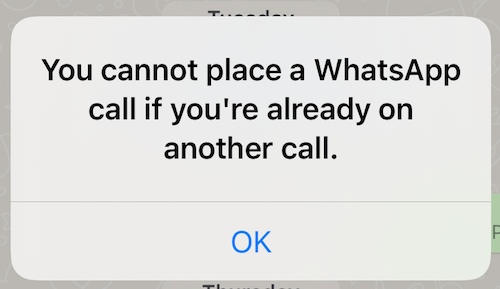
Busy on Another Call
The person might be engaged in another call on WhatsApp, which prevents them from accepting additional calls simultaneously.
Application Glitch
Sometimes, WhatsApp may show “unavailable” due to application glitches, such as an outdated version or app bugs. These glitches can temporarily disrupt your messaging experience.
An outdated or buggy version of WhatsApp might erroneously display the “unavailable” status. It’s like trying to read a book with missing pages; you won’t get the whole story.
Update WhatsApp to the latest version. If that doesn’t resolve the issue, consider reinstalling the app (back up your chats first).
Read more: If Someone Muted You on WhatsApp, Can You Still See If They are Online
A Firewall Is In Your Way
Firewalls can block certain types of connections, including WhatsApp. Your firewall might prevent you from connecting to WhatsApp servers.
Try switching to your mobile carrier’s network (turn off Wi-Fi). If calls work on the mobile network but not on Wi-Fi, your firewall may be the issue. You can try whitelisting WhatsApp in your firewall settings to grant it specific permission.
Server Downtime
“Unavailable” due to server issues means that WhatsApp’s servers, which host the service, are temporarily down, affecting users worldwide.
When servers are down, they cannot process requests, causing calls, messages, and other functions to appear as “unavailable.” It’s similar to a closed highway for maintenance; no traffic can pass.
In such cases, patience is essential. Monitor official WhatsApp channels or websites for server status updates, as service usually returns to normal within a few hours.
Battery Savers or Other Apps Are Interfering
Battery-saving apps or other applications can interfere with WhatsApp’s demanding internet connections, especially if your battery is low.
Identify and disable or uninstall apps that might be affecting WhatsApp. Security software and data management apps are common culprits.
The App Is Out Of Date
Using an outdated version of WhatsApp can lead to compatibility issues and result in the “WhatsApp Call Unavailable” message.
Ensure both you and the recipient are using the latest version of WhatsApp by checking for updates in your device’s app store or downloading the latest version from the WhatsApp website.
There Are Regional Restrictions
Some countries prohibit WhatsApp calling, and you won’t be able to complete WhatsApp calls in such regions.
Check whether you or the recipient are in a region that restricts WhatsApp calling. WhatsApp complies with international regulations, so calling may be restricted in certain countries.
What Does Unavailable Mean on WhatsApp Video Call
When a video call is marked as unavailable, it typically means that the person you are trying to video call is currently unable to answer the call using video. Similar to voice calls, here are the possible reasons:
- There Are Regional Restrictions
- The App Is Out Of Date
- You’ve been blocked
- Server Downtime
- Inactive
- etc
What Does Unavailable Mean on WhatsApp Messenger
In WhatsApp Messenger, the term “unavailable” typically refers to the status of a contact or a message.
Here are a few scenarios in which you might encounter the term “unavailable” on WhatsApp:
Contact Unavailable
When a contact appears as ‘unavailable’ in your chat list, it typically indicates that the person is presently inactive on WhatsApp or is not currently connected to the internet
In this case, they may not receive your messages or calls until they come online.
Read more: Easiest Guide to Freeze WhatsApp Last Seen+pictures
Message Not Delivered
If you send a message to a contact, and it shows as “message unavailable” or “not delivered,” it means that WhatsApp was unable to successfully deliver the message to the recipient.
This can happen if the recipient’s phone is turned off, they don’t have an internet connection, or they have blocked you.
Group Chat Member Unavailable
In a group chat, if a member is marked as “unavailable,” it can mean that they have left the group or that their account is temporarily suspended or restricted for some reason.
Status Updates Unavailable
If you try to view someone’s status updates, and they are marked as “unavailable,” it could mean that the person has restricted their status updates to a select group of contacts, and you are not in that group.
Call Unavailable
When you attempt to make a WhatsApp call, and it shows as “unavailable,” it typically means that the call couldn’t be established.
This could be due to various reasons, such as the recipient’s phone being offline, in airplane mode, or experiencing network issues.
Why WhatsApp Call Unavailable but Message Delivered?
When you encounter a situation where a WhatsApp call is marked as “unavailable” but a message you’ve sent is marked as “delivered,” it can be due to several factors.
WhatsApp handles calls and messages differently, and the availability of one feature doesn’t necessarily guarantee the availability of the other.
Here are some possible reasons for this discrepancy:
Internet Connection
The most common reason for this situation is the recipient’s internet connection.
If the recipient has an active data or Wi-Fi connection but is not available to answer calls (perhaps their phone is in silent mode or they are busy with other tasks), WhatsApp may still be able to deliver messages because they are a less intrusive form of communication.
Calls, on the other hand, require the recipient’s active participation.
App Background
WhatsApp can deliver messages even if the app is running in the background or not actively in use.
Calls, on the other hand, often require the recipient to be actively using the app or at least have it open for the call to connect.
Read more: Secret Tips to Know if Someone Uninstalled Whatsapp
Privacy Settings
The recipient might have configured their WhatsApp privacy settings to allow messages from everyone or specific contacts but restricted calls to a smaller group.
This would allow messages to be delivered while calls remain unavailable.
Do Not Disturb Mode
If the recipient has enabled “Do Not Disturb” mode on their device, it may prevent WhatsApp calls from ringing and being accepted, but messages can still be delivered silently.
Network Issues
The recipient may be experiencing network issues that affect calls but not messages.
WhatsApp messages can sometimes be delivered even with a slower or less stable connection, whereas calls require a more stable and higher bandwidth connection.
In essence, WhatsApp messages and calls have different requirements and behaviors.
While a message can be delivered even when the recipient is not actively available or when they have certain privacy settings in place, a call may require more immediate attention and specific conditions to connect.
Therefore, it’s possible for a message to be delivered while a call remains “unavailable” due to these various factors.
FAQs
Now let’s answer some frequently asked questions on this matter:
What’s The Difference between Unavailable and Not Answered on WhatsApp?
“Unavailable” typically means the recipient couldn’t answer the call due to various reasons, like network issues or privacy settings. “Not answered” specifically means the call rang but the recipient chose not to answer.
How to Make WhatsApp Call Unavailable?
You can’t manually make a WhatsApp call appear as “unavailable.” It depends on the recipient’s status, network, or device settings.
What Does Unavailable Call Mean on WhatsApp?
A call marked as ‘unavailable’ on WhatsApp typically indicates that recipient-related issues, such as no internet connection, a turned-off phone, or privacy settings, prevented the call from being completed.
How to Tell If Someone Is on Another WhatsApp Call?
WhatsApp doesn’t provide a direct indicator to show if someone is on another call. You may notice they’re “online” or “typing” during a call attempt, but it’s not a definitive sign.
Meaning of “Unavailable” When Calling Someone on WhatsApp
If you call someone on WhatsApp, and it says “unavailable,” it means the call couldn’t connect due to issues on the recipient’s end, like their phone being offline or in a call with someone else.
Final Thoughts
We’ve explored the possible causes, ranging from server downtime to application glitches, and even the potential of being blocked
Armed with this knowledge, you can troubleshoot and understand why your WhatsApp call might display as unavailable.
So, the next time you encounter this status, you won’t wonder; you’ll have the tools to navigate the situation and resume seamless conversations with your loved ones
[elementor-template id="24702"]