The Critical Importance of Instagram Message Recovery
In the digital age, our conversations hold immense value. From cherished personal memories and crucial business negotiations to vital evidence and sentimental exchanges, Instagram Direct Messages (DMs) often become an unofficial archive of our lives and work. The sinking feeling that follows accidentally deleting an important message is universal. You are immediately left with pressing questions: Is it possible to retrieve deleted Instagram messages? Are they gone forever, or is there a way back? This guide addresses these concerns head-on, providing authoritative, actionable methods for Instagram message recovery. Whether you manage a brand account or use Instagram for personal connection, understanding how to safeguard and recover your data is not just useful—it’s essential for digital well-being.
Understanding Instagram’s Data Philosophy: Deletion vs. “Unsend”
Before diving into recovery methods, it’s crucial to understand how Instagram handles message deletion. Contrary to popular belief, when you delete a message, Instagram typically doesn’t immediately purge it from existence. Instead, the platform often treats the action as “unsending”—removing it from the visible chat interface for all parties while potentially retaining a copy on its servers for a period. This technical nuance is the foundation of most recovery techniques. However, recovery success is not guaranteed and hinges on several variables including the method of deletion, time elapsed, whether data was backed up, and the specific platforms (iOS or Android) involved. The following sections detail the most effective strategies, from official Instagram tools to clever platform-specific workarounds.
Method 1: Official Instagram Data Download (The Most Reliable Method)
Instagram provides users with a powerful self-service tool to download a copy of their information, which can include message history. This is the most official and comprehensive method for Instagram message recovery, as it accesses data Instagram stores associated with your account.
Step-by-Step Guide to Download Your Instagram Data
Follow these steps meticulously to request and obtain your data archive:
- Open the Instagram app and navigate to your profile page.
- Tap the three horizontal lines (menu icon) in the top-right corner.
- Select Your activity from the menu list.
- Scroll to find and tap Download your information.
- You will be prompted to Download or transfer information. Tap to proceed.
- Choose the data range and format (HTML is recommended for easy viewing).
- Select your preferred delivery method (email link is standard).
- Tap Create files. Instagram will notify you when your download is ready, which can take up to 48 hours.
What to Do After Receiving Your Data File
Once you receive the email from Instagram, download the ZIP file and extract it. Navigate to the messages folder. Here, you will find JSON or HTML files containing your message history, potentially including timestamps and participant information. Important Note: This archive is a snapshot and may not contain messages deleted shortly before the request. For ongoing protection, make this a quarterly or bi-annual habit.
Method 2: Utilize Android Notification History (A Clever Workaround)
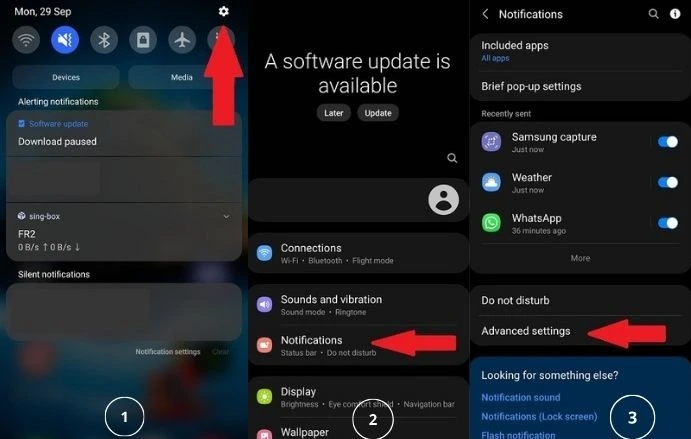
For Android users (version 11 and above), a built-in system feature offers a potential glimpse into deleted messages. The Notification History log retains the content of alerts, including message previews, even if the corresponding message was later deleted from the app. Crucially, this method is best for recovering messages deleted by the other person in a chat, as your phone would have received a notification for it.
How to Access and Enable Notification History
This feature must be enabled proactively. To check and turn it on:
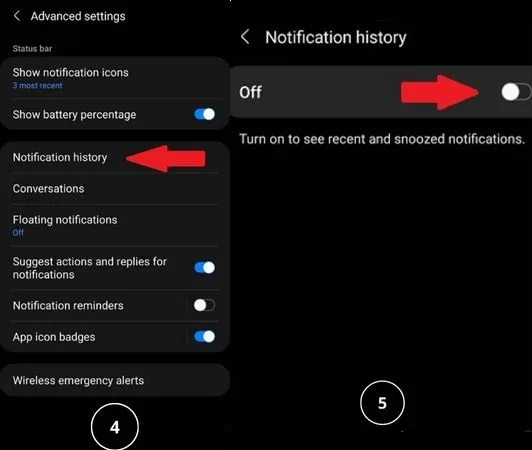
- Go to your device’s Settings > Notifications > Advanced Settings.
- Locate and select Notification History.
- Toggle the switch to ON.
- Return to this log later to scroll through past notifications. Instagram message previews may be visible here, allowing you to recover the text content.
Limitation: This does not recover media files (photos/videos) and only stores notifications for a short, device-dependent period.
Method 3: Check Connected Email for Message Forwarding
If you previously enabled email notifications for Instagram Direct Messages, your inbox may hold the key. Instagram can send an email alert for each DM received, which often contains the full text of the message. Even if the message is deleted from the app, it persists as a record in your email.
Proactive Setup and Recovery Search
- To Enable: Go to Instagram Settings > Notifications > Email. Ensure notifications for Direct Messages are activated.
- To Recover: Use your email client’s search function with keywords like “Instagram,” “direct message,” or the sender’s name. This method provides a simple, permanent, and searchable backup of your message content.
Method 4: Third-Party Data Recovery Tools (Proceed with Caution)
Various software applications claim to recover deleted data directly from your smartphone. These tools often work by scanning the device’s storage for residual data fragments that haven’t been overwritten.
Critical Considerations Before Using Third-Party Tools
- Trust & Security: Only use reputable, well-reviewed software from official sources. These tools often require deep system access.
- Effectiveness Variance: Success rates are highly inconsistent and depend on phone model, operating system, and how recently data was deleted.
- Root/Jailbreak Risks: Some advanced features may require rooting (Android) or jailbreaking (iOS), which voids warranties and exposes your device to security risks.
This method should be considered a last resort due to its inherent uncertainties and potential security implications.
Method 5: Request the Message from the Other Participant
The simplest solution is often overlooked. If you deleted a message in a one-on-one or group chat, the other participants still have a copy in their inbox (unless they also deleted it or you used “Unsend for Everyone”). A polite request can often resolve the issue quickly. For business communications, this is usually the most professional first step.
Method 6: Implement Proactive Backup Strategies
The most authoritative approach to data recovery is to prevent the crisis altogether. Implementing a routine backup system is the hallmark of savvy digital management.
Building a Robust Backup Routine
- Schedule Regular Instagram Data Downloads: Set a calendar reminder to use Method 1 every 3-6 months.
- Leverage Professional DM Management Tools: Consider using dedicated, trustworthy DM tools designed for businesses. Many offer advanced features like automated backup, message archiving, and forwarding DMs to email or other platforms, creating a seamless audit trail.
- Utilize Cloud Syncing: When you download your Instagram data, choose to transfer it directly to a cloud service like Google Drive or Dropbox for safekeeping.
Conclusion: Empowerment Through Proactive Management
While Instagram does not offer a simple “undo” button for deleted messages, you are far from powerless. As detailed, methods ranging from the official Instagram Data Download to checking Android Notification History or your email inbox can yield success. The overarching lesson, however, is the paramount importance of a proactive stance. Treating your digital communications as valuable assets worthy of protection transforms your approach. By scheduling regular data exports, enabling relevant notifications, and considering professional management tools, you secure not just your messages, but your peace of mind. Start today by downloading your Instagram data and reviewing your notification settings—turning data vulnerability into data resilience.
✨ Enhanced Content ✨
What happens if you delete important messages on Instagram by accident? Is it possible to retrieve deleted Instagram messages? Or are all of your messages gone forever? This is why Instagram message recovery and how to perform it are important.
Whether as a business account or a regular user, we may find some deleted Instagram messages valuable to us. Although it can seem like a disaster, at first sight, there are different ways to recover deleted Instagram messages once they are accidentally gone.
Remember that it would be best to use proper DM tools that help you recover deleted Instagram messages. But there are some other workarounds as well that we’re going to address in this post. So, stay with us!
How to Recover Deleted Instagram Messages
Unfortunately, Instagram doesn’t have a feature that allows you to recover deleted messages directly. Nonetheless, there are a few choices that can help you get back the data and messages you lost.
The effectiveness of these techniques varies depending on a number of variables, such as whether or not the messages were backed up, how they were deleted, or whether they had been forwarded to your email or not. So, let’s dive in and see the methods you can use for Instagram message recovery:
1. Instagram Message Recovery From Instagram Data
Deleted Instagram messages may not be available in your DM inbox anymore, but you can still reach them on the server. In fact, Instagram does not delete Instagram messages; it just unsends them. All you need is to reach Instagram message recovery within the app.
Details of Instagram recovery messages within the app are in the following step-by-step guide:
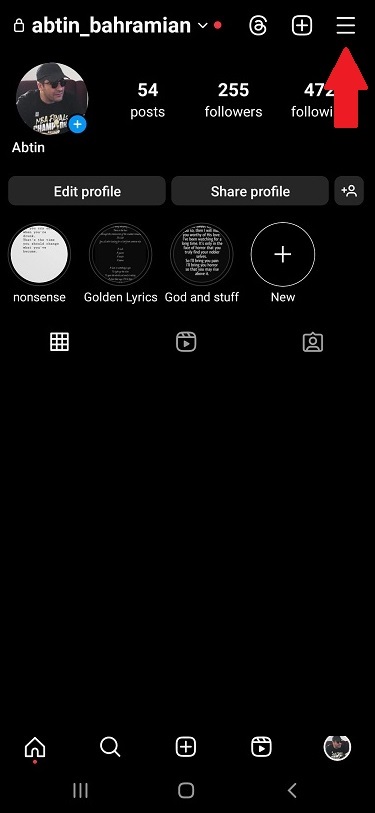
- Tap the three horizontal lines in the top right corner of the profile page to open the menu.
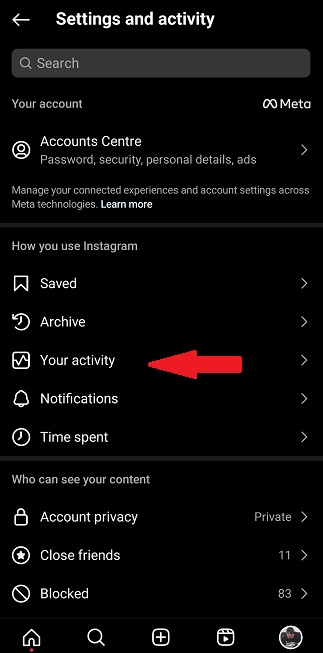
- Select ‘Your activity’ from the menu,
- Scroll down to ‘Download Your Information’ and tap it,
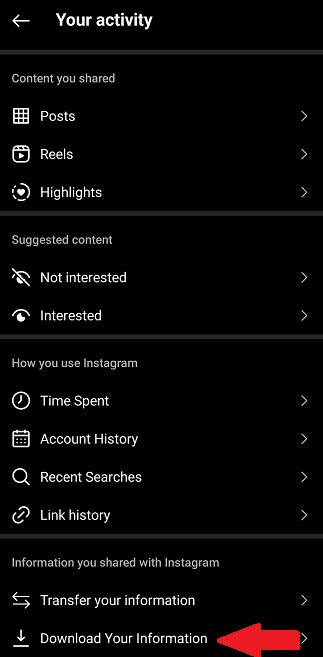
- Tap on ‘Download or transfer information’,
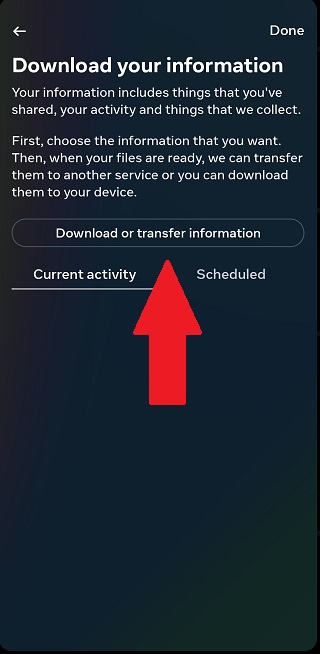
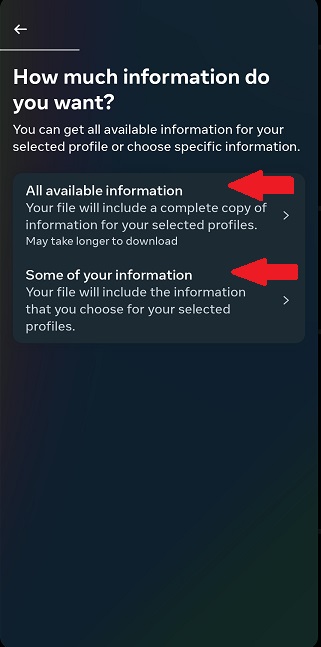
- Select the amount of information you need,
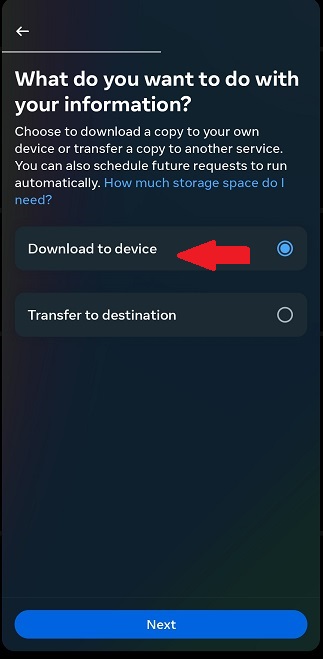
- Choose where you want to save your data or transfer to,
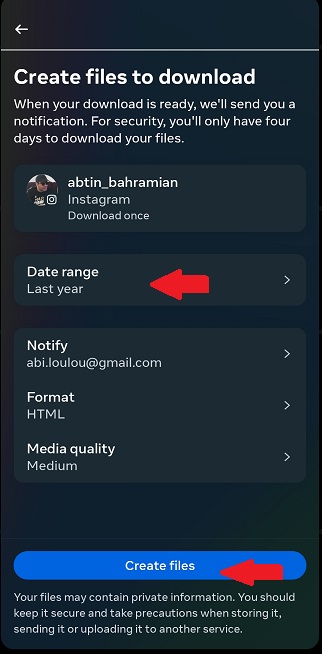
- Choose your ‘Date range’ and tap on ‘Create files’,
If you chose a transfer destination, go through the next steps:
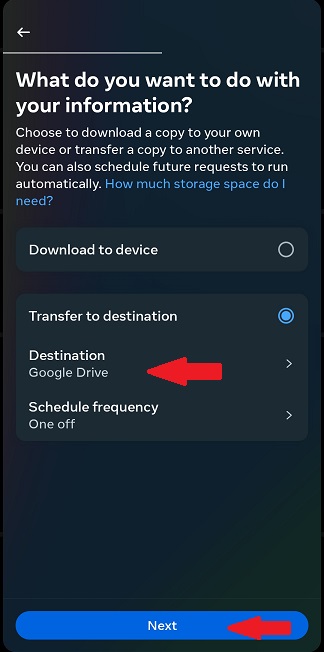
- Select the destination you want to transfer your data,
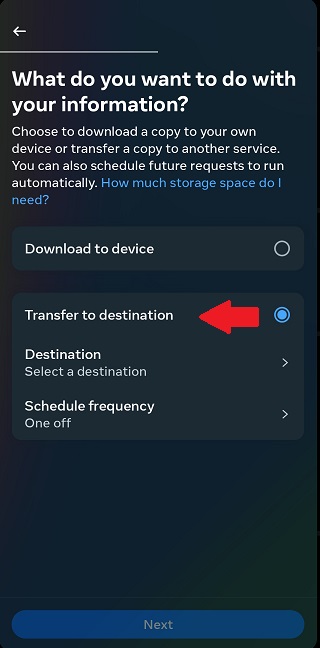
- Choose between ‘Google Drive’ or ‘Dropbox’ and tap ‘Next’,
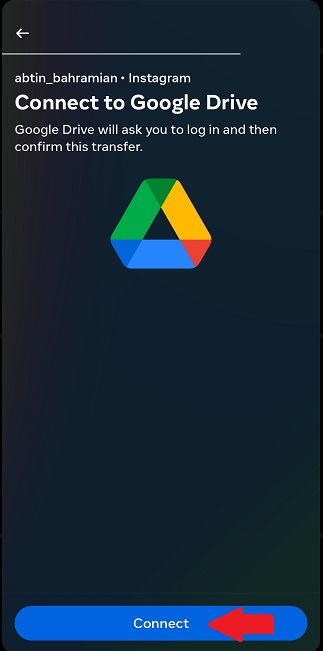
- Connect to your ‘Google Drive’ or ‘Dropbox’,
- Choose your Date range and tap on ‘Start Transfer’.
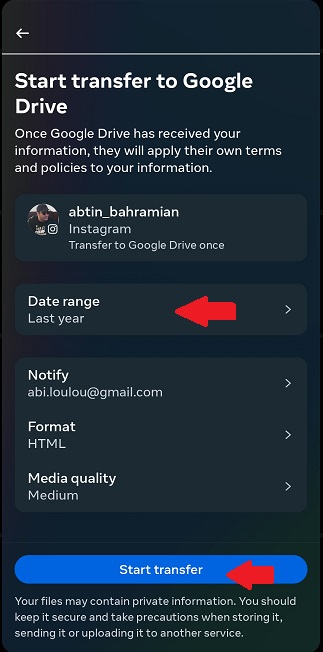
By using this method, you can be sure that your messages will be recovered and ready to be reviewed.
Note: Your Instagram backup is also where you can hide your Instagram messages.
2. Android Notification History
For Android users on version 11 or later, there is another way to see deleted messages on Instagram: the Notification History feature.
However, it must be mentioned that this method is not an actual recovery method and works only for messages that have been deleted by others from your chat.
If you enabled notifications for Instagram and the feature itself beforehand, deleted messages might still be visible in your notification log. Therefore, Instagram message recovery would be available to you. All you need to do is follow the next steps:
- Go to Settings > Notifications > Advanced Settings > Notification History.
- Turn Notification History ON.
- Check for Instagram notifications — they may contain snippets of deleted messages you never thought you’d see again.
3. Instagram Message Recovery Online
Another effective way to recover deleted Instagram DMs is to use a reliable Instagram message recovery app. Let’s look at some of the tools available for you with zero risks:
| App | Key Features | Pros | Cons |
|---|---|---|---|
| DMpro | – DM to Email (stores all DMs in email) – Customized messages – Smart targeting – Guaranteed DM delivery | – Easy DM backup and recovery – Reliable email storage – Privacy-focused | – Requires setup with dashboard – Limited to DM/email functionality |
| iBeesoft | – Multiple recovery modes – Supports many file types – File preview – Compatible with latest iOS | – Broad file recovery support – Selective recovery – Clean, intuitive interface | – Free trial only scans (no recovery) – Effectiveness is limited on damaged/overwritten data – Apple-only, no Android |
| Android Data Recovery | – Direct Android scan – SIM/SD card recovery – Wide data type support – No backup required | – High success rate for photos/videos – No backup needed | – Effectiveness depends on device condition – Some features require a paid version |
| U.Fone | – WhatsApp transfer & management – Instagram compatibility – Virtual location spoofer – iOS & Android support | – All-in-one toolkit – Broad compatibility – Activation lock bypass | – Paid software – Some recovery tools separate |
| FoneLab | – Cross-platform support – Multiple recovery modes – Preview before recovery | – Beginner -friendly interface – Free trial available – Regular updates | – Effectiveness depends on device condition – Some features require a paid version |
#1 DMpro – Instagram Chat Recovery App
As mentioned earlier, DMpro provides you with a great opportunity to forward all your DMs to your email. This can also work as a great tool to recover Instagram messages. So, even if someone unsends a message, you can still see the unsent DM in your email. All your messages are actually stored in your email, JUST by activating DMpro’s ‘DM to Email’ option.
To have a backup of all your DMs, all you need to do is connect your account to DMpro’s dashboard and do as following:
- First of all, sign up on DMpro for free
- Then, go to your dashboard, add your IG account, and tap on ‘Manage.’
- Now, under the ‘Direct Messages’ tab, select ‘DM to Email.’
- Here, write your email address in the box at the top the screen,
- Finally, tap on the ‘Save’ button to automatically send all your DMs to your selected email.
DMpro also offers:
- Manually sent customized messages
- Smart Targeting
- Guaranteed DM Delivery
For a better understanding of how to use DMpro, let’s watch this video about how to send and manage Instagram DMs through your email.
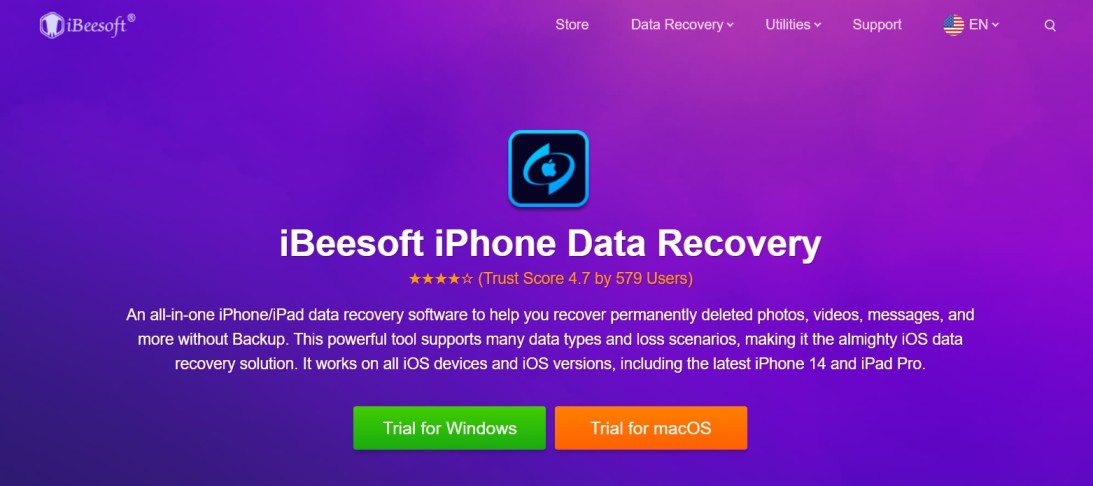
#2 iBeesoft iPhone Data Recovery
iBeesoft is an all-in-one iPhone/iPad data recovery tool that can assist you in recovering completely erased images, videos, messages, and more without the need for a backup.
This program is a good iOS data recovery solution because it supports a wide variety of data types and loss circumstances.
Key Features:
- Multiple Recovery Modes
- Wide Range of Supported File Types
- File Preview Before Recovery
- Up-to-Date Compatibility
Pros:
- Supports a broad range of data types for everyday use
- Allows selective recovery
- Clean and intuitive interface
Cons:
- The free trial only allows scanning, not actual recovery.
- Recovery effectiveness might be limited for heavily damaged or overwritten data
- Only compatible with Apple products
#3 Android Data Recovery
Android Data Recovery was created to assist Android users in recovering deleted or lost data from their Instagram accounts, messages, videos, images, and even other social media app data.
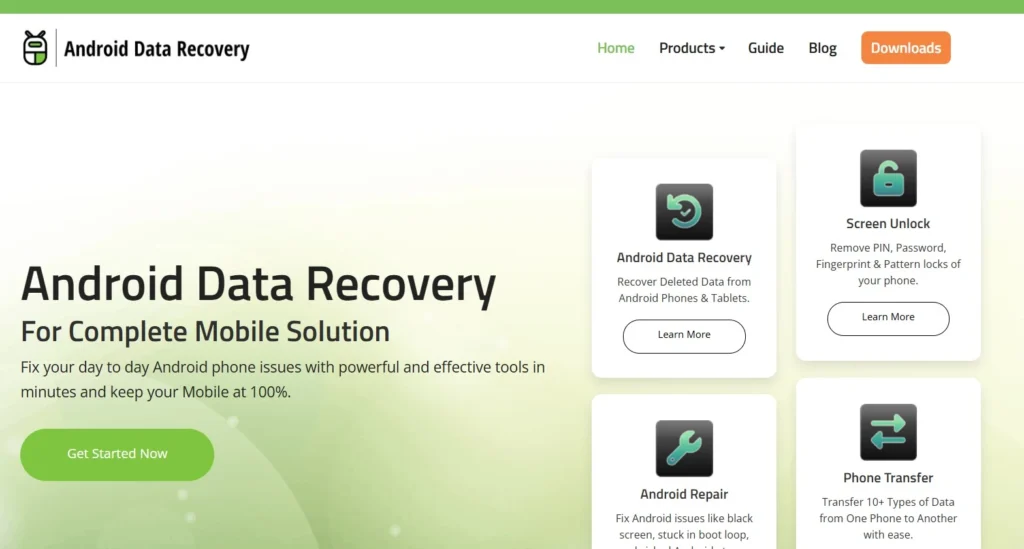
Both internal Android storage and external storage, such as SD cards and SIM cards, are supported for recovery. Let’s look at some of the features Android Data Recovery has to offer:
Key Features:
- Direct Android device scan
- Able to perform SIM card data recovery
- Wide data type support
- No backup required for recovery
Pros:
- High success rate for restoring lost photos and videos.
- Does not require backups
Cons:
- Some features might require a paid version
- Effectiveness depends on the condition of the device
#4 U.Fone IOS Toolkit
Another Instagram message recovery app that used to be an iOS-only data recovery app is U.Fone. However, adding Android to its toolkit, U.Fone helps you recover other data on your phone, such as your contacts, videos, pictures, etc.
U.Fone gives you the opportunity to recover WhatsApp messages as well.
Key Features:
- WhatsApp data transfer & management
- Compatible with the latest Instagram version
- Virtual location spoofer
Pros:
- All-in-One toolkit for iOS users
- Broad compatibility
- Activation lock bypass
Cons:
- Paid software
- Data recovery may require separate tools
#5 Fonelab Instagram Message Recovery App
FoneLab enables you to retrieve data from your iPhone, iPad, or iPod touch without requiring complicated procedures. You may retrieve all of your deleted files from your device, SD card, or SIM card in a matter of minutes using this Instagram message recovery app.
Using Fonable, one can also retrieve all the deleted data, like videos and photos, and have the ability to back them up.
Key Features:
- Cross-platform support
- Multiple data recovery modes
- Preview before recovery
Pros:
- Clean and beginner-friendly interface
- Offers a free trial
- Regularly updated
Cons:
- Full recovery requires the purchase of the software
- Requires connection to a PC
4. Ask The Recipient
Asking the other person is a sensible way to retrieve deleted messages for your clients. This is because Instagram won’t delete chats from both sides except you tell it directly or use vanish mode.
Request screenshots or copies of the deleted conversation from the recipient you’ve been talking to.
Although it’s not ideal, it can be helpful in some cases. Just let them know what you need and hope for the best.
5. Use Facebook
As you know, Instagram and Facebook are both part of Meta, enabling users to coordinate their messaging across the two networks. Utilizing Facebook Messenger, you can retrieve deleted Instagram messages if your Instagram account is linked to Facebook.
This approach is effective because, when linked, both platforms exchange data, including Instagram Direct Messages (DMs). Conversations that were erased from Instagram might be recoverable by going to your Facebook Messenger synchronized chats.
6. Contact Instagram Support
You might want to contact Instagram help if none of the mentioned solutions work. Instagram’s support staff can offer advice or other alternatives depending on your circumstances, even if the platform doesn’t explicitly offer a tool to recover deleted messages.
To get in touch with Instagram support:
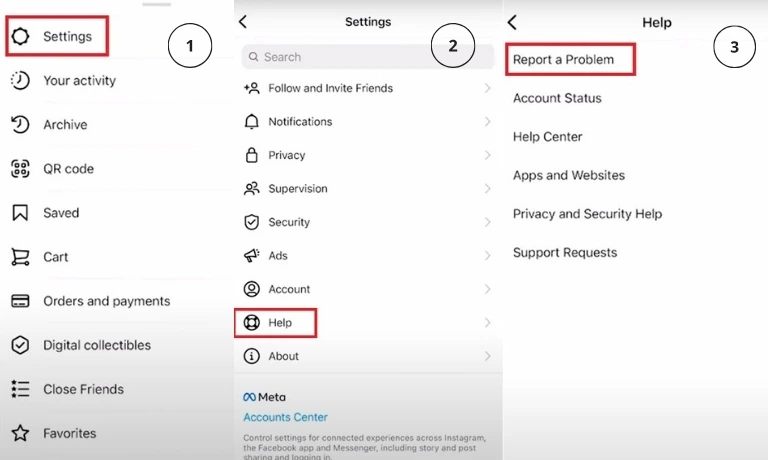
- Choose Settings by tapping the three horizontal lines in the upper right corner.
- Tap Help > Report a Problem.
- Explain your problem and send in your help request.
Conclusion
Recovering deleted Instagram messages may appear impossible. However, with the right Instagram message recovery tools, it’s an easy and doable task for everyone. Begin with the official Instagram data download for the safest and most dependable recovery. If it doesn’t go as planned, think about using reliable recovery software or using Android’s notification history feature to see whether any DMs have disappeared.
FAQs
For sure, finding old messages manually is a tiring process. So, if you are looking for a specific message, just search Instagram messages.
Yes. You can use a third-party app like DMPro or use the ‘Data Download’ option from Instagram itself, which takes more time and the Internet.
You can remove your Instagram account completely, but the direct messages you’ve sent will remain available to other users. Your name won’t appear as the message sender; instead, ‘Instagrammer’ will appear, and your profile image will be deleted from the exchange.
There is a 30-day period after which deleted Instagram accounts may be retrieved; after that, they cannot be recovered permanently. Recovering an account requires signing in again, responding to Instagram’s verification requests, and verifying that the account has been restored within the specified time.
Yes. Data Download includes all of your direct messages and media files shared via messaging and group chats. This aids in maintaining significant media exchanges and communications, and is a safe way to recover your Instagram messages