How to Send Videos on Instagram DM: The Complete 2024 Guide
The Instagram Direct Message (DM) feature has evolved from a simple texting tool into a powerful, multifaceted communication hub. In today’s social media landscape, DMs serve as a critical bridge for personal connection, professional networking, and direct audience engagement. The ability to share rich media—especially video—has transformed private messaging into a dynamic space for storytelling and interaction. If you’ve ever wondered about the mechanics and best practices behind sharing video content privately, you’re in the right place. This comprehensive guide will detail every method for sending videos via Instagram DM in 2024, covering both mobile and desktop platforms, while also introducing advanced solutions for overcoming platform limitations.
Why Video in Instagram DMs is a Game-Changer
Before diving into the “how,” it’s essential to understand the “why.” Video is the most engaging form of content online, and sharing it directly via DM personalizes the experience. It allows for nuanced communication that text and images cannot match, fostering stronger relationships. Whether you’re a creator sharing behind-the-scenes clips with superfans, a business providing personalized customer support, or a friend sending a memorable moment, video DMs are invaluable. They cut through the noise of public feeds and stories, delivering content directly to an individual’s attention.
The Evolution of Instagram’s Messaging Capabilities
Instagram has consistently expanded DM functionalities. What began as a basic text-messaging feature now supports shareable links, high-resolution photos, voice notes, and of course, video. This evolution recognizes the shift towards more private, “dark social” sharing and the demand for versatile communication tools within the app. Mastering video sharing within DMs is no longer just a neat trick; it’s a fundamental skill for anyone looking to leverage Instagram to its full potential.
How to Send Videos on Instagram DM Using the Mobile App
The Instagram mobile app offers the most intuitive and feature-complete experience for sending videos via DM. The process is streamlined for on-the-go sharing, with two primary methods: sharing from your feed/stories or sending directly from your device’s gallery.
Method 1: Sharing a Video from a Feed Post or Story
This method is perfect for quickly passing along public content you think a connection would enjoy.
- Open the Instagram app and navigate to the video you wish to share, whether on your main feed, the Explore page, or a Story.
- Tap the “paper airplane” icon located directly below the video post or on the story interface.
- A direct message window will pop up. Search for or select the recipient(s) from your list of followers and recent conversations.
- You can add an optional text message to accompany the video. Tap “Send” to deliver the video directly to their DM inbox.
Note: When you share a public post via DM, the recipient will see the original caption and the account that posted it, maintaining content attribution.
Method 2: Sending a Video from Your Phone’s Gallery
For sharing personal videos not already on Instagram, this is your go-to method.
- Open your Instagram DM inbox by tapping the messenger icon in the top-right corner of the app.
- Select an existing conversation or start a new one by tapping the compose (pencil and paper) icon.
- In the message composition area, tap the “landscape” (photo/gallery) icon to access your phone’s media library.
- Browse and select the video you want to send. You can select multiple videos at once.
- Tap “Send” to share the video directly in the chat.
Pro Tip: Instagram compresses videos sent via DM to optimize delivery. For the best quality, ensure your original video is clear and well-lit before sending.
How to Send Videos on Instagram DM from a PC or Desktop
While the desktop experience has historically been more limited, Instagram has significantly improved its web functionality. Sending videos from your computer is ideal for content creators or social media managers who work from a larger screen.
Method 1: Sharing from the Instagram Web Feed
- Log into your Instagram account via a web browser (like Chrome, Safari, or Firefox) at instagram.com.
- Navigate to the public video you want to share. Click the “paper airplane” icon below the post.
- A share drawer will appear. Search for and select your intended recipient(s).
- Click “Send” to share the video to their DMs.
Method 2: Uploading a Video from Your Computer Files
- On the Instagram web interface, click the direct message (messenger) icon in the top navigation bar.
- Open the relevant conversation or start a new message.
- In the chat box, click the “plus” (+) or “picture” icon to open your computer’s file explorer.
- Locate and select the video file from your folders.
- Click “Open” to upload and send the video immediately.
Critical Limitation: Instagram’s native desktop platform enforces a strict file size limit of approximately 25 MB for video uploads. This can severely restrict the length and quality of videos you can share directly from your computer, often making it impossible to send clips longer than a minute.
Overcoming Limitations: How to Send Long Videos on Instagram DM
The 25 MB file size cap on desktop and compression on mobile presents a significant hurdle for users who need to share longer tutorials, presentations, or high-quality clips. This is where understanding workarounds and third-party tools becomes essential.
Native Workarounds and Their Drawbacks
- Video Trimming/Splitting: You can use basic editing software to split a long video into smaller, sub-25 MB parts. This is time-consuming and disrupts the viewing experience for the recipient.
- Cloud Link Sharing: Upload the full video to a cloud service (like Google Drive, Dropbox, or WeTransfer) and send the download link via DM. This adds friction, requiring the recipient to leave Instagram and download the file.
These methods are functional but clunky. For a professional, seamless experience that keeps the interaction within the realm of Instagram management, a dedicated tool is superior.
Leveraging DMpro for Advanced Video Sharing and Management
This is where a specialized Instagram DM management tool like DMpro transforms the process. DMpro isn’t just a workaround; it’s an enhancement that turns your Instagram DM into a powerful, professional inbox with extended capabilities.
Key Benefits of Using DMpro for Video DMs:
- Bypass File Size Limits: DMpro’s infrastructure allows for the efficient handling of larger video files, circumventing the restrictive 25 MB barrier imposed by the native desktop app.
- Email Integration: One of DMpro’s core features is the ability to forward and manage your Instagram DMs directly through your email client. Think of it like giving your Instagram inbox the power and flexibility of Gmail or Outlook. You can send and receive messages, including video attachments, from a familiar and robust interface.
- Mass DM Capabilities: For creators, influencers, and businesses, sending personalized video messages at scale is a powerful engagement strategy. DMpro enables you to send preset messages and targeted video content to segments of your audience efficiently, all while maintaining a personal touch.
- Unified Dashboard: Manage all your Instagram message interactions, from customer inquiries to collaboration pitches, in one organized dashboard, significantly improving response times and workflow.
Getting Started with DMpro
- Visit the DMpro website and sign up for a free plan. The process is quick and requires no credit card upfront.
- Connect your Instagram account securely to the platform.
- Explore the dashboard to familiarize yourself with features like the email forwarding setup, mass DM composer, and inbox organizer.
- Begin by sending a longer video to a test account or a colleague to experience the seamless delivery firsthand.
By integrating DMpro into your workflow, you shift from being constrained by Instagram’s basic features to commanding a professional-grade communication suite.
Best Practices for Sending Videos on Instagram DM
- Keep it Relevant: Always consider the recipient’s interests. Unsolicited or irrelevant video DMs can be perceived as spam.
- Add Context: A short introductory text (“Thought you’d find this helpful,” “This reminded me of our conversation”) makes the video share feel personal and considered.
- Mind the Quality: Even with compression, ensure your video is stable (use a tripod if possible) and has clear audio if spoken word is important.
- Respect Privacy: Never share private or sensitive video content via DM without explicit permission from anyone featured in the clip.
- Use for Engagement: Proactively use video DMs to thank new followers, answer complex questions, or provide exclusive content to your most engaged community members.
Conclusion and Final Recommendations
Sending videos through Instagram DM is a straightforward process on mobile and a more limited but functional one on desktop. Mastering both native methods is crucial for everyday use. However, for professionals, influencers, and businesses that regularly share video content, the native 25 MB file size limit on desktop is a major roadblock.
To truly unlock the potential of Instagram DM for video sharing—whether for sending longer clips, managing communications at scale, or integrating with your email workflow—adopting a specialized tool like DMpro is the logical next step. It transforms a basic messaging feature into a powerful channel for personalized engagement and content distribution.
Ready to elevate your Instagram DM strategy beyond basic sharing? Start your free plan on DMpro today and experience the difference of a professional-grade direct messaging toolkit. In less than a minute, you can begin sending longer videos, organizing your inbox, and connecting with your audience in a more meaningful and efficient way.
✨ Enhanced Content ✨
DM on Instagram has improved at a great speed in recent years. You can now use your Instagram DM inbox as a powerful bridge between you and your followers.
Thanks to the variety of content you can share in addition to text messages, such as clickable links, images, and videos, direct messages are substantially growing in popularity. If you’re interested in these features and how they function, one question has undoubtedly crossed your mind- how to send videos on Instagram DM?
This article aims to walk you through every detail you need to know about how to send videos on Instagram DM both on the mobile app and PC. Here, you will learn how to use DM for video purposes and how to send long videos in Instagram chat thanks to one of the best Instagram DM tools in the market, DMpro. So, let us start.
Pro tip: In case you’re looking for an incredible DM tool to target your audience with preset messages and send videos to their DMs, skip this article and start your free plan on DMpro right now!
How to Send Videos on Instagram DM on Mobile
Instagram is one of the most popular social media platforms available on smartphones. And it will take some time for the desktop version to catch up with the mobile app. Fortunately, there are easier approaches when it comes to how to send videos on Instagram DM on mobile so you can easily slide in someone’s DM or sell on Instagram.
We gave you some instructions on how to post videos on Instagram from a PC easily and quickly. Now it’s time to learn how to use the mobile app for sending and sharing your videos. First, we start with the ‘share button’:
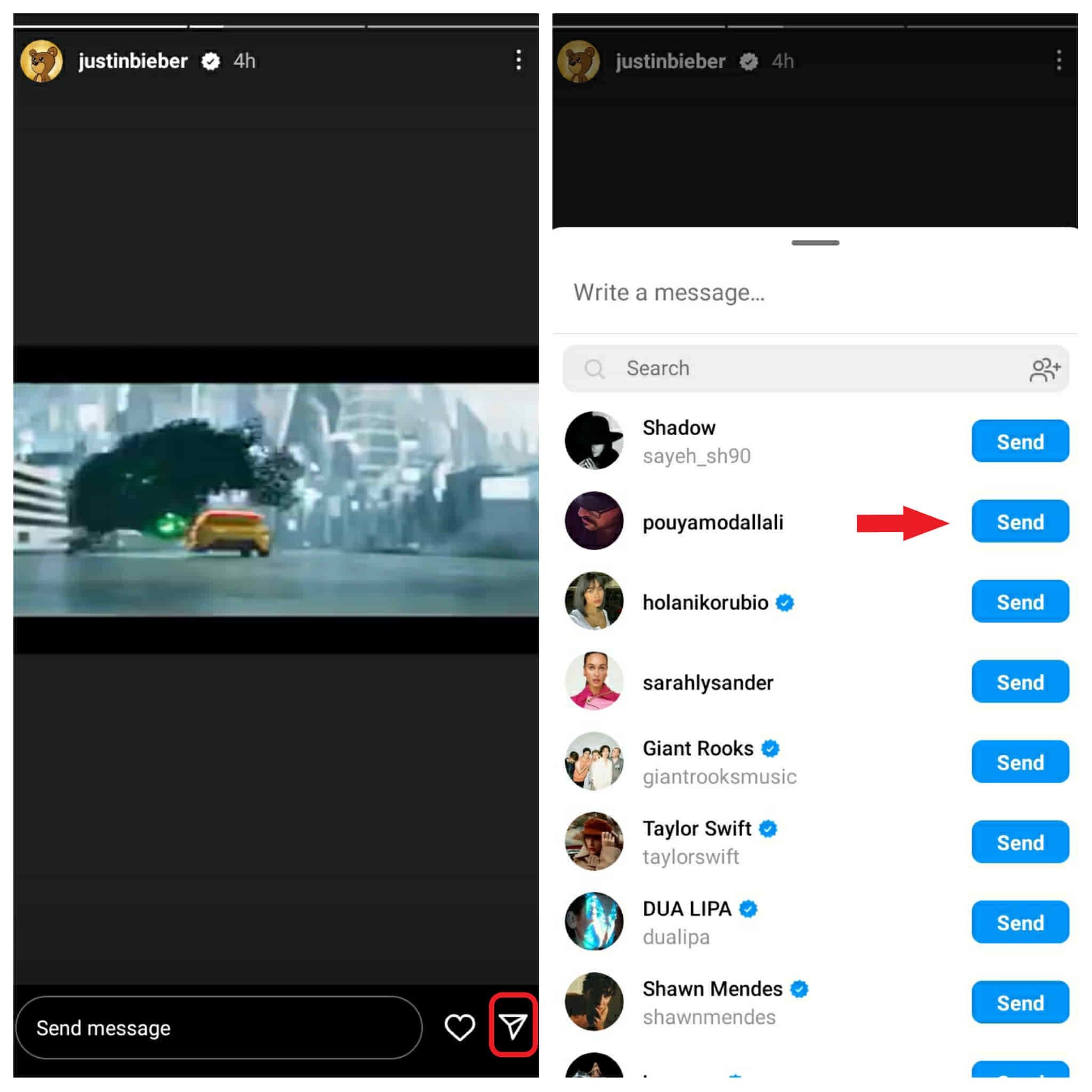
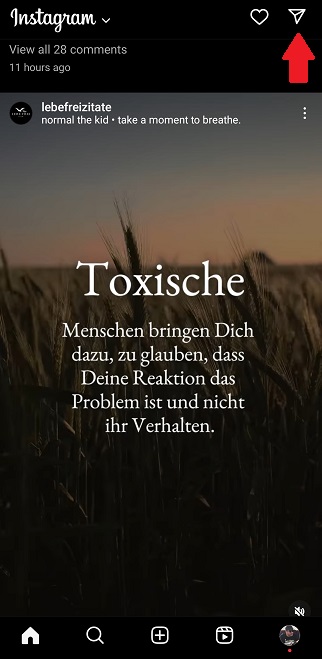
- Open the Instagram app on your mobile. There is a ‘paper airplane’ icon under any videos, on your feed posts, and on stories.
- To send a video on Instagram DM, tap on the icon. Then, select or search for IG usernames, and tap on the ‘Send’ button at the end.
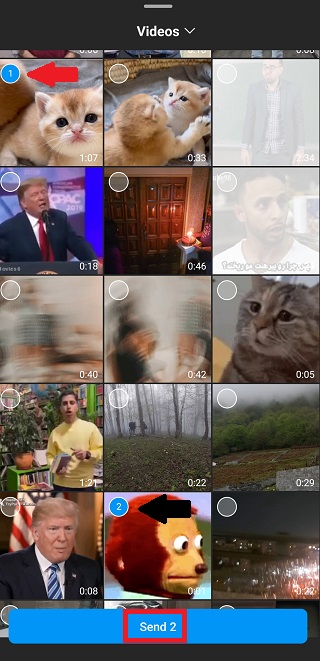
Now let’s see how to send a video on Instagram DM directly from your mobile gallery and not share others’ videos:
- Go to your messages,
- Go to a discussion where you want to send a video and tap on the ‘landscape’ button,
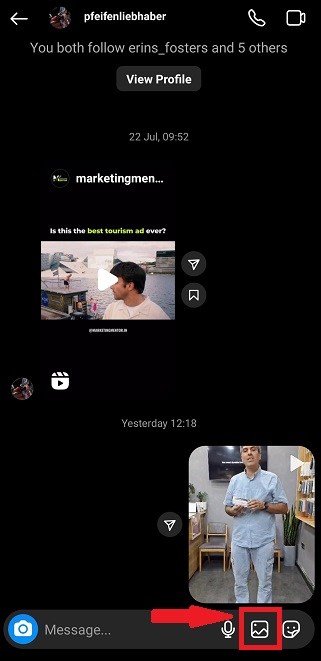
- Choose your video or videos and tap on ‘send’.
How to Send Videos on Instagram DM on PC
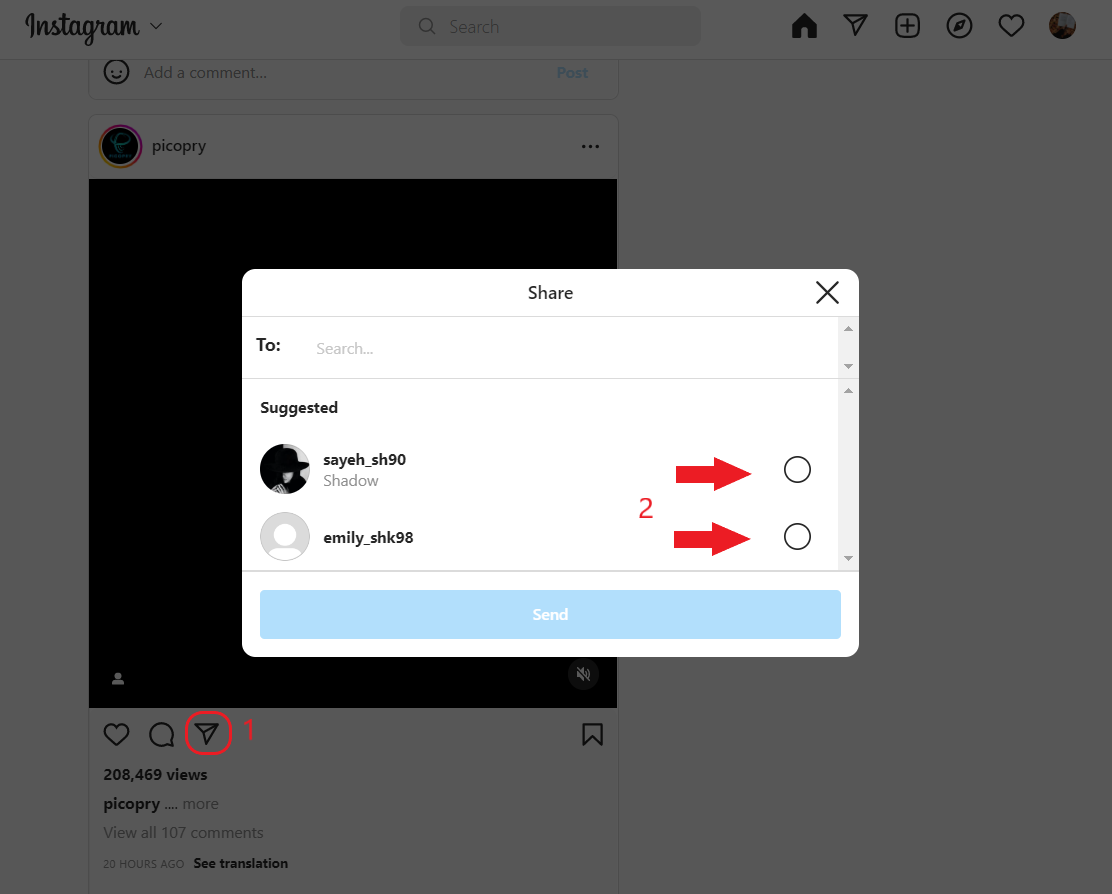
If you are facing the question ‘Can I send videos on Instagram DMs’ well the answer is yes. If it is a video from another user’s feed or stories that you want to send on Instagram DM on PC, you can follow the instructions below and use the ‘share’ button. It is a lot simpler than you expect.
- First, open your Instagram account on the desktop.
- Under each video of your feed or stories, there is a paper airplane icon. Click on it, choose anyone you wish to DM, and post that video.
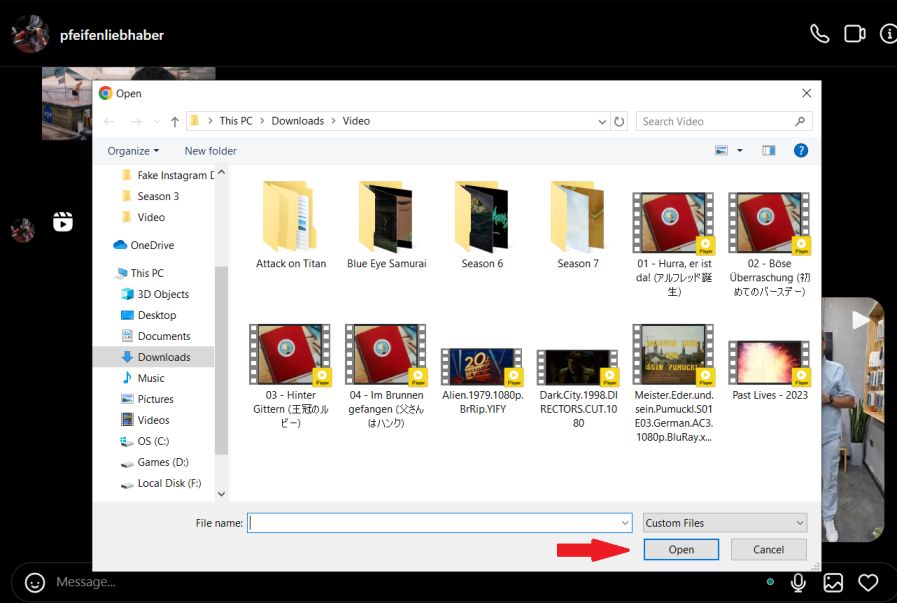
Let’s discuss another way to send a video now that you have learned how to send video on Instagram using an already existing video. To send a video from your personal drive, you have to follow the steps mentioned below. However, keep in mind that Instagram has a limit for size and you can’t send videos above 25 MB.
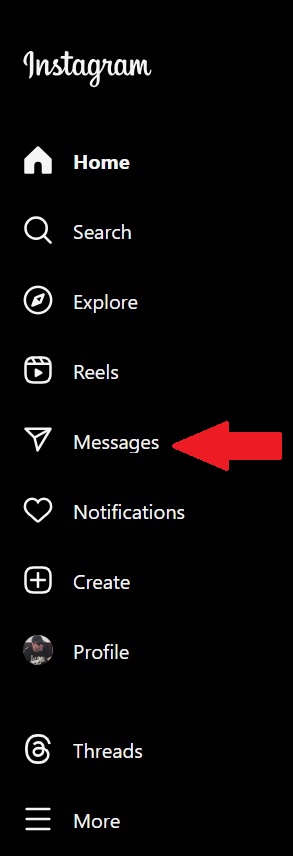
- Go to your messages,
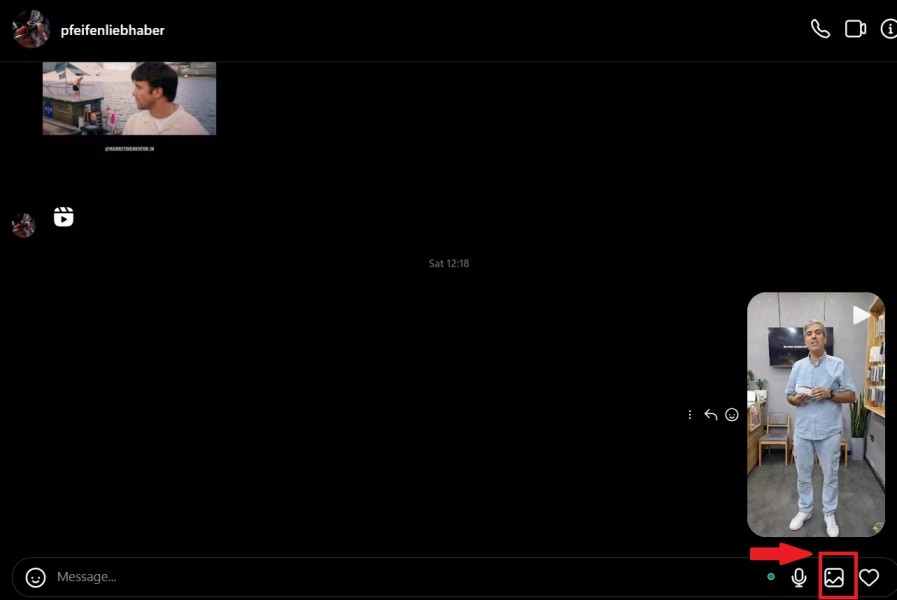
- Go to a conversation you would like to send a video and click on the ‘picture’ icon,
- Choose your video and click on ‘open’.
How Can DMpro Help You With Sending Videos on Instagram DM
As mentioned earlier, you can use the Instagram desktop app to send videos on Instagram DM. However, you have a size limit of 25 MB which can make your work difficult and, in some cases, even impossible. So, we need to think of another solution to the question of how to send long video on Instagram chat.
Let us think about how emails, Yahoo, Gmail, etc. work Not surprisingly, they barely pose any limitations to sharing different types of files with different sizes. Now, what if you could forward and manage all your Instagram DMs through your email? In the following, you can see how DMpro works its way towards tackling the issue.
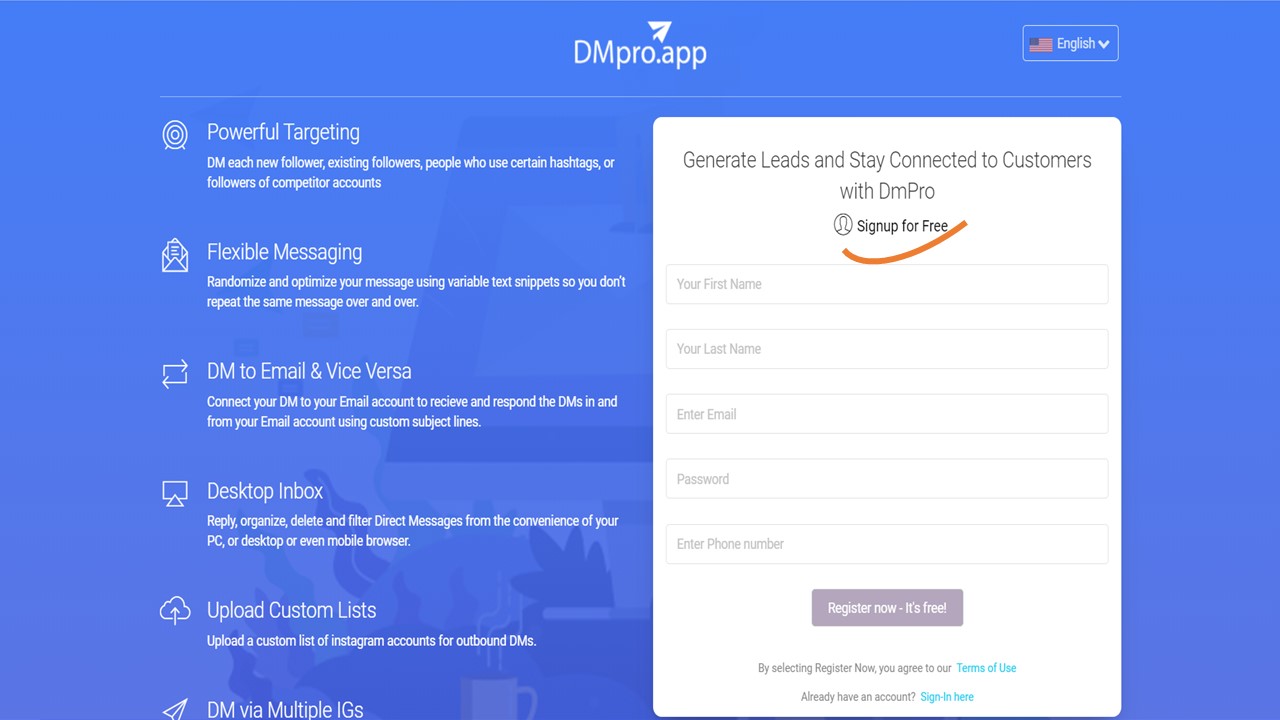
To begin with, sign up on DMpro for free. It will take you less than a minute to fill out the form without having to submit any credit card numbers.
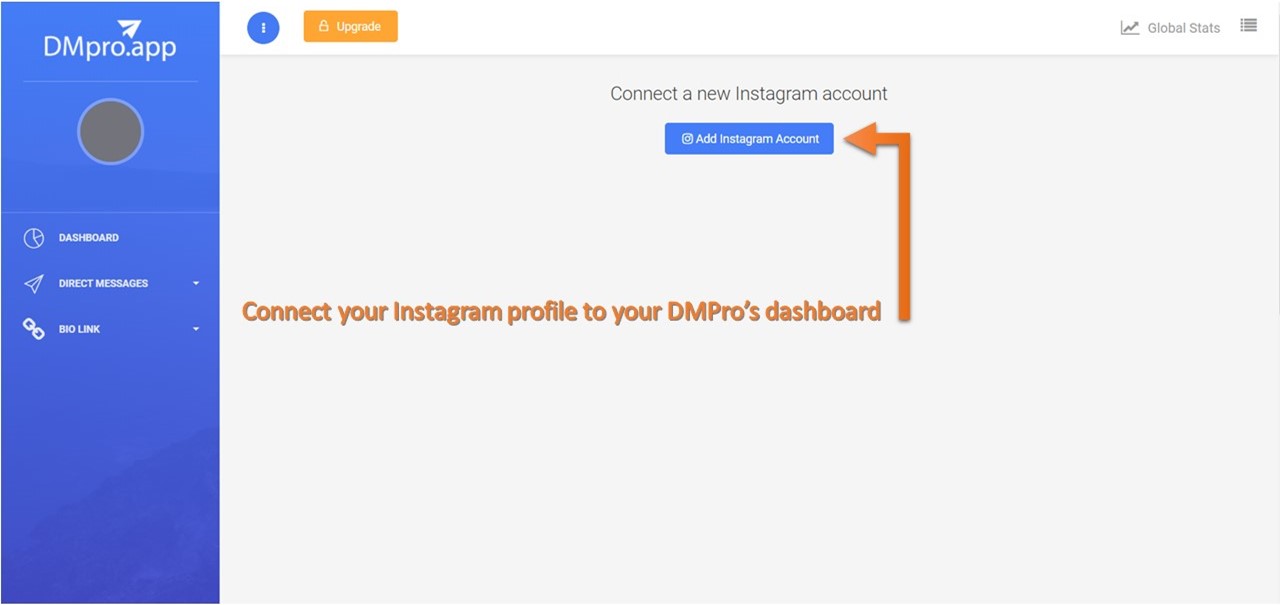
- Moving on, click on the ‘Add Instagram Account’ button to connect one or multiple IG accounts to your dashboard on DMpro.
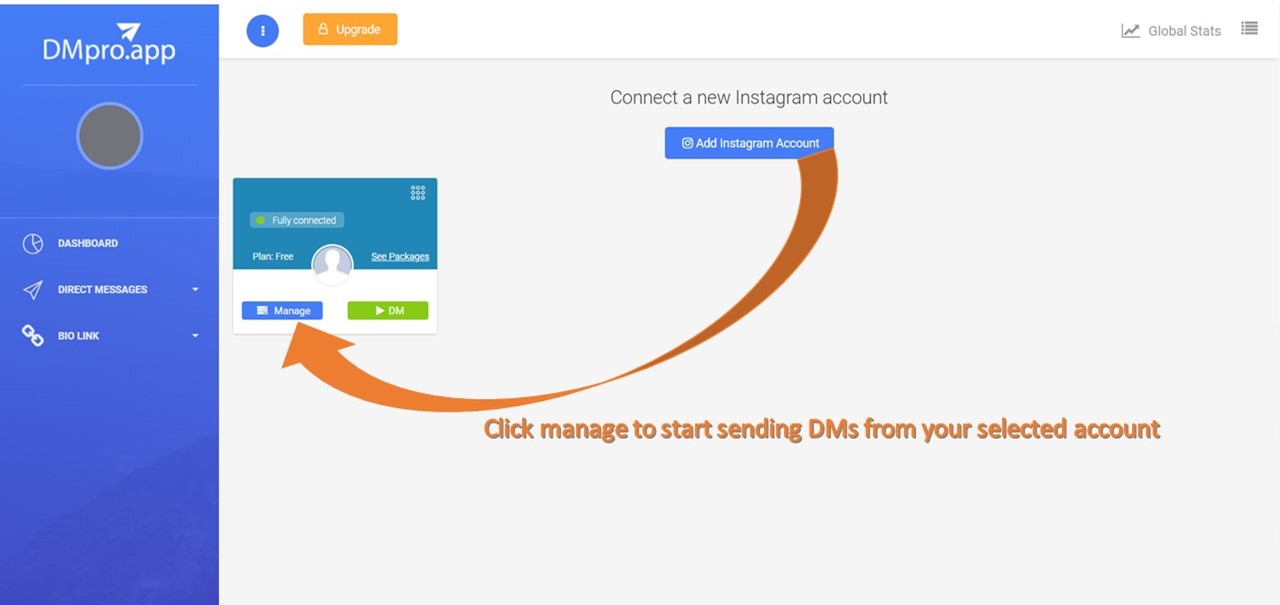
- Once you’ve connected your Instagram account to DMpro, select the IG account you wish to work with, and click on ‘Manage.’ This will give you access to the features on DMpro’s dashboard.
- Here, choose the ‘DM to email’ tab after going to ‘Direct Messages’ on your dashboard.
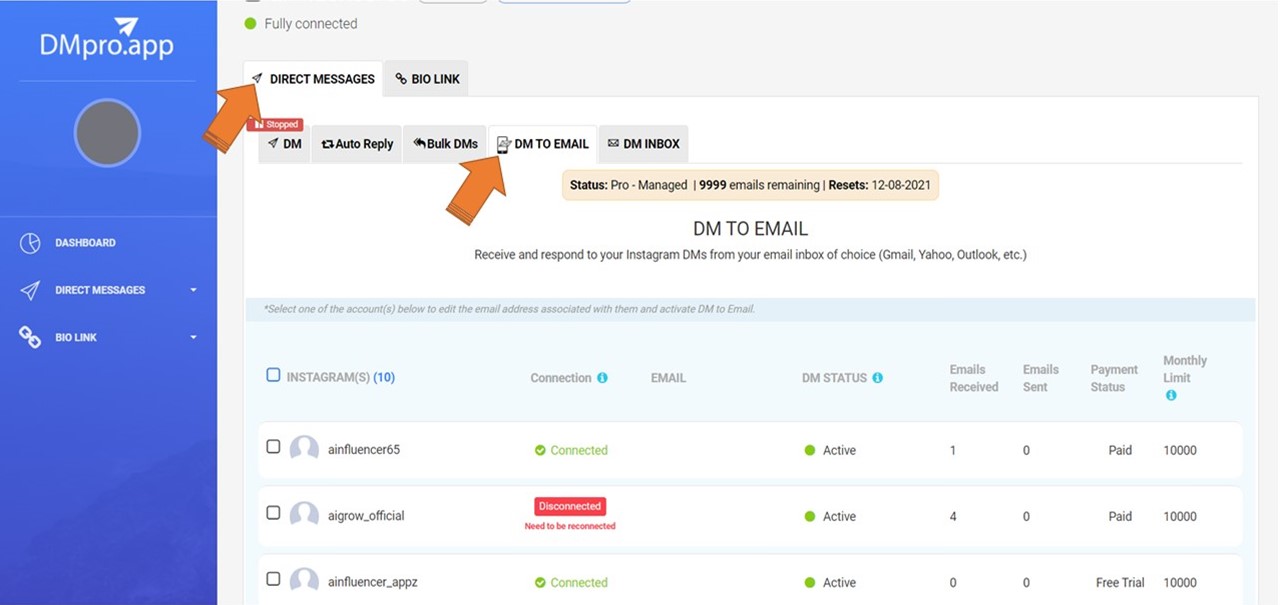
- In order to forward Instagram messages to your email, select your Instagram profile or profiles from the list. By selecting each profile, you can see a box on top of the IG list that allows you to assign a new email to it.
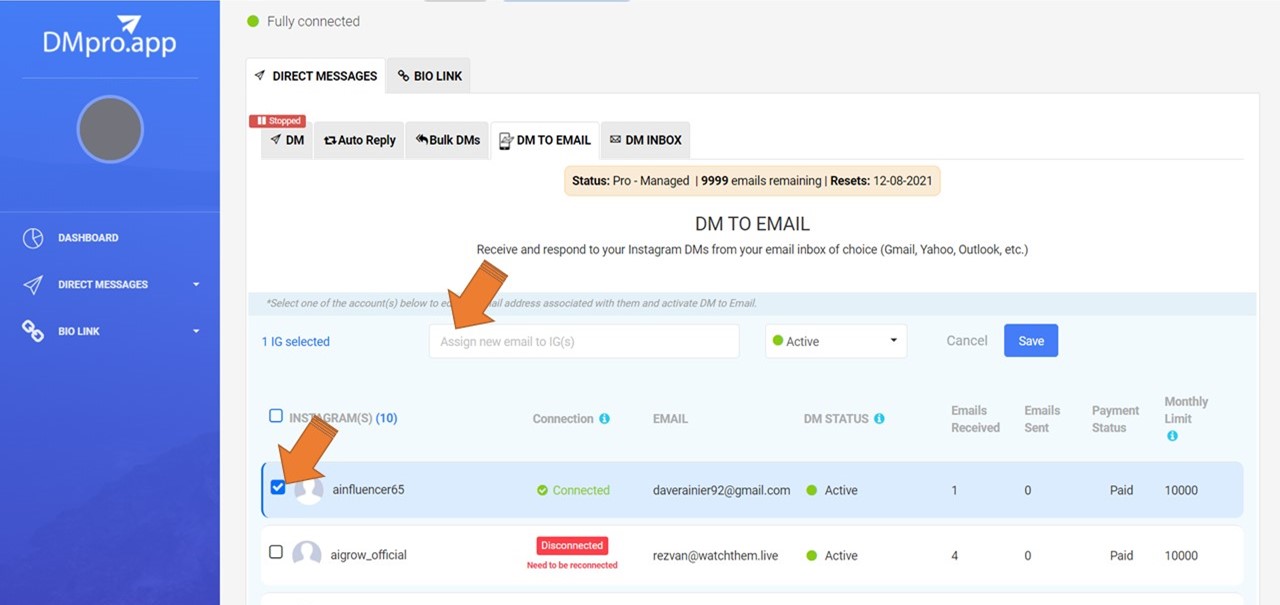
- Finally, once you click the ‘Save’ button, you can manage all your DMs on Instagram through your email on your PC.
DMpro Features
Using DMpro, you can now read and respond to your IG DMs on your email, have better control over your DM inbox, use your email as the best Instagram DM saver, recover deleted DMs, turn off DM read receipts, and last but not least, it can be the ultimate solution to how to send videos on Instagram DM from your PC.
So, hurry up and sign up for free on DMpro!
Also, using DMpro brings you more benefits with other features that boost your IG marketing strategy through DMing on Instagram. Here are some of them.
- Filter and organize Instagram DMs on DMpro’s inbox.
- Use DMpro as an effective auto DM tool.
- Generate massive sales using its bulk DM feature.
- Target different potential leads and new followers, your list of IG users and current followers, hashtag users, and followers of an influencer.
- Set an auto-reply to improve your DM database.
How to Send a Disappearing Video on Instagram
Whether on an Instagram group or an individual message, you can send both disappearing videos and photos. A disappearing video will be removed once the recipient opens and sees it. On top of that, you can set a disappearing video to be removed after the user replays it once.
Here is a step-by-step guide to sending a disappearing video on Instagram DM.
- First, open your Instagram and tap the DM icon.
- Then select a conversation or search for a username.
- Now, tap on the camera icon and record a video.
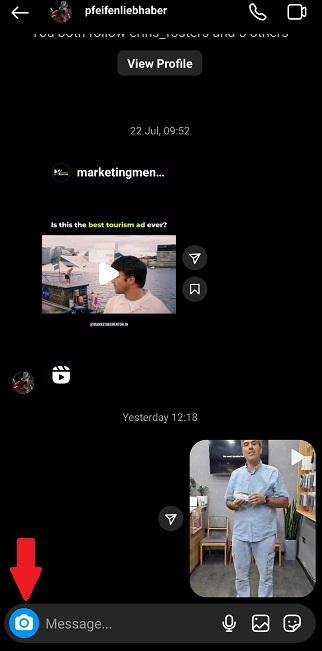
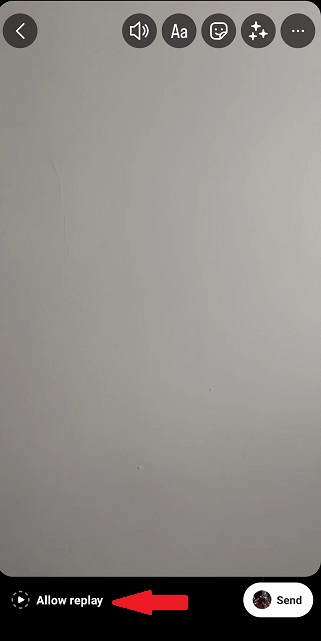
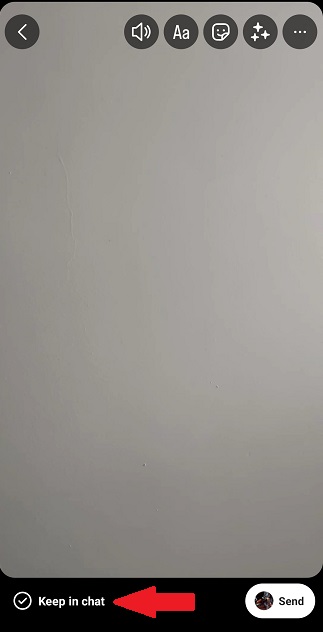
- Before you send the video to your conversation, 3 options will appear on your screen bottom left.
- ‘View Once’ – Choosing this option will send a disappearing video that allows users to only see it once.
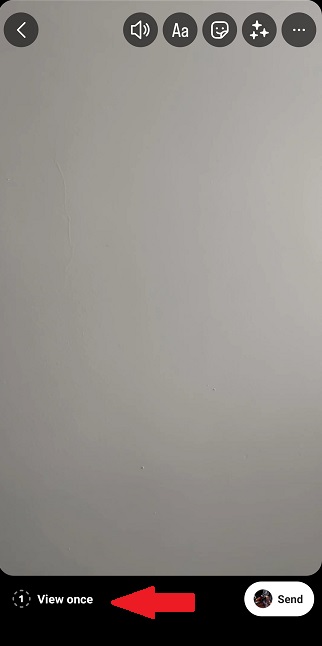
- ‘Allow Replay’ – This option will send a disappearing video that allows users to replay it once more before it is removed.
- ‘Keep in Chat’ – This option keeps a preview image of the photo or video visible in the chat thread.
Note: You may also delete a message for both sides and not use the disappearing photo/video option at all.
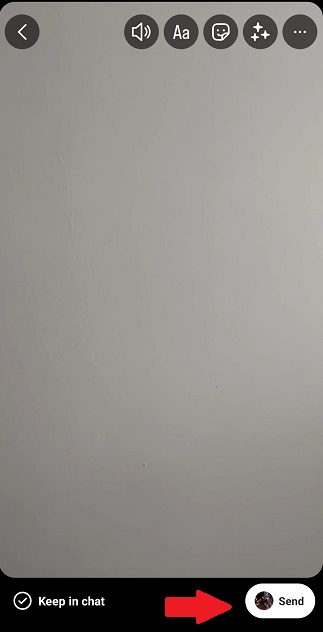
- Finally, tap on ‘Send,’ and the video will be shared in your chat based on the option you have selected.
Remember that you can send disappearing videos and images only to followers or the ones who already have ‘approved messages’ from you.
FAQs on How to Send Videos on Instagram PC & Phone
Now that we covered some important questions about how to upload video to Instagram from PC or mobile, it’s time to discuss more frequently asked questions around this issue. Let’s dive in.
#1 Why Can’t I Send Videos on Instagram DM?
There might be different reasons behind a feature of Instagram DM not working. For instance, if you can’t send videos on Instagram DM, it may be due to the reasons below:
- Instagram lets you send videos up to 60 seconds long or 25 MB in size. So, whenever you can’t upload a video to Instagram from a PC or mobile, check if your video is longer than the duration allowed on Instagram DM.
- Another reason might be the file size. If the file is heavy, you cannot send it through DM. In such cases, you’d better compress it and try sending it again.
- Also, the video codec you use might not be compatible with and supported by Instagram. So, pay attention to the format of the video you want to upload on someone’s DM.
#2 How to Send Longer Videos on Instagram DM?
Unfortunately, Instagram does not support longer videos with a large size. However, you can send long videos through file transfer services like Dropbox and Google Drive. Moreover, you can send them a link to direct them to the file uploaded somewhere else like YouTube. You may also cut the video into shorter videos to be able to send them in sequence.
#3 How to Direct Message on Instagram?
In order to DM on PC or mobile, sign up on Instagram, and after following a bunch of friends, go to your homepage and follow the steps below:
- Tap on the DM icon in the top right corner,
- Then search for the name of the user in the search bar above. Or, tap + in the top right of the screen,
- Next, choose the user and start writing your message.
#4 How to Reply to a Message on Instagram?
Replying to a DM is easier than you think. Go to your homepage and tap on the DM icon and do as follows:
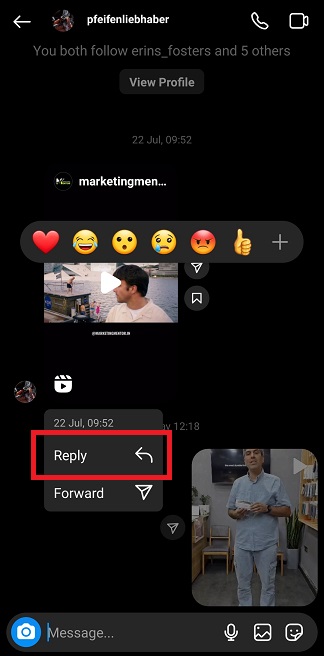
- Open the intended conversation. Swipe the message to the right (or long-press on the message so that the ‘Reply’ option would appear in the left-bottom corner of your screen).
Note 1: If you want to reply to your own message, swipe the message to the left side and then continue.
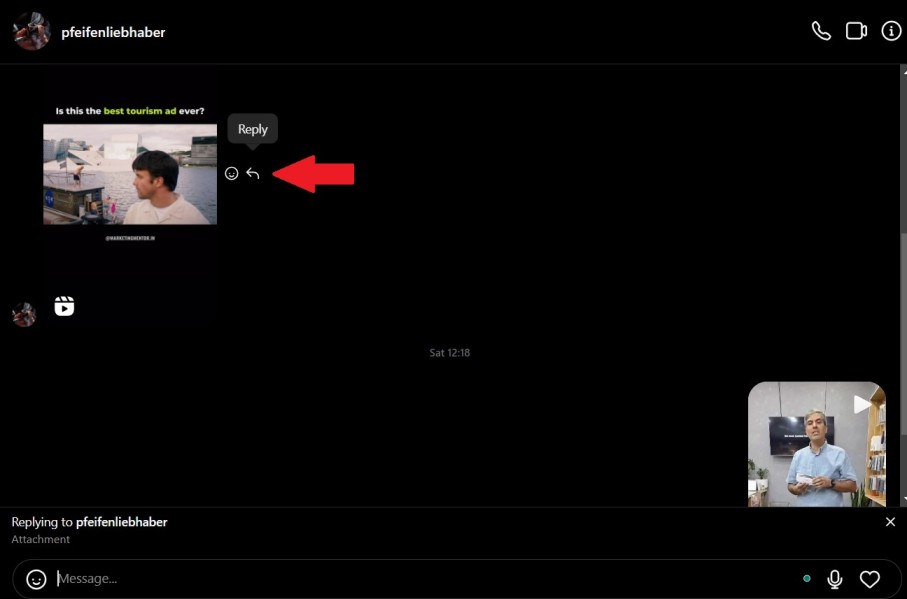
Note 2: If you want to reply to a specific message on your PC, tap on the back flash and type your message.
- Here you’ll see the message attached above your chatbox. Start writing your message and tap ‘Send.’
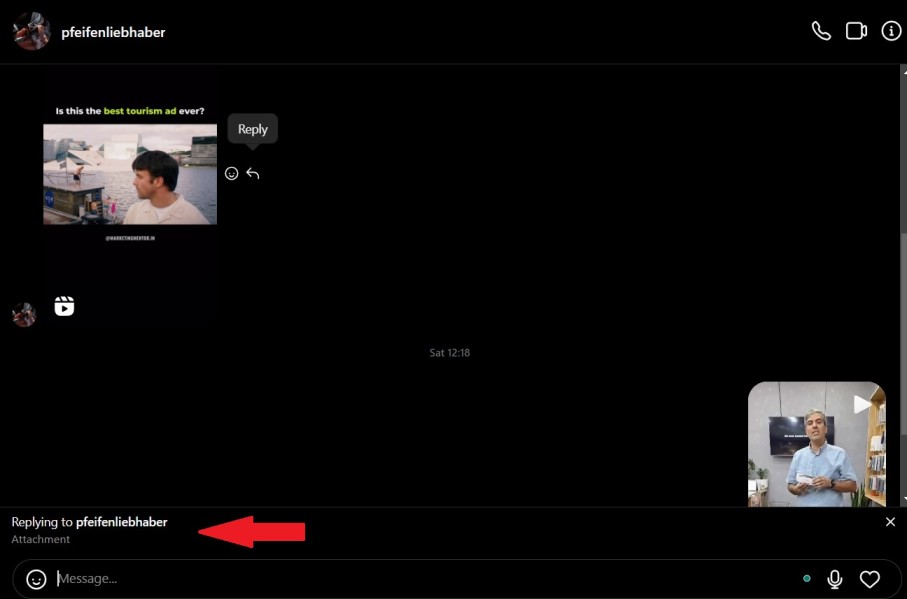
Note 3: Make sure your Instagram is up to date. This way, the ‘Reply’ feature will be added to your DM options. Also, remember that this feature is not activated on some phones because of the region they live in or some other factors.
#5 How Does Instagram Video Chat on PC Work?
It’s pretty much the same as video chatting on an Instagram phone:
- First, open your Instagram and tap on the DM icon. Then, select the user you want to start video chatting with,
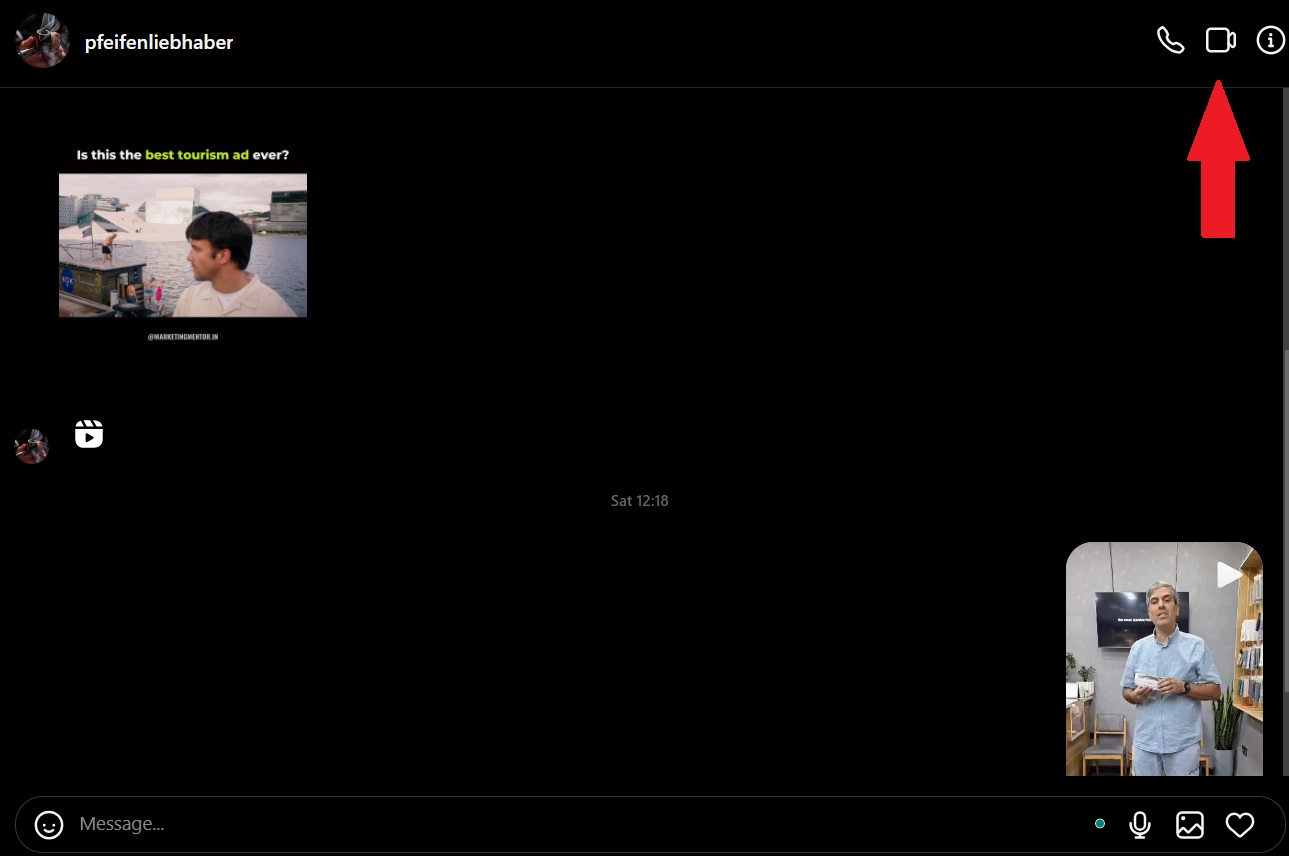
- Here, you’ll see a camera option in the top right of the screen. By tapping on this option, you’ll get directed to a new page,
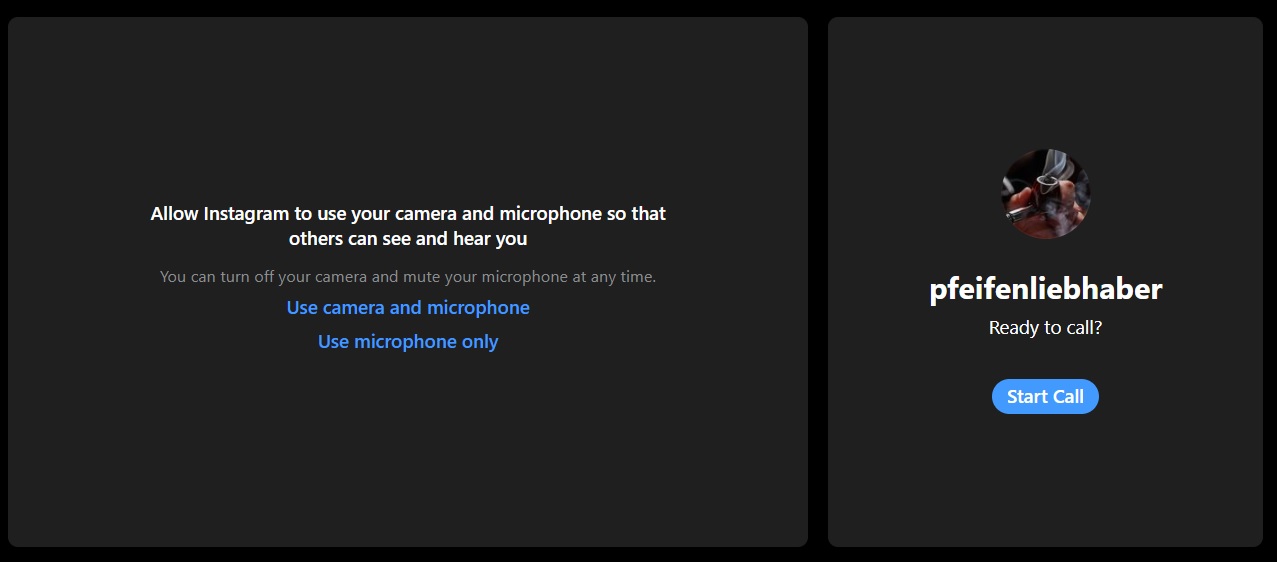
- Finally, tap on ‘Start call’ and enjoy having a good time with your loved ones.
#6 How to Send a Video on Instagram Directly from the Phone’s Gallery?
If you want to know how to send videos on Instagram DM from your gallery, you just need to open the intended conversation and do as follows:
-
- First, tap the button, which looks like a landscape scene, to the right of your chat box,
- Then, find the video you would like to send from your gallery.
- Finally, tap on ‘Send.’
- First, tap the button, which looks like a landscape scene, to the right of your chat box,
Done! Now, you’ve also mastered how to send a video on Instagram DM from your photo library.
#7 How to Share a Video on Instagram from Your Feed?
Sending videos from your feed is just a piece of cake:
- Find the post or story you want to share and tap on the paper airplane under it.
- Here, you’ll see a list of users you’ve mostly interacted with or sent DMs to,
- Choose as many users as you like and tap ‘Send.’
Special Note: You can’t send posts and stories of private accounts to non-followers. Plus, some users might deactivate this feature on stories. So, don’t get surprised if you can’t see a paper airplane icon under someone’s stories!
#8 How to Send a Video on Instagram DM from PC & Mobile by Copying the Link
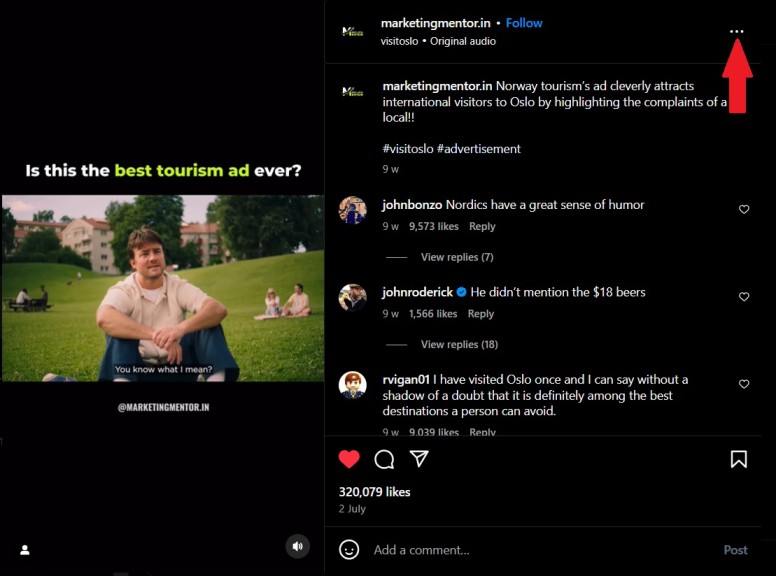
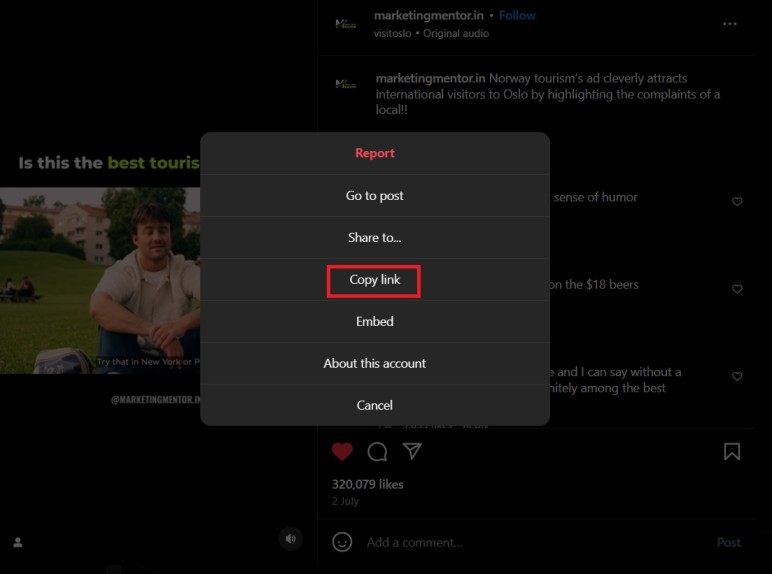
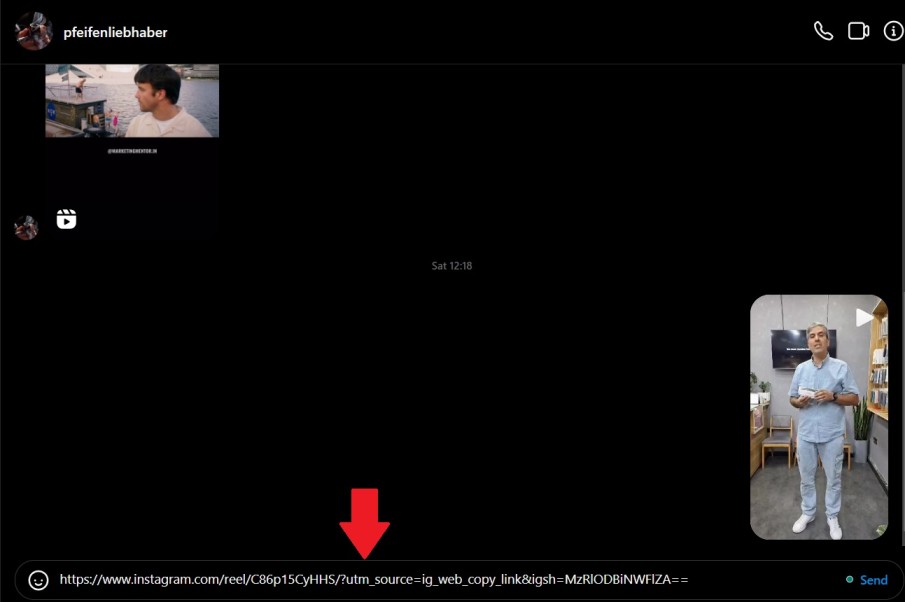
Can you send videos on Instagram using a link? The answer is yes. Another way to send videos to someone’s DM is to copy the link of the intended post and then paste it into their DMs. Here is how to do so:
- First, find the video you want to send and tap on the three dots in the top right of the video,
- Next, copy the ‘Link’ by tapping on the option,
- Then, go to your DM inbox and find your target user,
- Through the chat box, hold your finger for a second so that the ‘Paste’ option would appear. Paste the link and tap on ‘Send.’
Conclusion
We hope that by now, you have a clear understanding of how to send videos on Instagram DM. You can use a variety of options to send a DM on Instagram. This is what makes this feature an important tool to communicate whether you are a regular user or are running a business.
Also, remember that DMpro will let you forward and manage all your DMs through an email address. This also has other benefits vital to your IG DM strategy.
[elementor-template id="24702"]