Why a Native Instagram Experience on Mac Is Worth Pursuing
Instagram’s core design philosophy has always centered on mobile-first, prioritizing the intimate, on-the-go experience of smartphones. However, the modern digital professional, creator, or avid user often finds themselves anchored to a larger screen. While the web browser version of Instagram provides basic access, it falls short of delivering the seamless, immersive interaction users have come to expect. The quest to install Instagram as a dedicated app on your Mac is driven by the desire for a streamlined workflow: instant push notifications for new messages and interactions, a persistent and clutter-free window, quicker access from your Dock, and a generally more responsive interface. This guide explores the definitive methods to achieve that app-like integration, transforming how you engage with one of the world’s most dominant social platforms from your macOS device.
The Core Challenge: Why Isn’t There an Official Instagram Mac App?
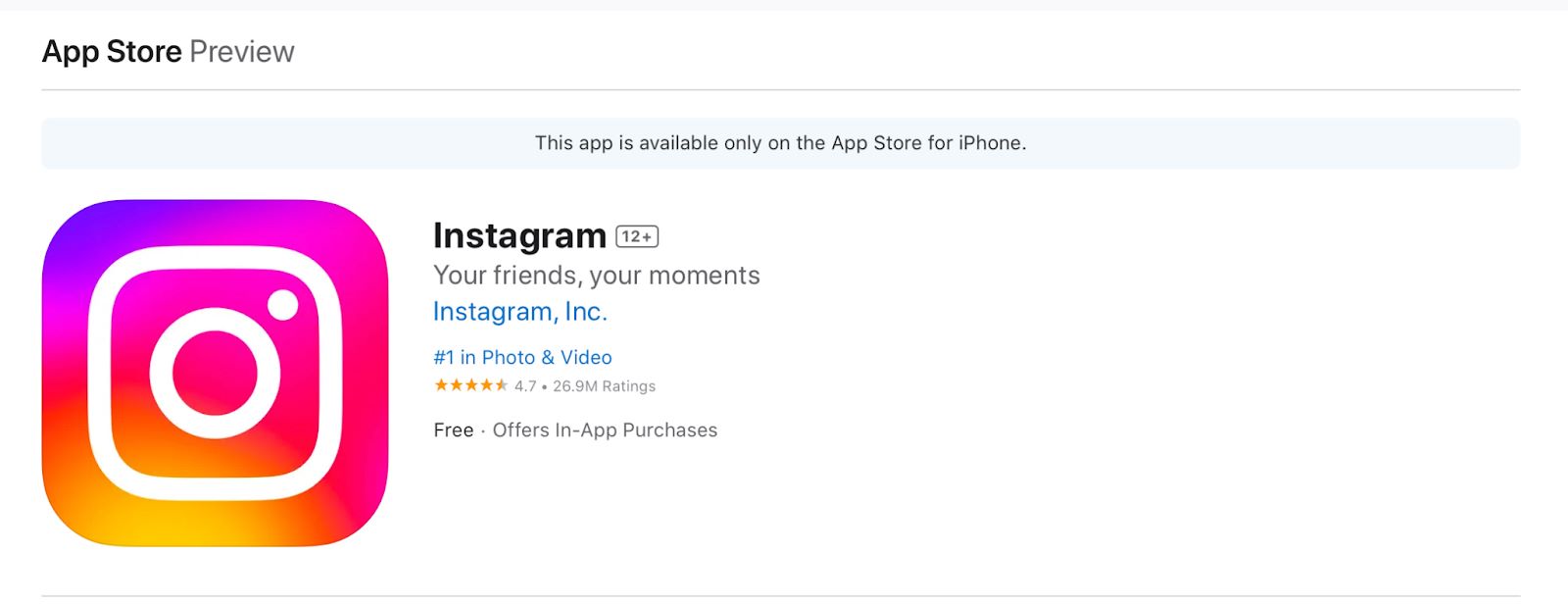
Despite its monumental user base and cultural impact, Instagram remains conspicuously absent from the macOS App Store. When you search for it, you’re met with a clear, frustrating message: “This app is available only on the App Store for iPhone.” This isn’t an oversight but a strategic choice rooted in history, design, and business priorities.
Mobile-Centric Design Philosophy
Instagram was born on mobile. Its features—Stories, Reels, Direct Messaging, and its core photo/video capture and editing suite—were meticulously engineered for touch interfaces and smartphone cameras. Meta has consistently optimized the app for the vertical, handheld experience, which aligns with how the vast majority of its users consume content. Translating this experience to a mouse, keyboard, and desktop window environment requires a significant redesign that, historically, has not been a corporate priority.
Platform Divergence and Development Hurdles
While Apple’s ecosystem is increasingly unified, macOS and iOS remain distinct operating systems with different frameworks and user interaction models. Developing a native Mac app that maintains feature parity with its mobile counterpart is a substantial engineering undertaking. Although technologies like Apple’s Catalyst make porting iOS apps to macOS more feasible, the decision ultimately rests with Meta. For now, they have chosen to keep their development focus on mobile, where engagement and advertising revenue are most concentrated.
The Workaround Ecosystem
The absence of an official solution has created a space for user ingenuity and third-party methods. Fortunately, macOS’s flexibility provides legitimate pathways to bridge this gap. The following sections detail the two most effective and popular methods to install Instagram as a functional app on your MacBook, each catering to different user needs and technical comfort levels.
Method 1: Install Instagram as a Progressive Web App (PWA)
The most straightforward and resource-light method is to leverage Safari’s ability to create a Progressive Web App (PWA). A PWA is a website that uses modern web capabilities to deliver an app-like experience. It runs in its own dedicated window, separate from your browser, and can be pinned to your Dock for instant access.
Step-by-Step Guide to Creating the Instagram PWA
This process is simple, quick, and requires no additional software downloads.
- Launch Safari and Navigate: Open the Safari browser on your Mac and go to instagram.com. Log into your account as you normally would.
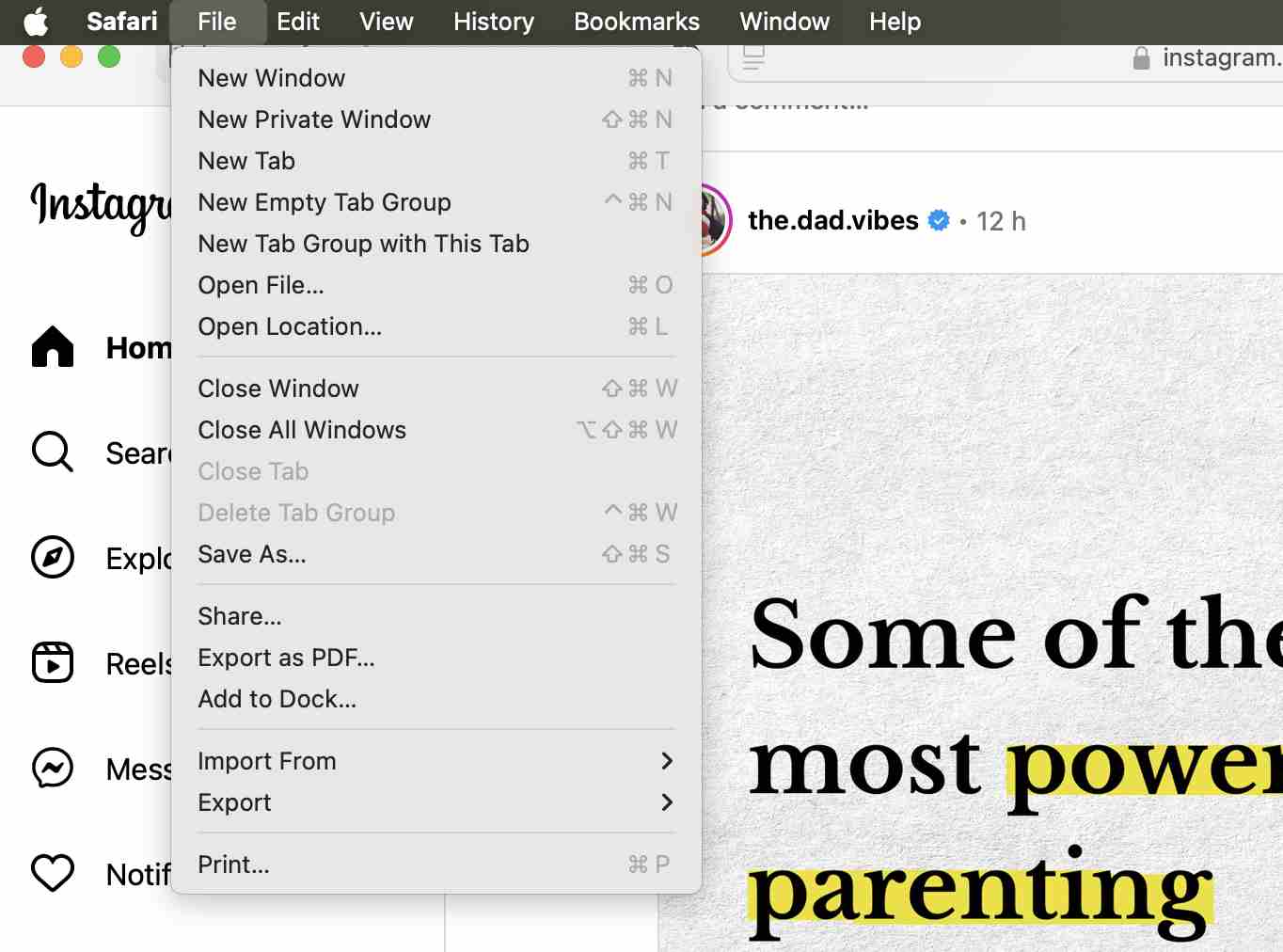
- Initiate the “Add to Dock” Process: Click on “File” in the top macOS menu bar. From the dropdown menu, select “Add to Dock…”
- Confirm and Customize: A dialog box will appear. You can edit the name of the app that will appear in your Dock (e.g., “Instagram”) and then click the “Add” button.
Instantly, an Instagram icon will appear in your Dock. Clicking it will launch Instagram in a clean, standalone window without browser tabs, bookmarks, or an address bar.
Capabilities and Limitations of the PWA Method
Understanding what the PWA can and cannot do is crucial for setting the right expectations.
What You Can Do:
- Browse your feed, Explore page, and user profiles.
- Like, comment on, and share posts.
- View Stories and send direct messages (DMs).
- Receive desktop notifications for new messages and interactions if you enable them in Safari settings.
- Enjoy a persistent, dedicated app window for streamlined multitasking.
Significant Limitations:
- No Uploading: You cannot create and post new photos, videos, Stories, or Reels from the PWA.
- Limited Editing: Features like editing your profile details or managing existing posts are restricted or unavailable.
- Feature Gaps: Advanced creation tools, such as those for Reels or IGTV, are not accessible.
Best For: Users who primarily consume content, manage DMs, and engage with posts from their Mac and value convenience and a clean interface over full creation capabilities.
Method 2: Using an Android Emulator for Full Functionality
If you require the complete, unadulterated Instagram experience—including the ability to post content—the only reliable method is to run the official Android mobile app on your Mac. This is achieved through an Android emulator, a software program that creates a virtual Android device within your macOS environment.
Why Choose BlueStacks?
BlueStacks is one of the most popular and stable Android emulators for macOS. It is designed specifically for running mobile apps and games on a desktop computer, offering key mapping for keyboard controls, multi-instance support, and high-performance graphics.
Comprehensive Installation and Setup Guide
- Download and Install BlueStacks: Visit the official BlueStacks website and download the installer for Mac. Open the downloaded file and follow the on-screen installation wizard. This process is similar to installing any other Mac application.
- Initial Setup and Google Login: Launch BlueStacks after installation. The first boot may take a few minutes as it sets up the virtual Android environment. You will be prompted to sign in with a Google account (this is required to access the Google Play Store).
- Access the Google Play Store: Once set up, you’ll see a familiar Android-style home screen. Locate and open the “Play Store” app. Search for “Instagram” and click “Install,” just as you would on a physical Android phone or tablet.
- Launch and Use Instagram: After installation, you can open Instagram from the BlueStacks home screen or App Drawer. Log in with your credentials. You now have the full mobile app running in a resizable window on your Mac, with access to every feature, including posting, Stories, Reels creation, and all editing tools.
Performance Considerations and Best Practices
Running an entire operating system within your macOS is resource-intensive. For optimal performance:
- Ensure your Mac meets or exceeds the system requirements for BlueStacks, with a focus on RAM (8GB minimum, 16GB recommended) and processor power.
- Close other demanding applications while using the emulator to allocate more resources.
- Explore BlueStacks’ settings to adjust performance modes based on your Mac’s specifications.
Best For: Social media managers, content creators, influencers, or power users who need to upload, edit, and manage their Instagram presence directly from their Mac and cannot afford the limitations of the PWA. It is the only method that delivers 100% feature parity.
Strategic Comparison: Choosing Your Path Forward
Selecting the right method depends entirely on your primary use case and technical setup.
- The PWA (Safari) Method: Think of this as the “lightweight client.” It’s perfect for consumption and communication. It integrates natively with macOS, uses minimal system resources, and provides a clean, fast experience for browsing and messaging. Its major drawback is the inability to create content.
- The Emulator (BlueStacks) Method: This is the “full-stack solution.” It delivers the complete creation and consumption experience by virtually replicating an Android phone. The trade-off is significant resource usage and a more complex setup. It is ideal for users whose workflow demands full access to Instagram’s publishing toolkit.
Conclusion and Final Recommendations
While the ideal scenario remains an official, native Instagram app for macOS, the current landscape offers two powerful, legitimate workarounds. For the majority of users seeking convenient access to their feed and messages, the Progressive Web App method via Safari is the recommended starting point. It’s elegant, efficient, and built right into your Mac’s ecosystem.
For professionals and creators whose work hinges on Instagram’s full suite of features, investing the time to set up BlueStacks is a worthwhile endeavor. It effectively solves the problem, granting you desktop power over your mobile-centric platform.
Evaluate your needs, consider your Mac’s capabilities, and choose the method that best integrates Instagram into your digital life. By following this guide, you can successfully install Instagram as a functional, accessible app on your Mac, reclaiming efficiency and enhancing your social media management in 2024.
✨ Enhanced Content ✨
Instagram is designed to work as a smartphone app. That’s its essence. But sometimes you prefer using it on a larger screen. While you’re working on your MacBook, you might want to enter the app directly from your laptop. You can do that through your web browser, but it won’t give you an app-like experience. That’s why you need to know how to install Instagram as an app on your Mac.
An Instagram app for Mac would give you push notifications, streamlined navigation, quicker access, and the ability to check your DMs easily. Although there isn’t an official app, you have options. Let’s discuss them and learn how to install Instagram as an app!
Why Isn’t Instagram Available as an App for MacBook?
Although Instagram is one of the most popular social media apps, it mainly focuses on mobile experiences. Ever since it was introduced, it was designed with mobile users in mind, particularly those on iOS and Android devices.
The problem is that the official Instagram app is only meant for smartphones. When you try to get it through the App Store, that’s the exact message it shows: this app is available only on the App Store for iPhone.
Meta is known for optimizing mobile features like Stories, Reels, and direct messaging for mobile screens. This leaves desktop and laptop users somewhat limited, wondering how to install Instagram as an app on MacBook with the same level of functionality.
Many other popular apps defy that mobile-only trend. You can easily get Minecraft on MacBook, with simple instructions on how to download it and use it within minutes on your computer. The app is specifically tailored to run smoothly on macOS, proving that prioritizing seamless experiences across devices always goes to a user’s advantage. Instagram, on the other hand, leaves us searching for other options.
The truth is: Apple’s macOS operates differently from iOS. Developing a Mac-specific app would require significant adjustments from Instagram’s team. For an app as successful as this one, effort shouldn’t be a problem. Lately, MacOS is starting to look a lot like iOS. It can run many iOS apps natively, so Instagram’s shift shouldn’t be that hard. It’s all about policies, after all.
For now, third-party solutions and workarounds are the only way to get install Instagram as an app on MacBooks.
How to Install Instagram as an App for MacBook via Progressive Web App (PWA)
PWA is a web application that behaves like a native app. It can be accessed through a web browser, but it will give you all app-like features such as push notifications and the ability to be added to your home screen or dock for easy access.
Here is how to download Instagram on Mac as a PWA:
- Use Safari to go to the Instagram website, and log into your account.
- Click the File menu at the top of your screen and choose Add to Dock.
- Choose Add when you get this message:
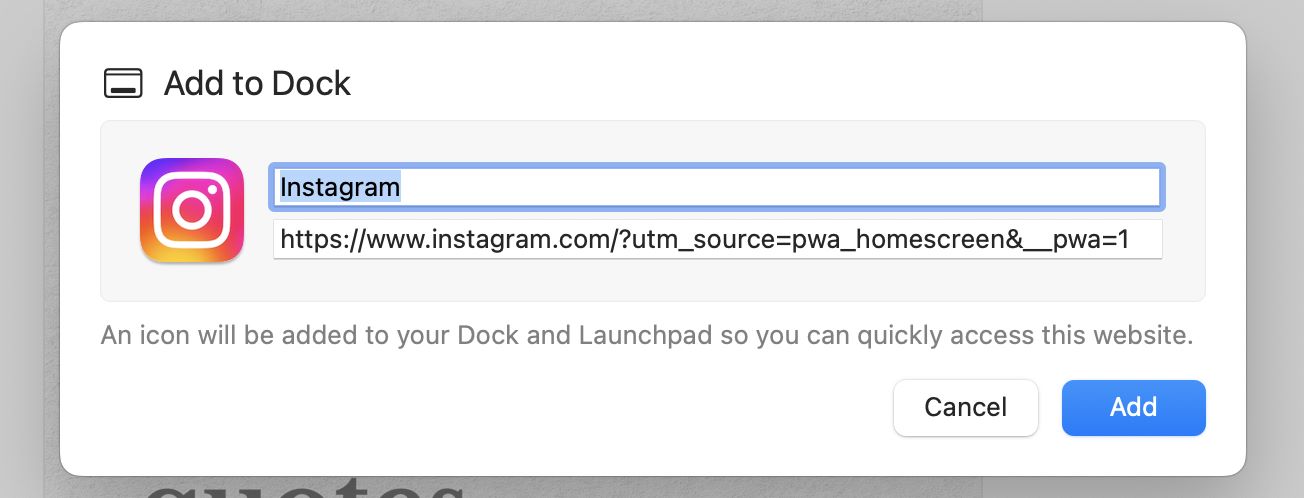
That’s all you need to do. Safari will create an app-like icon in your dock for Instagram. You can now launch it directly from your dock without opening a browser.

With this method, you can install Instagram as an app, with quick access and its own window. But it won’t give you all the features of the mobile app. You can browse your feed, like and comment on posts, view Stories, and send direct messages. But you can’t post photos, stories and videos, edit posts, or use advanced tools like Reels and IGTV.
Get the Instagram Mac Desktop App through an Android Emulator
This is an extreme solution, but you can use an Android emulator like BlueStacks to run Android apps on your desktop. It will give you access to the full functionality of the Instagram app, just as if you were using a mobile device.
Here’s how to do it:
- Download the Bluestacks emulator for macOS through its website.
- Follow the installation instructions to complete the setup.
- Once installed, open Bluestacks and wait for it to load.
- You’ll need to sign in with your Google account, and you’ll get access to the Google Play Store.
- Search for Instagram there, and install it.
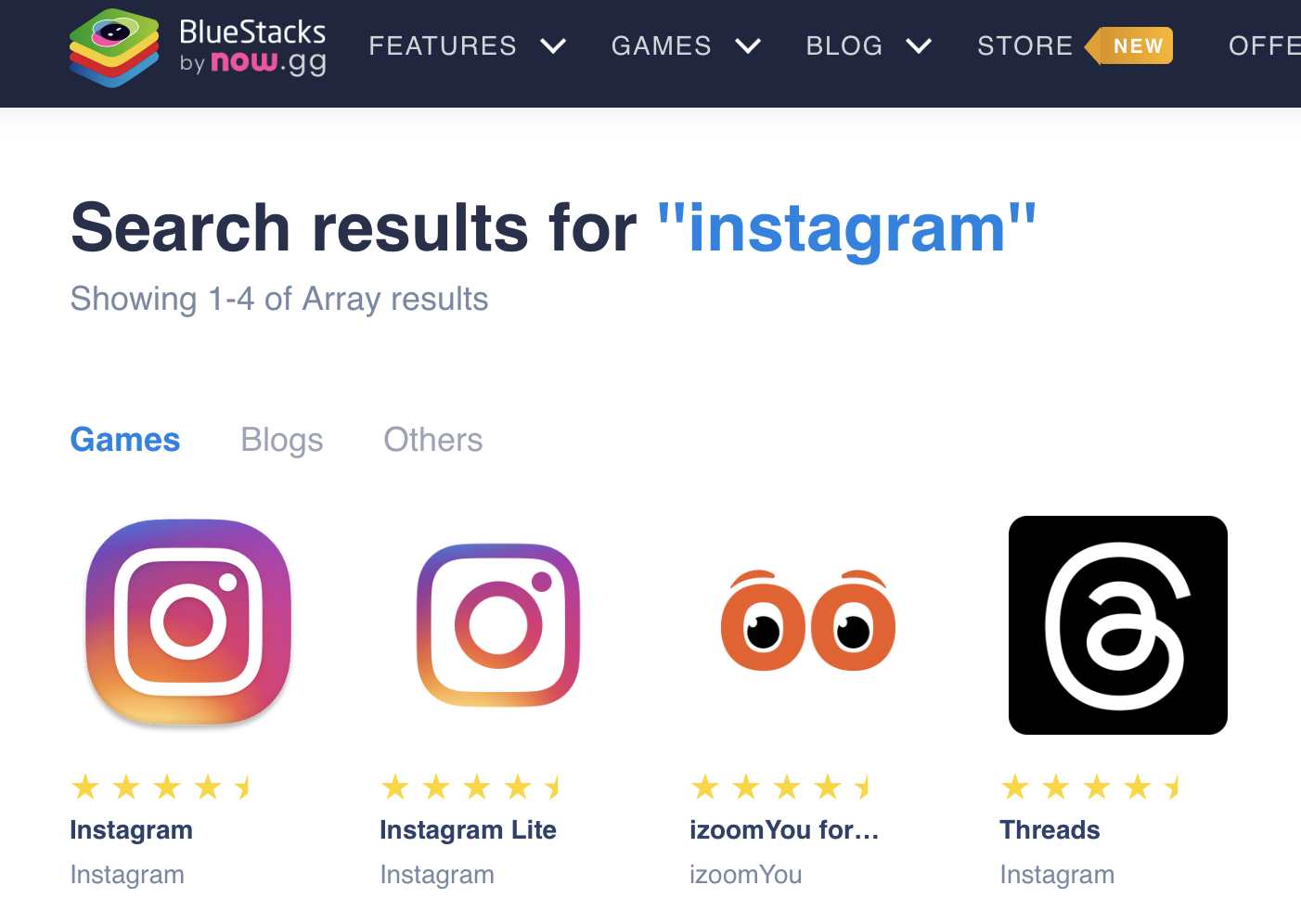
- Now you can launch Instagram from the BlueStacks home screen and use it just like a mobile app.
This method involves a heavy download, so it’s not a perfect solution when you have limited hardware capabilities. But it will give you the complete Instagram experience, including the ability to post photos and use all features. If you use Instagram for professional purposes (marketing or influencing) and it’s more convenient for you to work through your MacBook, BlueStacks is a great solution. You can also download and use other Android apps through it.
Overview
For most users who need to install Instagram as an app on their MacBooks, the PWA method will work. It gives you easy access, but it’s limited in terms of features. If you need an Instagram app with full functionality on your MacBook, BlueStacks is a good solution. It’s resource-intensive and it will potentially slow down your Mac, but it will give you Instagram in its full glory.
FAQs
1. Is There an Official Instagram App for Mac?
No, there isn’t an official Instagram app designed specifically for macOS. Instagram is primarily built for mobile devices, focusing on the mobile user experience. However, you can use workarounds to access Instagram on your Mac.
2. Can I Post Photos on Instagram Using the PWA Method?
No, the Progressive Web App (PWA) version of Instagram on Mac allows you to browse your feed, like and comment on posts, and send direct messages, but it does not support posting photos, videos, or Stories.
[elementor-template id="24702"]