- Pre-Stream Coordination: Both creators must be subscribed to each other’s pages. Plan the stream’s theme, structure, and duration in advance via direct message.
- Initiating the Co-Stream:
- Creator A starts a live stream following the standard steps.
- Creator B joins the stream as a viewer.
- If you see a red circle at the bottom of your OnlyFans live page, it means your connection is weak.
- A yellow circle shows you have an average internet connection.
- The green circle means your connection is strong and you are ready to stream.
- Open the recommended browser on your device. On iPhone/iPad, use Safari, and on Android devices, use Chrome.
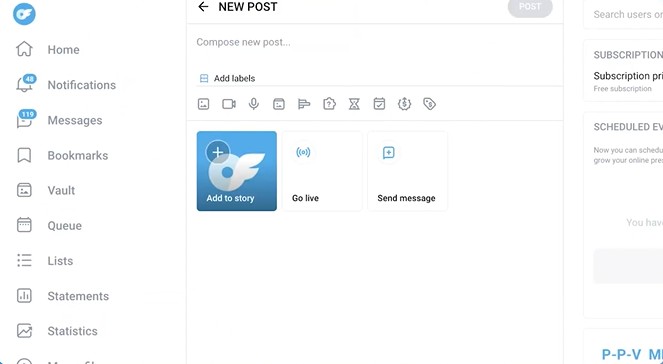
- Select ‘New post’ on your homepage.
- If you are eligible, you will see the ‘Go Live’ option.
- Now it’s time to select your audience. Under ‘Available to’, select which subscribers can see your show. (All subscribers, following, fans, favorites, etc).
- To grab users’ attention and encourage them to join the stream, write an engaging description.
- Next, you need to set the entry fee for your stream.
- Creators can set a tip goal and decide whether they want it to be visible to viewers or not.
- Finally decide if you allow viewers to see collected tips or not.
- Press the ‘Start Live Video’ button and enjoy streaming.
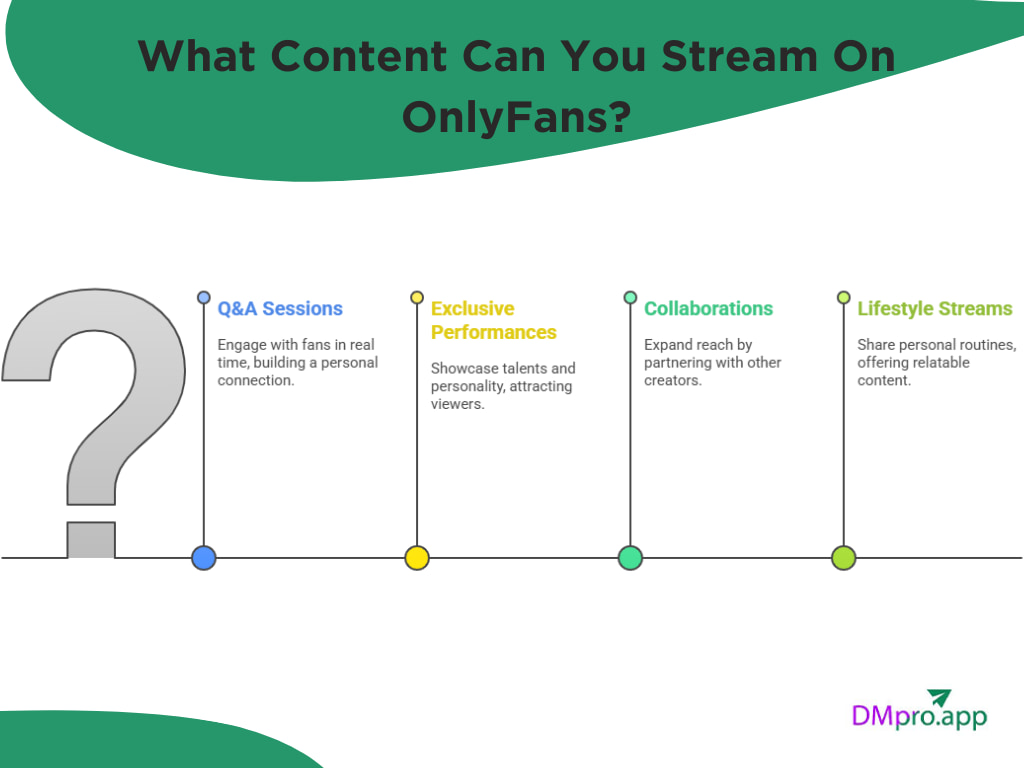
- Q&A sessions: Answer your fans’ questions in real time.
- Exclusive performances: Dance, sing, or do something fun that shows your personality.
- Collaborations: Go live with other creators to attract new followers.
- Workout or lifestyle streams: Share a yoga session, cooking recipe, or self-care routine.
- Be active on OnlyFans.
- have at least 5 recent posts;
- have at least 5 active subscribers.
- First, make sure both creators have subscribed to each other’s pages.
- In the previous parts, we talked about how to go live on OnlyFans. Follow the steps to start your livestream.
- The second creator needs to join your stream as a viewer. Once they joined, click on the three-dot icon next to their name and invite them to co-stream.
- If you’d like to join a co-stream, first join as a viewer and click on the prompt to request joining the stream.
- On your OnlyFans profile, click on ‘Queue’.
- Click on the ‘+’ icon and select ‘Stream’.
- Set the date and time.
- Add a cover image, stream info, and save your stream.
- Post a teaser video or photo a day before your stream.
- Send a pay-per-view (PPV) message inviting fans to join.
- Announce it on Twitter, Reddit, or other social media accounts.
- What moments got the most tips or engagement?
- Did fans comment on something specific?
- How was your setup, lighting, or pacing?
- Maintain an active presence on the platform.
- Have at least five recent posts on your profile.
- Possess a minimum of five active subscribers.
- Camera: While smartphones can suffice for beginners, investing in a dedicated HD webcam (1080p or 4K) dramatically improves visual clarity. Consider a model with good low-light performance.
- Audio: Clear audio is non-negotiable. Built-in microphones often pick up background noise. A USB condenser microphone or a high-quality lavalier mic ensures your voice is crisp and professional.
- Lighting: Good lighting is the most cost-effective quality upgrade. Use a ring light or softbox lights to eliminate shadows and present a flattering, well-lit image. Natural light from a window can also work wonders.
- Stable Internet Connection: A wired Ethernet connection is ideal. For Wi-Fi, ensure you are close to the router. OnlyFans provides a connection indicator:
- Red Circle: Weak connection – streaming may be unstable.
- Yellow Circle: Average connection – proceed with caution.
- Green Circle: Strong connection – you are ready to broadcast.
- Access via Recommended Browser: For optimal performance, use Safari on iOS devices and Chrome on Android and desktop.
- Initiate a New Post: From your OnlyFans homepage, click the ‘New Post’ button.
- Select ‘Go Live’: If eligible, this option will be visible among the post types.
- Define Your Audience: Under ‘Available to’, strategically select who can view your stream. Options include:
- All Subscribers
- Specific Tiers (if using a tiered subscription model)
- Favorites or a custom list
- Craft a Compelling Description: This is your live stream’s headline. Write an engaging, clear description that tells viewers what to expect and why they should join. Use keywords and emojis to make it stand out.
- Set Monetization Parameters:
- Entry Fee: Determine if the stream is free or has a paywall. A fee can qualify your audience and increase revenue-per-viewer.
- Tip Goal: Set a visible or hidden monetary goal. This gamifies the experience and encourages collective tipping (e.g., “If we hit $200, I’ll do a special Q&A!”).
- Tip Visibility: Decide whether viewers can see the tips others have sent. Public tips can create a “tipping chain reaction.”
- Go Live: Perform a final audio/video check, take a deep breath, and click ‘Start Live Video’.
- Interactive Q&A Sessions: Go beyond simple answers. Structure themed Q&As (“Ask Me About My Fitness Journey,” “Behind-the-Scenes of Content Creation”) and prepare some starter questions in case chat is slow.
- Skill-Based Tutorials or Performances: Showcase your unique talents. This could be a makeup tutorial, a painting session, playing an instrument, or a dance routine. The key is to demonstrate value.
- Co-Streaming & Collaborations: Partner with another creator to tap into each other’s audiences. This cross-pollination is one of the most effective ways to promote your OnlyFans account and gain new subscribers organically.
- “Day in the Life” / Lifestyle Streams: Authenticity builds connection. Stream a cooking session, your workout, morning routine, or even a safe “get ready with me.” It humanizes your brand.
- Gaming or Watch Parties: Stream yourself playing a popular game or host a watch party for a movie or show (ensuring you comply with copyright rules). The shared experience drives interaction.
- Goal-Oriented Streams: Center the stream around a community goal. For example, “We’re unlocking a new cosplay outfit at every $100 in tips!” This gives viewers a shared mission.
- Create Tip Tiers: Verbally announce what you’ll do for specific tip amounts (e.g., “$10: Say your name, $50: Choose the next song, $100: A personalized shoutout”). This is a core strategy for how to get tips on OnlyFans during live sessions.
- Engage with Tippers Immediately: Acknowledge every tip by name and amount as it comes in. Public recognition makes tippers feel valued and incentivizes others.
- Use the “Goal” Feature Strategically: Break a large goal into smaller, frequent milestones to maintain momentum and a sense of achievement throughout the stream.
- Promote Other Content: Use the live stream to tease upcoming PPV messages, discount bundles, or custom video slots. Offer a “live-viewer only” discount code.
- Upsell and Cross-Sell: If you offer other services (e.g., custom ratings, worn items), gently remind your live audience of these options.
- Funnel to Higher Value: A free stream can be a lead generator. Encourage free followers watching to subscribe for more exclusive, paid live content in the future.
- Pre-Stream Coordination: Both creators must be subscribed to each other’s pages. Plan the stream’s theme, structure, and duration in advance via direct message.
- Initiating the Co-Stream:
- Creator A starts a live stream following the standard steps.
- Creator B joins the stream as a viewer.
- If you see a red circle at the bottom of your OnlyFans live page, it means your connection is weak.
- A yellow circle shows you have an average internet connection.
- The green circle means your connection is strong and you are ready to stream.
- Open the recommended browser on your device. On iPhone/iPad, use Safari, and on Android devices, use Chrome.
- Select ‘New post’ on your homepage.
- If you are eligible, you will see the ‘Go Live’ option.
- Now it’s time to select your audience. Under ‘Available to’, select which subscribers can see your show. (All subscribers, following, fans, favorites, etc).
- To grab users’ attention and encourage them to join the stream, write an engaging description.
- Next, you need to set the entry fee for your stream.
- Creators can set a tip goal and decide whether they want it to be visible to viewers or not.
- Finally decide if you allow viewers to see collected tips or not.
- Press the ‘Start Live Video’ button and enjoy streaming.
- Q&A sessions: Answer your fans’ questions in real time.
- Exclusive performances: Dance, sing, or do something fun that shows your personality.
- Collaborations: Go live with other creators to attract new followers.
- Workout or lifestyle streams: Share a yoga session, cooking recipe, or self-care routine.
- Be active on OnlyFans.
- have at least 5 recent posts;
- have at least 5 active subscribers.
- First, make sure both creators have subscribed to each other’s pages.
- In the previous parts, we talked about how to go live on OnlyFans. Follow the steps to start your livestream.
- The second creator needs to join your stream as a viewer. Once they joined, click on the three-dot icon next to their name and invite them to co-stream.
- If you’d like to join a co-stream, first join as a viewer and click on the prompt to request joining the stream.
- On your OnlyFans profile, click on ‘Queue’.
- Click on the ‘+’ icon and select ‘Stream’.
- Set the date and time.
- Add a cover image, stream info, and save your stream.
- Post a teaser video or photo a day before your stream.
- Send a pay-per-view (PPV) message inviting fans to join.
- Announce it on Twitter, Reddit, or other social media accounts.
- What moments got the most tips or engagement?
- Did fans comment on something specific?
- How was your setup, lighting, or pacing?
✨ Enhanced Content ✨
Going live on OnlyFans is one of the best ways to connect with your audience and boost your engagement. Unlike regular posts or photos, a live stream lets your fans interact with you in real time, send tips, and ask questions. But how to go live on Instagram as a beginner?
In this article, we will tell you everything you need to know about hosting an OnlyFans live. You will learn how to make money on OnlyFans by hosting streams, expand your reach, and some practical tips that will help you stand among the best OnlyFans accounts.
How to Go Live on OnlyFans?
OnlyFans live stream is one of the cool features that can help your growth and earnings. Here is how to use it.
#1 Prepare For the Streams
Before talking about how to go live on OnlyFans, it’s important that you have the equipment. A high-quality webcam and microphones can make a huge difference. If you are still a beginner, you can start using your smartphone.
OnlyFans allows streaming in both vertical and landscape, which gives you freedom to experiment with new angles and play around. Other than your setup, make sure to have a stable network connection.
#2 Start Your Livestream
Once you are ready, it’s time to know how to go live on OnlyFans and start streaming. Follow these simple steps:
Start A Live On OnlyFans 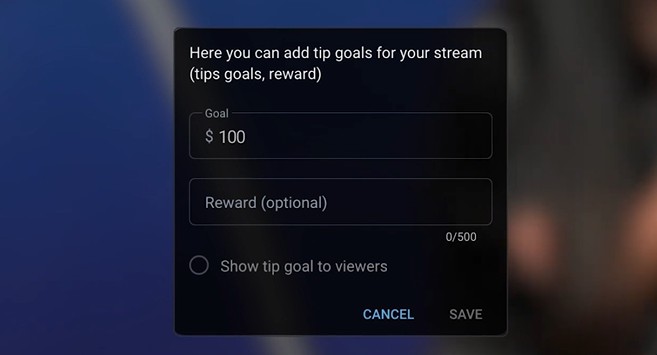
Set Tips For OnlyFans Live What Content Can You Stream On OnlyFans?
Up to here, we talked about how to go live on OnlyFans, but what should you stream? You have tons of creative freedom when it comes to your live streams. If you are out of OnlyFans content ideas and want to engage with something new, here’s what you can do.
What Content Can You Stream On OnlyFans How Many Followers To Go Live On OnlyFans?
To enable the livestream feature on your account, you need to meet some requirements. According to OnlyFans help, you need to
After meeting these requirements, you are ready to go live on OnlyFans. Just give your browser permission to use the camera and microphone.
How To Monetize Your Streams?
Building a connection with your fans is not the main purpose of OnlyFans live streams. One of the main ways to make money on OnlyFans is through hosting livestreams. As mentioned, you can set an entry fee for users to join it.
Besides that, fans who enjoy your content can send tips of up to $100 per time while you are live. In fact, one of the best solutions to how to get tips on OnlyFans is through hosting engaging streams. You can also use your live stream to promote other content, bundles, or custom videos.
How to Co-stream On OnlyFans?
OnlyFans allows multiple creators to go live together. This is a creative way to promote your OnlyFans account since fans of multiple creators will join the stream. So you will broadcast to a larger audience, which helps you attract new subscribers. Let’s see how to use this feature:
Tips For OnlyFans Live
In the previous parts, we talked about how to go live on OnlyFans on iPhone and other devices. Let’s check out some tips that can help you improve your streams.
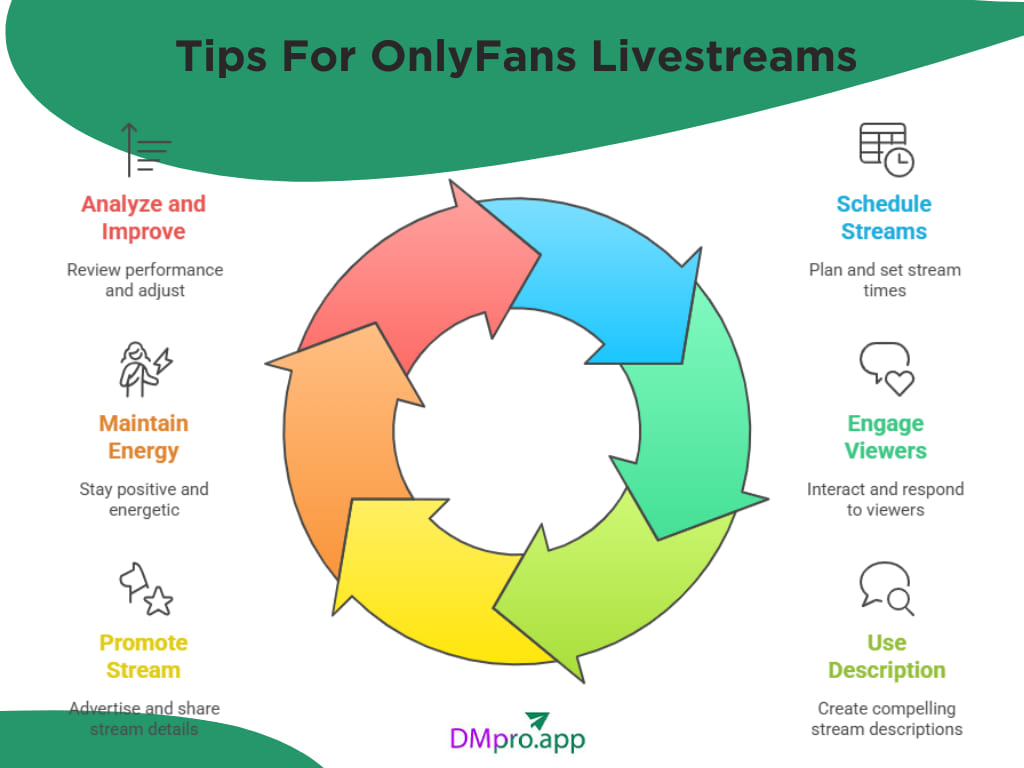
Tips For OnlyFans Livestreams 1. Schedule Your Streams
OnlyFans itself provides a feature called ‘Queue’ which allows creators to schedule their content and stay organized. Now that you know how to go live on OnlyFans mobile and desktop, let’s show you how to schedule them.
2. Engage Constantly with Your Viewers
Interaction is what makes live streaming special. Fans love streams since they can chat with creators in real time and build personal connections. Greet fans by name, reply to their comments, ask questions, and thank them for tips.
3. Use an Attention-Grabbing Description
Before your stream begins, write a catchy description that tells fans what to expect. A fun or mysterious title can make a big difference in how many people join your livestream.
4. Promote Your Live Stream
Similar to how you promote your OnlyFans account, you need to promote your streams as well. The goal is to make sure as many followers as possible know when you’re going live. Here is what you can do:
5. Keep Energy and Positivity High
Your mood sets the energy of your stream. Smile, be relaxed, and talk naturally. Even if you’re shy, showing some excitement and warmth will make your fans feel more connected. If you’re having an off day, play background music to create a positive vibe.
6. Analyze and Improve
After your live session ends, take a few minutes to review how it went. Learning from every stream helps you improve it and attract more fans.
Check:
Conclusion
To host effective streams, you should not think of it as only turning on your camera. You need to build connections with your fans, show your personality, and increase your earnings. Here we’ve mentioned everything you need to know about how to go live on OnlyFans and boost your growth.
FAQs
[elementor-template id="24702"]1. Can Anyone Go Live on OnlyFans?Not immediately. OnlyFans has a few basic requirements you need to meet before unlocking the live streaming feature. To start going live, you must have at least five recent posts and five active subscribers on your page.
Once you meet these conditions, you’ll automatically see the “Go Live” option. So follow the mentioned steps for how to go live on OnlyFans to start your stream.2. How Can I Make My OnlyFans Live Streams More Engaging?The secret to a great live stream is interaction. Your fans tune in because they want to connect with you personally. So make sure to greet them by name, respond to their comments, and ask questions to keep the conversation flowing. You can also share stories, play games, or do live challenges to make your session feel engaging.
3. Can I Make Money from Going Live on OnlyFans?Yes, definitely! You can set an entry fee for viewers who want to join your stream, and during the live session, they can also send tips of up to $100 each time. Some creators even add tip goals to motivate fans to contribute more. Beyond that, live streams are a great place to promote your other paid content, like custom videos, photo bundles, etc.
✨ Enhanced Content ✨
Going live on OnlyFans is one of the best ways to connect with your audience and boost your engagement. Unlike regular posts or photos, a live stream lets your fans interact with you in real time, send tips, and ask questions. But how to go live on Instagram as a beginner?
In this article, we will tell you everything you need to know about hosting an OnlyFans live. You will learn how to make money on OnlyFans by hosting streams, expand your reach, and some practical tips that will help you stand among the best OnlyFans accounts.
How to Go Live on OnlyFans?
OnlyFans live stream is one of the cool features that can help your growth and earnings. Here is how to use it.
#1 Prepare For the Streams
Before talking about how to go live on OnlyFans, it’s important that you have the equipment. A high-quality webcam and microphones can make a huge difference. If you are still a beginner, you can start using your smartphone.
OnlyFans allows streaming in both vertical and landscape, which gives you freedom to experiment with new angles and play around. Other than your setup, make sure to have a stable network connection.
#2 Start Your Livestream
Once you are ready, it’s time to know how to go live on OnlyFans and start streaming. Follow these simple steps:
Start A Live On OnlyFans Set Tips For OnlyFans Live What Content Can You Stream On OnlyFans?
Up to here, we talked about how to go live on OnlyFans, but what should you stream? You have tons of creative freedom when it comes to your live streams. If you are out of OnlyFans content ideas and want to engage with something new, here’s what you can do.
What Content Can You Stream On OnlyFans How Many Followers To Go Live On OnlyFans?
To enable the livestream feature on your account, you need to meet some requirements. According to OnlyFans help, you need to
After meeting these requirements, you are ready to go live on OnlyFans. Just give your browser permission to use the camera and microphone.
How To Monetize Your Streams?
Building a connection with your fans is not the main purpose of OnlyFans live streams. One of the main ways to make money on OnlyFans is through hosting livestreams. As mentioned, you can set an entry fee for users to join it.
Besides that, fans who enjoy your content can send tips of up to $100 per time while you are live. In fact, one of the best solutions to how to get tips on OnlyFans is through hosting engaging streams. You can also use your live stream to promote other content, bundles, or custom videos.
How to Co-stream On OnlyFans?
OnlyFans allows multiple creators to go live together. This is a creative way to promote your OnlyFans account since fans of multiple creators will join the stream. So you will broadcast to a larger audience, which helps you attract new subscribers. Let’s see how to use this feature:
Tips For OnlyFans Live
In the previous parts, we talked about how to go live on OnlyFans on iPhone and other devices. Let’s check out some tips that can help you improve your streams.
Tips For OnlyFans Livestreams 1. Schedule Your Streams
OnlyFans itself provides a feature called ‘Queue’ which allows creators to schedule their content and stay organized. Now that you know how to go live on OnlyFans mobile and desktop, let’s show you how to schedule them.
2. Engage Constantly with Your Viewers
Interaction is what makes live streaming special. Fans love streams since they can chat with creators in real time and build personal connections. Greet fans by name, reply to their comments, ask questions, and thank them for tips.
3. Use an Attention-Grabbing Description
Before your stream begins, write a catchy description that tells fans what to expect. A fun or mysterious title can make a big difference in how many people join your livestream.
4. Promote Your Live Stream
Similar to how you promote your OnlyFans account, you need to promote your streams as well. The goal is to make sure as many followers as possible know when you’re going live. Here is what you can do:
5. Keep Energy and Positivity High
Your mood sets the energy of your stream. Smile, be relaxed, and talk naturally. Even if you’re shy, showing some excitement and warmth will make your fans feel more connected. If you’re having an off day, play background music to create a positive vibe.
6. Analyze and Improve
After your live session ends, take a few minutes to review how it went. Learning from every stream helps you improve it and attract more fans.
Check:
Conclusion
To host effective streams, you should not think of it as only turning on your camera. You need to build connections with your fans, show your personality, and increase your earnings. Here we’ve mentioned everything you need to know about how to go live on OnlyFans and boost your growth.
FAQs
1. Can Anyone Go Live on OnlyFans?Not immediately. OnlyFans has a few basic requirements you need to meet before unlocking the live streaming feature. To start going live, you must have at least five recent posts and five active subscribers on your page.
Once you meet these conditions, you’ll automatically see the “Go Live” option. So follow the mentioned steps for how to go live on OnlyFans to start your stream.2. How Can I Make My OnlyFans Live Streams More Engaging?The secret to a great live stream is interaction. Your fans tune in because they want to connect with you personally. So make sure to greet them by name, respond to their comments, and ask questions to keep the conversation flowing. You can also share stories, play games, or do live challenges to make your session feel engaging.
3. Can I Make Money from Going Live on OnlyFans?Yes, definitely! You can set an entry fee for viewers who want to join your stream, and during the live session, they can also send tips of up to $100 each time. Some creators even add tip goals to motivate fans to contribute more. Beyond that, live streams are a great place to promote your other paid content, like custom videos, photo bundles, etc.
In the dynamic world of content creation, live streaming has emerged as a powerhouse for building genuine connections and driving revenue. For OnlyFans creators, mastering the live feature isn’t just an option—it’s a strategic imperative for growth and sustainability. This comprehensive guide will walk you through everything you need to know to host professional, engaging, and profitable live streams on OnlyFans, transforming your approach from amateur to pro.
The Power of Live Streaming on OnlyFans
Going live on OnlyFans represents a paradigm shift in creator-fan interaction. Unlike static posts or pre-recorded videos, a live stream offers an unfiltered, real-time connection that fosters community and loyalty. This immediacy allows fans to interact directly, send tips, and ask questions, creating a unique sense of intimacy and exclusivity. For creators, it’s a multifaceted tool: a revenue generator, a promotional channel, and a platform for authentic self-expression all in one. By leveraging live content effectively, you can significantly boost engagement, attract new subscribers, and solidify your brand’s presence in a competitive marketplace.
Prerequisites: Unlocking the Live Feature
Before you can broadcast, you must ensure your account is eligible. OnlyFans has specific requirements designed to maintain platform quality and prevent spam. You must:
Once these criteria are met, the “Go Live” option will appear in your post creation menu. The final step is granting your web browser permission to access your camera and microphone—a simple but crucial technical requirement.
Step-by-Step: Launching Your First Professional Stream
1. Foundational Preparation and Setup
Professional results begin long before you hit the “Start” button. Your setup forms the backbone of your stream’s quality.
Equipment Essentials
2. The Broadcast Process: A Detailed Walkthrough
Follow this precise sequence to launch your stream without a hitch.
Strategic Content Ideas for Engaging Streams
Content is king, even in a live format. Moving beyond the basics, here are advanced concepts to keep your audience captivated and coming back for more.
Advanced Monetization Tactics for Live Streams
While tips and entry fees are direct revenue streams, a pro creator thinks holistically about monetization.
Maximizing Tip Revenue
Leveraging Streams for Overall Growth
Mastering Co-Streaming: Doubling Your Reach
Co-streaming is a powerful feature that allows two creators to broadcast together. To execute it flawlessly: