In the digital tapestry of modern communication, WhatsApp stands out as a foundational thread, connecting billions across the globe. Beyond simple one-on-one chats, its group functionality has revolutionized how we collaborate, socialize, and build communities. A group’s name is its identity—a beacon for its purpose, be it “Project Phoenix Brainstorming” or “The Johnson Family Reunion 2024.” Knowing how to change a group name on WhatsApp is more than a technical skill; it’s an essential part of effective digital management and personalization. This comprehensive guide will provide you with authoritative, step-by-step instructions for both Android and iOS, ensuring your groups always reflect their current purpose and energy.
The Importance of a Well-Named WhatsApp Group
Before diving into the technical steps, it’s crucial to understand why a group name matters. A clear, descriptive, and engaging name serves several key functions:
- Instant Recognition: In a sea of chats, a well-named group allows participants to find it quickly, reducing confusion and missed messages.
- Defined Purpose: It sets the tone and clarifies the group’s objective, whether for work, a social event, a hobby, or family updates.
- Engagement and Culture: A creative or fun name can foster a sense of belonging and community among members.
- Professionalism: For work-related groups, a formal and clear name maintains a professional standard in workplace communication.
Changing a name to mark a project’s new phase, an event date, or simply to inject fresh humor is a common need. The process is designed to be intuitive, but nuances exist between device platforms and group permissions.
A Step-by-Step Guide to Changing Your WhatsApp Group Name
The core process of renaming a group is similar across devices, involving navigation to the group’s information page. However, specific button placements and interface elements differ. Below, we break it down for each major mobile operating system.
How to Change Group Name on WhatsApp for Android
The Android WhatsApp interface offers a direct path to editing group details. Follow these steps precisely to update your group’s identity.
- Launch WhatsApp: Open the WhatsApp application on your Android smartphone or tablet. Ensure you are logged into the correct account.
- Navigate to the Target Group: From the Chats tab, scroll and tap to open the specific group chat whose name you wish to change.
- Access Group Info: Tap directly on the existing group name located at the top of the chat window. This action opens the Group Info screen, which contains all settings and participant details.
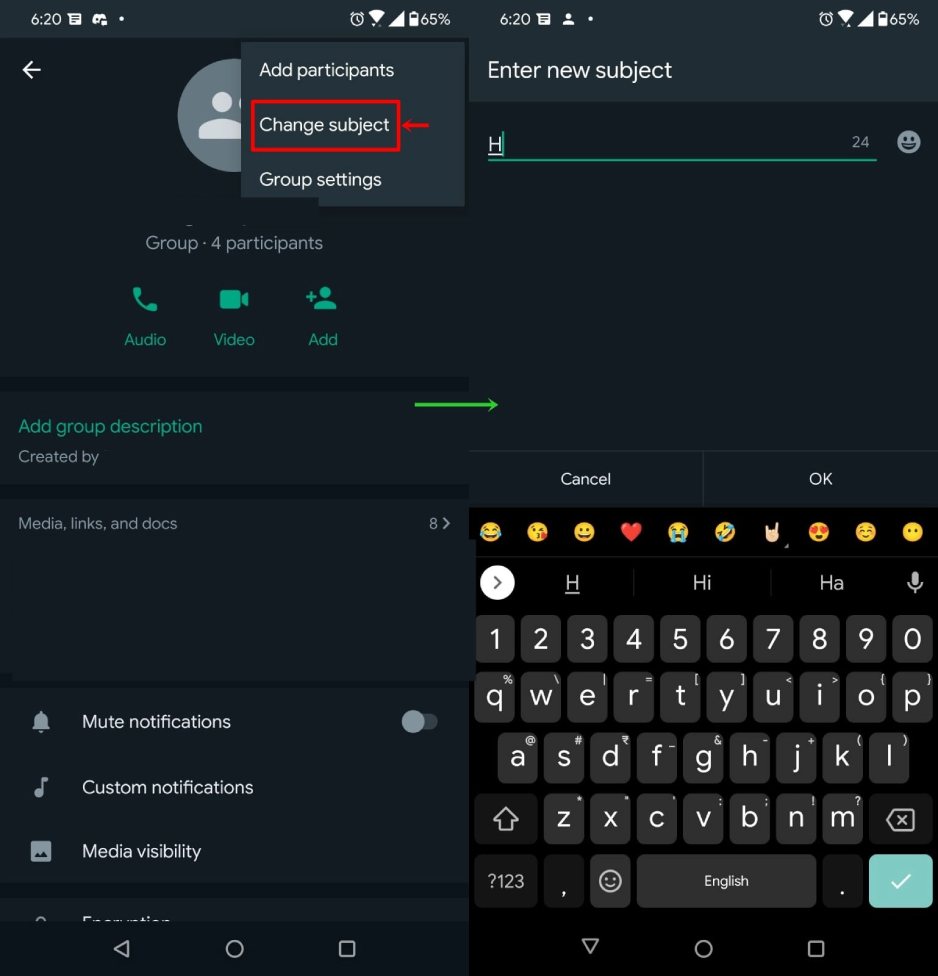
- Initiate Edit Mode: On the Group Info page, you will see the current group name prominently displayed. Tap directly on the name itself.
- Enter the New Name: A text cursor will appear, allowing you to edit the existing name. Carefully type in the new, desired name for your group. Consider clarity and length.
- Save the Change: Once satisfied with the new name, finalize the action by tapping the checkmark (✓) icon or the “Save” button, typically located in the top-right corner of the screen.
A confirmation notification will be sent to the group chat, stating that you changed the group name. This maintains transparency among all participants.
How to Change Group Name on WhatsApp for iPhone (iOS)
The iOS process aligns with Apple’s design philosophy, featuring slight variations in terminology and button placement. Here is the definitive method for iPhone users.
- Open the WhatsApp App: Locate and tap the WhatsApp icon on your iPhone’s home screen to launch the application.
- Select the Relevant Group Chat: From the Chats view, find and enter the group conversation you intend to rename.
- Open Group Info: Tap the group name at the top center of the chat interface. This will lead you to the Group Info page.

- Tap to Edit: On the Group Info screen, you will see an “Edit” button (or a pencil icon) next to the group name. Tap this button to proceed.
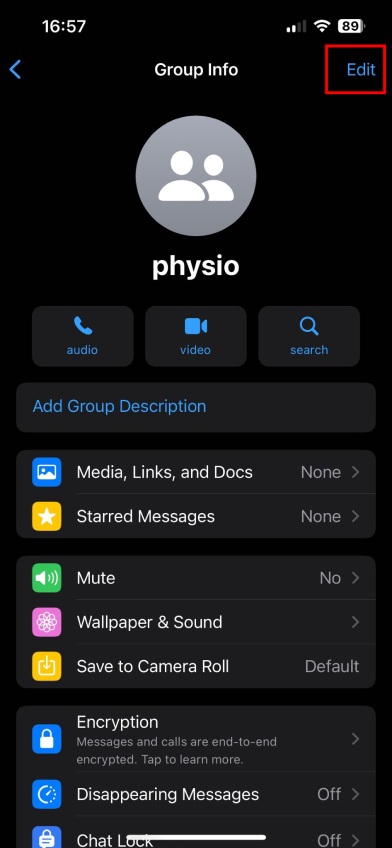
- Input the New Name: You will now be in an editing field. Delete the old name and type in the new, preferred name for your group.

- Confirm Your Action: To save the new group name, tap “Done” on your device’s keyboard. The change will be applied immediately.
As with Android, a system message will inform all group members of the name update, ensuring everyone is on the same page.
Troubleshooting and Permission Management
A common point of frustration arises when the option to change the group name is unavailable. This is almost always a permissions issue, governed by the group’s admin settings.
Understanding Admin Controls
WhatsApp group creators and admins possess granular control over group features. They can configure:
- Who Can Edit Group Info: Admins can restrict the ability to change the group’s name, icon, and description to “All Participants” or “Only Admins.”
- Who Can Send Messages: Settings can be adjusted to allow everyone or only admins to post in the group.
Resolving the “Can’t Change Name” Issue
If you cannot edit the group name, follow this diagnostic checklist:
- Verify Your Role: Are you a group admin? If you are a regular participant, you likely lack the necessary permissions.
- Check Group Settings: Ask an admin to navigate to Group Info > Group Settings > Edit Group Info. They must ensure the setting is not restricted to “Only Admins.”
- App and OS Updates: Outdated software can cause glitches. Ensure both your WhatsApp application and device operating system are updated to their latest versions.
- Basic Troubleshooting: If permissions are correct, try the standard fix: force-close the WhatsApp app and restart it, or restart your phone entirely.
Best Practices for Naming Your WhatsApp Groups
A strategic approach to naming can significantly enhance group utility. Consider these expert-recommended practices:
- Be Clear and Concise: Prioritize clarity over cleverness for functional groups. “Q3 Marketing Campaign” is instantly understood.
- Include Key Identifiers: For large communities or teams, include dates, project codes, or locations (e.g., “NYC Marathon Volunteers 2024”).
- Establish a Naming Convention: For multiple related groups (e.g., for different departments or classes), use a consistent format: “BizDev – Client Updates,” “BizDev – Internal.”
- Update Proactively: Rename event-planning groups after the event concludes (e.g., from “Wedding Planning!” to “Smith Wedding Photos & Memories”).
- Respect Privacy: Avoid using overly specific personal details in public group names that could appear in notifications on locked screens.
Frequently Asked Questions (FAQs)
Let’s address some of the most common and nuanced questions users have about managing WhatsApp group names.
Why Can’t I Change the WhatsApp Group Name?
As detailed in the troubleshooting section, this is predominantly a permissions issue. The group admin has likely set the “Edit Group Info” permission to “Only Admins.” If you are an admin and cannot change it, ensure your app is updated and try restarting your device. Persistent issues may require reinstalling WhatsApp (ensure your chats are backed up first).
Can I Rename a WhatsApp Group Without Admin Rights?
No, you cannot. If the admin has restricted this feature, only an admin can change the name. Your recourse is to politely request an admin to either change the name for you or adjust the group settings to allow all participants to edit group info.
Is There a Character Limit for WhatsApp Group Names?
Yes, WhatsApp imposes a limit of 25 characters for group names. This encourages brevity and ensures the name displays correctly across all devices and notification panels. Choose your words wisely to stay within this constraint.
What Happens When I Change a Group Name?
The change is instantaneous and universal. All group members will see the new name in their chats list. Crucially, a system-generated message appears in the group chat timeline stating, “You changed the group name to ‘[New Name]’.” This log cannot be deleted, providing a transparent history of changes.
Conclusion: Mastering Your Digital Spaces
Mastering the simple yet powerful feature of renaming a WhatsApp group empowers you to curate and manage your digital social and professional spaces effectively. Whether on Android or iOS, the process is straightforward when you have the correct permissions. Remember that a group name is a dynamic tool—it should evolve with the group’s purpose. By following this guide, employing best practices for naming, and understanding the underlying permission structures, you can ensure your WhatsApp groups remain organized, relevant, and engaging for every member. Take a moment now to review your active groups; a simple name update might be the key to renewed clarity and focus.
✨ Enhanced Content ✨
WhatsApp has become an integral part of our daily communication, making it easier than ever to stay connected with loved ones and colleagues.
One of the fun aspects of WhatsApp is the ability to create and manage groups, but have you ever wondered how to give your favorite group a catchy and personalized name?
If so, stay with us throughout this blog to find out how to change group name on whatsApp!
How to Change Group Name in WhatsApp Android
- Open the WhatsApp app on your Android device.
- Go to the group chat for which you want to change the name.
- Tap on the group name at the top of the chat screen. This will open the Group Info page.
- On the Group Info page, you’ll see the current group name. Tap on it.
- A text field will appear, allowing you to edit the group name. Type in the new name you want for the group.
- After entering the new group name, tap the checkmark icon or the “Save” button to confirm the change.
Read more: Secrets to block someone on WhatsApp without them knowing
How to Change Group Name on WhatsApp on iPhone
- Open the WhatsApp app on your iPhone.
- Go to the group chat for which you want to change the name.
- Tap on the group name at the top of the chat screen. This will open the Group Info page.
- On the Group Info page, you’ll see the current group name. Tap on edit.
- A text field will appear, allowing you to edit the group name. Type in the new name you want for the group.
- After entering the new group name, tap “Done” on the keyboard to confirm the change.
Remember that changing the group name might not be allowed if you don’t have the necessary permissions within the group, or if the group admin has restricted this feature.
Click if you want to find out Best ways to Know if Someone Muted You on Whatsapp in 2023
FAQs
Now Let’s answer some frequently asked questions on this matter:
Why Can’t I Change WhatsApp Group Name?
This issue could be due to permissions or restrictions set by the group admin. Check your role and group settings.
Can I rename a WhatsApp group?
Yes, if you have the necessary permissions, you can rename a WhatsApp group by following the appropriate steps for your device.
How do I change a group name?
To change a WhatsApp group name, go to the group chat, tap on the group name, and edit it in the Group Info or Group Settings, depending on your device.
Final Thoughts
We hope that we have provided you with enough information on how to change WhatsApp group name in this blog.
WhatsApp provides a user-friendly platform for connecting with friends, family, and colleagues through group chats.
Renaming a WhatsApp group is a straightforward process, allowing you to personalize your group’s identity and keep it up-to-date.
Remember to respect the group’s guidelines and your role within it, as this may affect your ability to change the group name.
[elementor-template id="24702"]