Introduction: The Power of Personalization in Digital Communication
In today’s hyper-connected digital landscape, instant messaging has evolved from a simple utility to a central hub for our social and professional lives. WhatsApp, with over two billion active users globally, stands as the undisputed leader in this space. Its group chat feature has revolutionized how we coordinate with family, collaborate with colleagues, and engage with communities of shared interest. A group’s profile picture, often the first visual cue members and newcomers see, serves as a digital banner—a small but significant element that fosters identity, belonging, and recognition. This comprehensive guide will provide you with an authoritative, step-by-step walkthrough on how to change your WhatsApp group photo on both iPhone and Android devices, ensuring your groups are not only functional but also visually cohesive and personally resonant.
Understanding WhatsApp Group Permissions and Roles
Before proceeding to change the group icon, it is critical to understand the permission structure within WhatsApp groups. Not all members have the same editing privileges. This design ensures order and prevents unwanted changes, especially in larger communities.
Group Admin Privileges
Group creators are automatically designated as admins, and they can appoint additional admins. Admins possess exclusive control over several group settings, which typically include:
- Changing the group name, description, and profile picture.
- Adding or removing participants.
- Managing admin roles and group settings (e.g., who can send messages).
Participant (Member) Limitations
Standard group members no puede alter the group’s core identity markers. If the option to change the photo is unavailable, your role is almost certainly that of a participant. In some cases, admins may have configured settings that restrict even certain admin actions, though this is less common for photo changes.
A Detailed Guide to Changing Your WhatsApp Group Photo
The process is intuitive but differs slightly between iOS and Android due to each platform’s design language. The following sections provide meticulous, platform-specific instructions.
How to Change WhatsApp Group Photo on iPhone (iOS)
The iOS process involves navigating through the group info screen. Follow these steps precisely:
- Launch WhatsApp: Locate and tap the distinctive green WhatsApp icon on your iPhone’s home screen or App Library to open the application.
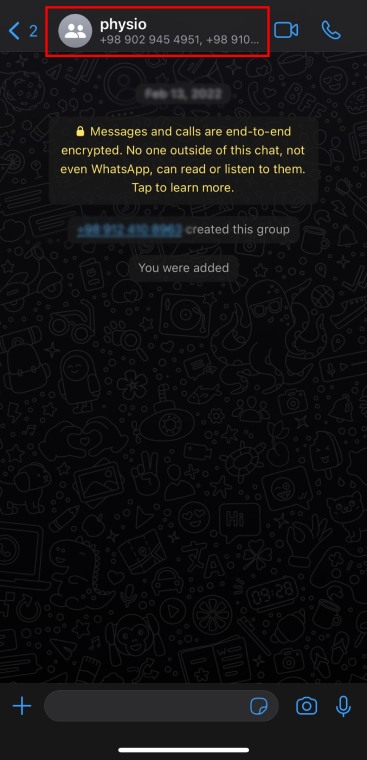
- Access the Target Group: From the main Chats tab, scroll through your conversation list and select the specific group whose photo you intend to update.
- Open Group Information: Inside the group chat window, tap directly on the group name and current photo located at the very top of the screen. This action navigates you to the dedicated Group Info page.
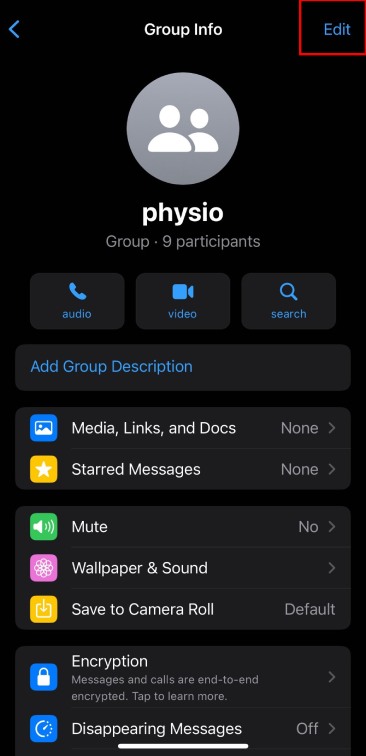
- Initiate Edit Mode: On the Group Info page, look for the “Edit” button in the top-right corner of the screen and tap it. This enters the group’s editing interface.
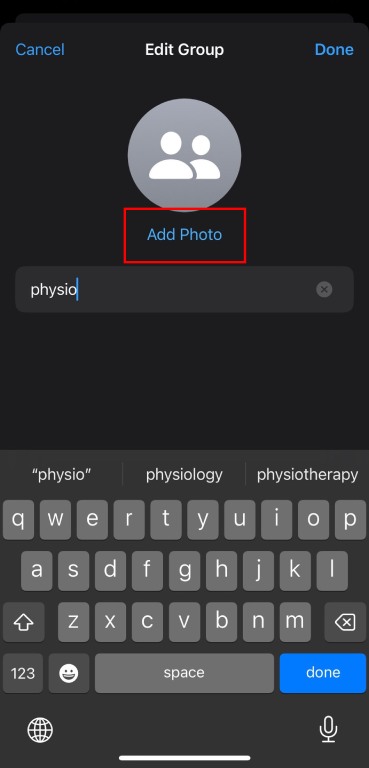
- Select the Photo Option: You will now see an “Add Photo” o “Edit” prompt superimposed over the existing group icon (or a placeholder). Tap on this area.
- Choose Your Image Source: A menu will appear, presenting you with three primary options:
- Take Photo: Opens your iPhone’s camera to capture a new image instantly.
- Choose Photo: Opens your photo gallery to select an existing image.
- Choose Avatar: Allows selection from WhatsApp’s default avatar library (availability may vary).
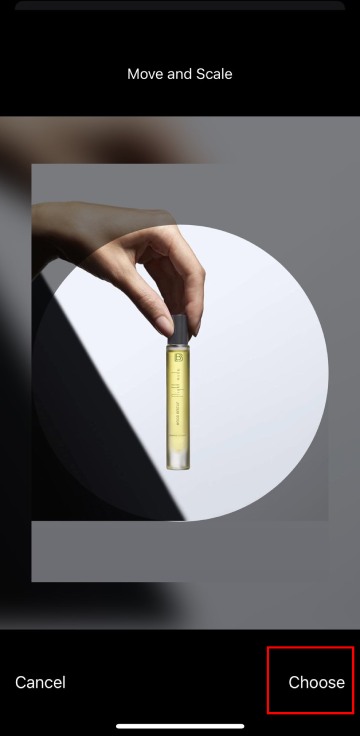
- Crop and Position: After selecting or taking a photo, WhatsApp will present a cropping screen. Drag, pinch, and adjust the image within the circular frame to achieve the perfect composition. This step is crucial for ensuring the main subject is centered and visible in the thumbnail.
- Finalize and Save: Once satisfied with the crop, tap “Done” (iOS 15+) or “Choose” in the bottom-right corner. The app will process the change, and the new group photo will be immediately visible to all members.
How to Change Group Icon on WhatsApp Android
The Android procedure is often more direct, leveraging a tap on the existing icon. Here is the definitive method:
- Open the WhatsApp Application: Tap the WhatsApp icon in your app drawer or on your home screen.
- Navigate to the Desired Group: From the Chats screen, locate and select the relevant group chat.
- Go to Group Info: In the group chat header, tap on the group’s name. This directs you to the Group Info screen.
- Tap the Current Group Photo: On the Group Info page, you will see the current group photo displayed prominently next to the name. Tap directly on this photo—this is the primary action to initiate the change process on Android.
- Select Image Source: A pop-up menu will give you the choice to:
- Camera: To take a new photo.
- Gallery: To choose from your device’s stored images.
- Avatar: To pick a default icon (if available).
- Adjust the Image: Similar to iPhone, you will be taken to an editing screen. Use the pinch-to-zoom and drag gestures to frame your picture correctly within the circular guide.
- Save the New Icon: After cropping, tap the checkmark (✓) or the “SAVE” button, usually located at the bottom. The change is applied instantly.
Best Practices for an Effective WhatsApp Group Photo
Choosing the right image is as important as knowing how to set it. A well-chosen group photo enhances usability and group spirit.
Image Composition and Technical Specifications
- High Resolution is Key: Use a clear, high-quality image. Blurry or pixelated photos appear unprofessional and are difficult to recognize in thumbnails.
- Mind the Crop: WhatsApp uses a strict circular crop. Ensure the focal point of your image (e.g., a logo, a face, a landmark) is centered and not too close to the edges, where it may be cut off.
- Optimal Dimensions: While WhatsApp accepts various sizes, an image of at least 640×640 pixels is recommended for crisp display on all screen resolutions.
Strategic and Thematic Considerations
- Reflect Group Purpose: A family group might use a recent family photo. A project team could use a company logo or a relevant project mascot. Alignment with the group’s purpose aids instant recognition.
- Ensure Appropriateness and Inclusivity: The image should be appropriate for all members and consider cultural sensitivities. Avoid controversial or private content.
- Prioritize Readability: If using text or a logo within the image, test how it looks in the small, circular format to ensure it remains legible.
Troubleshooting Common Issues
Even with clear instructions, you may occasionally encounter obstacles. Here are solutions to the most frequent problems.
Why Can’t I Change the WhatsApp Group Photo?
If the option is greyed out or non-existent, systematically check the following:
- Confirm Your Admin Status: Only group admins can change the photo. Check the list of participants on the Group Info screen; your name should have “admin” listed beneath it.
- Check Group Settings: While rare, review if group settings have been altered to restrict admins from editing group info. This is typically only configurable by the group creator.
- Update the App: An outdated version of WhatsApp can cause features to malfunction. Visit the Apple App Store or Google Play Store to install any available updates.
- Restart Your Device: A simple restart can resolve temporary software glitches that may be affecting app permissions or functionality.
- Reinstall WhatsApp (Last Resort): If the problem persists, back up your chats (via Settings > Chats > Chat Backup) and perform a fresh reinstall of the application.
The Photo Change is Not Visible to All Members
✨ Enhanced Content ✨
En la era digital actual, la mensajería instantánea se ha convertido en parte integrante de nuestras vidas.
Entre las muchas aplicaciones de mensajería, WhatsApp es una de las plataformas de mensajería más populares en todo el mundo.
Los grupos de WhatsApp son una forma fantástica de mantenerse en contacto con familiares, amigos, compañeros de trabajo o comunidades de intereses.
Y como en cualquier otro aspecto de WhatsApp, tienes la flexibilidad de personalizar tu experiencia de grupo, incluyendo cambiar el icono del grupo o la foto de perfil del grupo.
En esta guía te explicamos paso a paso cómo cambiar la foto de grupo de WhatsApp para que tus grupos reflejen tu estilo e identidad.
Cómo cambiar la foto del grupo de WhatsApp
Cambiar la foto de grupo (también conocida como icono de grupo o foto de perfil de grupo) en WhatsApp es un proceso sencillo tanto en dispositivos iPhone como Android. A continuación te explicamos cómo puedes hacerlo.
Cómo cambiar la foto de grupo de WhatsApp iPhone
Abre WhatsApp: Toca el icono de WhatsApp en la pantalla de inicio de tu iPhone para abrir la aplicación.
Navegue hasta el Grupo: Vaya a la lista de chats y seleccione el grupo cuya foto de grupo desea cambiar.
Pulse sobre el Nombre del grupo: En el chat de grupo, pulse sobre el nombre del grupo en la parte superior de la pantalla. Esto te llevará a la página de información del grupo.
Edita: En la página de información del grupo, verás la opción de edición en la esquina derecha, pulsa sobre ella.
Añadir fotoencima del nombre del grupo, encontrarás la opción “añadir foto” o “cambiar foto de grupo”, haz clic en ella.
Seleccione una nueva foto: Tendrás la opción de hacer una foto nueva con la cámara o elegir una foto de la galería. Selecciona la opción que más te convenga y sigue las instrucciones en pantalla para configurar la nueva foto de grupo.
Recortar y ajustar: Si es necesario, puedes recortar y ajustar la foto seleccionada para que se ajuste a las dimensiones de la foto de grupo.
Ahorra: Tras realizar los ajustes necesarios, pulsa “Hecho” o “Guardar” para establecer la nueva foto de grupo.
Más información: Cómo etiquetar a todo el mundo a la vez en un chat de grupo de WhatsApp
Cómo cambiar el icono de grupo WhatsApp Android
Abre WhatsApp: Toca el icono de WhatsApp en tu dispositivo Android para abrir la aplicación.
Navegue hasta el Grupo: Vaya a la lista de chats y seleccione el grupo cuya foto de grupo desea cambiar.
Pulse sobre el Nombre del grupo: En el chat de grupo, pulse sobre el nombre del grupo en la parte superior de la pantalla. Esto te llevará a la página de información del grupo.
Foto de grupo de Change: En la página de información del grupo, verás la foto del grupo actual junto al nombre del grupo. Pulsa sobre esta foto.
Seleccione una nueva foto: Tendrás la opción de hacer una foto nueva con la cámara o elegir una foto de la galería. Selecciona la opción que más te convenga y sigue las instrucciones en pantalla para configurar la nueva foto de grupo.
Recortar y ajustar: Si es necesario, puedes recortar y ajustar la foto seleccionada para que se ajuste a las dimensiones de la foto de grupo.
Ahorra: Tras realizar los ajustes necesarios, pulsa “Guardar” o “Aceptar” para establecer la nueva foto de grupo.
Ya está. La foto de grupo de tu grupo de WhatsApp debería actualizarse con la nueva imagen que hayas seleccionado.
Ten en cuenta que sólo los administradores de grupo pueden cambiar la foto de grupo, dependiendo de la configuración del grupo.
Más información: Guía simple: Cómo cambiar el nombre de un grupo en WhatsApp
Preguntas frecuentes
Respondamos ahora a algunas preguntas frecuentes sobre este asunto:
¿Por qué no puedo cambiar la foto del grupo de WhatsApp?
Puede que no tengas los permisos necesarios o no seas administrador del grupo para cambiar la foto de grupo. Comprueba tu rol en el grupo y la configuración.
Cómo cambiar la foto de grupo de WhatsApp en iPhone?
Abra el chat de grupo, pulse el nombre del grupo y, a continuación, pulse la foto de grupo. A continuación, puedes seleccionar una nueva foto de tu cámara o galería y establecerla como foto de grupo.
Conclusión
Las funciones dinámicas de WhatsApp permiten a los usuarios conectarse con sus seres queridos y sus comunidades sin problemas.
Si deseas refrescar la apariencia de tu grupo o mejorar su identidad, dominar la habilidad de cambiar los iconos y las imágenes de los grupos de WhatsApp es de un valor incalculable.
Siga los sencillos pasos de nuestra guía para personalizar sus grupos sin esfuerzo, asegurándose de que sean funcionales y visualmente atractivos.
Actúa ahora para infundir a tus grupos de WhatsApp un toque personal, transformando tus chats en experiencias únicas y agradables.
[elementor-template id="24702"]