Why a Native Instagram Experience on Mac Is Worth Pursuing
Instagram’s core design philosophy has always centered on mobile-first, prioritizing the intimate, on-the-go experience of smartphones. However, the modern digital professional, creator, or avid user often finds themselves anchored to a larger screen. While the web browser version of Instagram provides basic access, it falls short of delivering the seamless, immersive interaction users have come to expect. The quest to install Instagram as a dedicated app on your Mac is driven by the desire for a streamlined workflow: instant push notifications for new messages and interactions, a persistent and clutter-free window, quicker access from your Dock, and a generally more responsive interface. This guide explores the definitive methods to achieve that app-like integration, transforming how you engage with one of the world’s most dominant social platforms from your macOS device.
The Core Challenge: Why Isn’t There an Official Instagram Mac App?
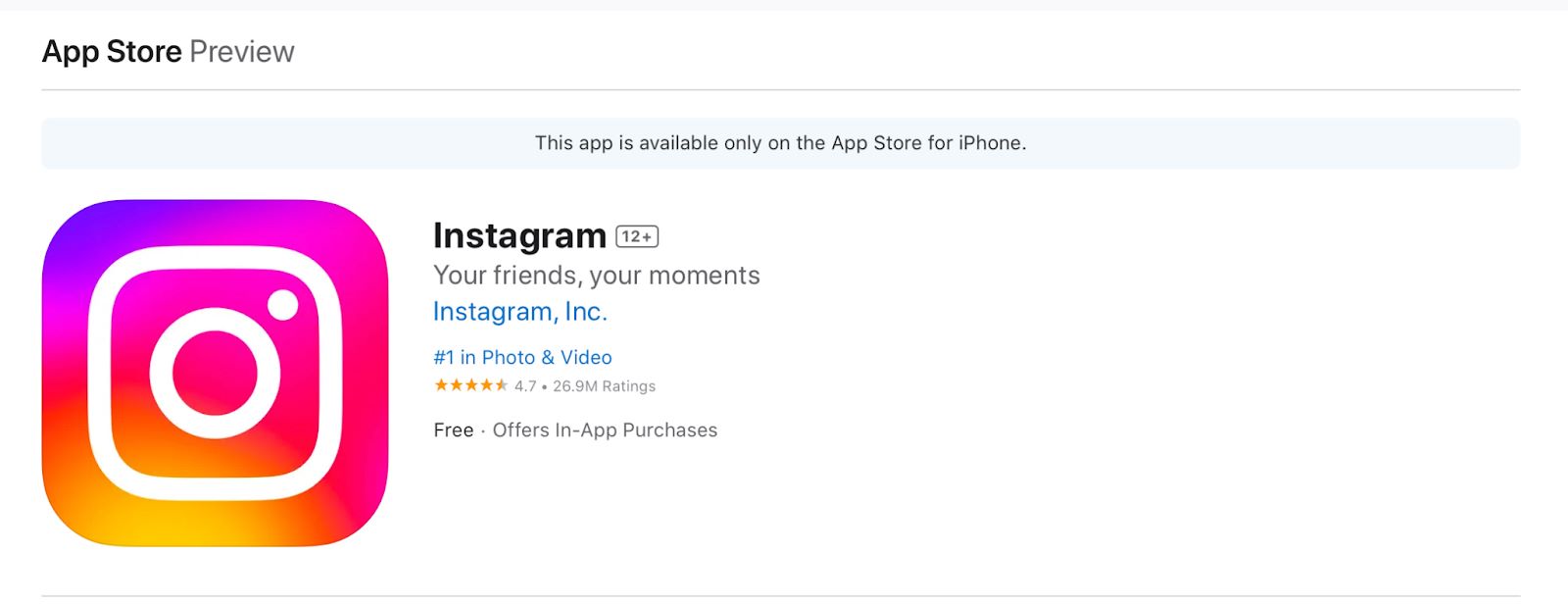
Despite its monumental user base and cultural impact, Instagram remains conspicuously absent from the macOS App Store. When you search for it, you’re met with a clear, frustrating message: “This app is available only on the App Store for iPhone.” This isn’t an oversight but a strategic choice rooted in history, design, and business priorities.
Mobile-Centric Design Philosophy
Instagram was born on mobile. Its features—Stories, Reels, Direct Messaging, and its core photo/video capture and editing suite—were meticulously engineered for touch interfaces and smartphone cameras. Meta has consistently optimized the app for the vertical, handheld experience, which aligns with how the vast majority of its users consume content. Translating this experience to a mouse, keyboard, and desktop window environment requires a significant redesign that, historically, has not been a corporate priority.
Platform Divergence and Development Hurdles
While Apple’s ecosystem is increasingly unified, macOS and iOS remain distinct operating systems with different frameworks and user interaction models. Developing a native Mac app that maintains feature parity with its mobile counterpart is a substantial engineering undertaking. Although technologies like Apple’s Catalyst make porting iOS apps to macOS more feasible, the decision ultimately rests with Meta. For now, they have chosen to keep their development focus on mobile, where engagement and advertising revenue are most concentrated.
The Workaround Ecosystem
The absence of an official solution has created a space for user ingenuity and third-party methods. Fortunately, macOS’s flexibility provides legitimate pathways to bridge this gap. The following sections detail the two most effective and popular methods to install Instagram as a functional app on your MacBook, each catering to different user needs and technical comfort levels.
Method 1: Install Instagram as a Progressive Web App (PWA)
The most straightforward and resource-light method is to leverage Safari’s ability to create a Progressive Web App (PWA). A PWA is a website that uses modern web capabilities to deliver an app-like experience. It runs in its own dedicated window, separate from your browser, and can be pinned to your Dock for instant access.
Step-by-Step Guide to Creating the Instagram PWA
This process is simple, quick, and requires no additional software downloads.
- Launch Safari and Navigate: Open the Safari browser on your Mac and go to instagram.com. Log into your account as you normally would.
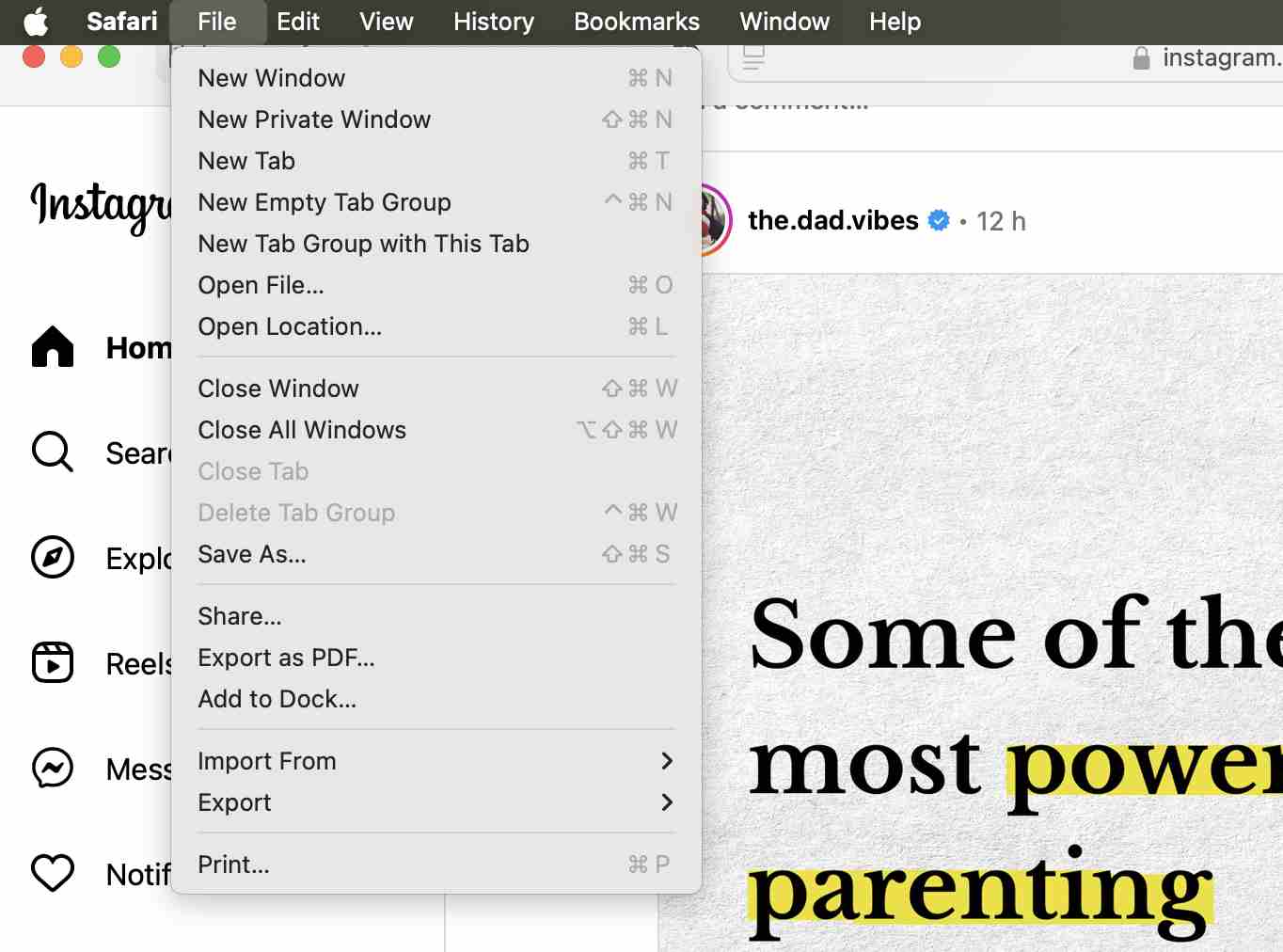
- Initiate the “Add to Dock” Process: Click on “File” in the top macOS menu bar. From the dropdown menu, select “Add to Dock…”
- Confirm and Customize: A dialog box will appear. You can edit the name of the app that will appear in your Dock (e.g., “Instagram”) and then click the “Add” button.
Instantly, an Instagram icon will appear in your Dock. Clicking it will launch Instagram in a clean, standalone window without browser tabs, bookmarks, or an address bar.
Capabilities and Limitations of the PWA Method
Understanding what the PWA can and cannot do is crucial for setting the right expectations.
What You Can Do:
- Browse your feed, Explore page, and user profiles.
- Like, comment on, and share posts.
- View Stories and send direct messages (DMs).
- Receive desktop notifications for new messages and interactions if you enable them in Safari settings.
- Enjoy a persistent, dedicated app window for streamlined multitasking.
Significant Limitations:
- No Uploading: Usted no puede create and post new photos, videos, Stories, or Reels from the PWA.
- Limited Editing: Features like editing your profile details or managing existing posts are restricted or unavailable.
- Feature Gaps: Advanced creation tools, such as those for Reels or IGTV, are not accessible.
Lo mejor para: Users who primarily consume content, manage DMs, and engage with posts from their Mac and value convenience and a clean interface over full creation capabilities.
Method 2: Using an Android Emulator for Full Functionality
If you require the complete, unadulterated Instagram experience—including the ability to post content—the only reliable method is to run the official Android mobile app on your Mac. This is achieved through an Android emulator, a software program that creates a virtual Android device within your macOS environment.
Why Choose BlueStacks?
BlueStacks is one of the most popular and stable Android emulators for macOS. It is designed specifically for running mobile apps and games on a desktop computer, offering key mapping for keyboard controls, multi-instance support, and high-performance graphics.
Comprehensive Installation and Setup Guide
- Download and Install BlueStacks: Visit the official BlueStacks website and download the installer for Mac. Open the downloaded file and follow the on-screen installation wizard. This process is similar to installing any other Mac application.
- Initial Setup and Google Login: Launch BlueStacks after installation. The first boot may take a few minutes as it sets up the virtual Android environment. You will be prompted to sign in with a Google account (this is required to access the Google Play Store).
- Access the Google Play Store: Once set up, you’ll see a familiar Android-style home screen. Locate and open the “Play Store” app. Search for “Instagram” and click “Install,” just as you would on a physical Android phone or tablet.
- Launch and Use Instagram: After installation, you can open Instagram from the BlueStacks home screen or App Drawer. Log in with your credentials. You now have the full mobile app running in a resizable window on your Mac, with access to cada feature, including posting, Stories, Reels creation, and all editing tools.
Performance Considerations and Best Practices
Running an entire operating system within your macOS is resource-intensive. For optimal performance:
- Ensure your Mac meets or exceeds the system requirements for BlueStacks, with a focus on RAM (8GB minimum, 16GB recommended) and processor power.
- Close other demanding applications while using the emulator to allocate more resources.
- Explore BlueStacks’ settings to adjust performance modes based on your Mac’s specifications.
Lo mejor para: Social media managers, content creators, influencers, or power users who need to upload, edit, and manage their Instagram presence directly from their Mac and cannot afford the limitations of the PWA. It is the only method that delivers 100% feature parity.
Strategic Comparison: Choosing Your Path Forward
Selecting the right method depends entirely on your primary use case and technical setup.
- The PWA (Safari) Method: Think of this as the “lightweight client.” It’s perfect for consumption and communication. It integrates natively with macOS, uses minimal system resources, and provides a clean, fast experience for browsing and messaging. Its major drawback is the inability to create content.
- The Emulator (BlueStacks) Method: This is the “full-stack solution.” It delivers the complete creation and consumption experience by virtually replicating an Android phone. The trade-off is significant resource usage and a more complex setup. It is ideal for users whose workflow demands full access to Instagram’s publishing toolkit.
Conclusion and Final Recommendations
While the ideal scenario remains an official, native Instagram app for macOS, the current landscape offers two powerful, legitimate workarounds. For the majority of users seeking convenient access to their feed and messages, the Progressive Web App method via Safari is the recommended starting point. It’s elegant, efficient, and built right into your Mac’s ecosystem.
For professionals and creators whose work hinges on Instagram’s full suite of features, investing the time to set up BlueStacks is a worthwhile endeavor. It effectively solves the problem, granting you desktop power over your mobile-centric platform.
Evaluate your needs, consider your Mac’s capabilities, and choose the method that best integrates Instagram into your digital life. By following this guide, you can successfully install Instagram as a functional, accessible app on your Mac, reclaiming efficiency and enhancing your social media management in 2024.
✨ Enhanced Content ✨
Instagram está diseñado para funcionar como una aplicación de smartphone. Esa es su esencia. Pero a veces prefieres usarla en una pantalla más grande. Si estás trabajando en tu MacBook, quizá quieras entrar en la app directamente desde tu portátil. En puede hacerlo a través de tu navegador web, pero no te dará una experiencia similar a la de una aplicación. Por eso necesitas saber cómo instalar Instagram como aplicación en tu Mac.
Una app de Instagram para Mac te daría notificaciones push, navegación optimizada, acceso más rápido y la posibilidad de consultar tus DMs fácilmente. Aunque no existe una aplicación oficial, tienes opciones. Analicémoslas y aprendamos a instalar Instagram como aplicación.
¿Por qué Instagram no está disponible como aplicación para MacBook?
Aunque Instagram es una de las aplicaciones de redes sociales más populares, se centra principalmente en las experiencias móviles. Desde que se introdujo, se diseñó pensando en los usuarios de móviles, especialmente los de dispositivos iOS y Android.
El problema es que la aplicación oficial de Instagram solo está pensada para smartphones. Cuando intentas conseguirla a través de la App Store, ese es exactamente el mensaje que muestra: esta aplicación sólo está disponible en la App Store para iPhone.
Meta es conocida por optimizar funciones móviles como Stories, Reels y mensajes directos para pantallas móviles. Esto deja a los usuarios de ordenadores de sobremesa y portátiles algo limitados, preguntándose cómo instalar Instagram como app en MacBook con el mismo nivel de funcionalidad.
Muchas otras aplicaciones populares desafían esa tendencia de uso exclusivo para móviles. Usted puede conseguir fácilmente Minecraft en MacBook, con instrucciones sencillas en cómo descargarlo y úsala en cuestión de minutos en tu ordenador. La aplicación está diseñada específicamente para funcionar sin problemas en macOS, lo que demuestra que dar prioridad a las experiencias fluidas entre dispositivos siempre va en beneficio del usuario. Instagram, por otro lado, nos deja buscando otras opciones.
La verdad es que macOS de Apple funciona de forma diferente a iOS. Desarrollar una aplicación específica para Mac requeriría importantes ajustes por parte del equipo de Instagram. Para una aplicación tan exitosa como esta, esfuerzo no debería ser un problema. Últimamente, macOS está empezando a parecerse mucho a iOS. Puede ejecutar muchas aplicaciones de iOS de forma nativa, por lo que el cambio de Instagram no debería ser tan difícil. Al fin y al cabo, se trata de políticas.
Por ahora, las soluciones de terceros son la única forma de instalar Instagram como aplicación en los MacBooks.
Cómo instalar Instagram como una aplicación para MacBook a través de Progressive Web App (PWA)
PWA es una aplicación web que se comporta como una aplicación nativa. Se puede acceder a ella a través de un navegador web, pero te ofrecerá todas las funciones de una app, como notificaciones push y la posibilidad de añadirla a la pantalla de inicio o al dock para acceder a ella fácilmente.
A continuación te explicamos cómo descargar Instagram en Mac como PWA:
- Utiliza Safari para ir al sitio web de Instagram e inicia sesión en tu cuenta.
- Haz clic en el menú Archivo de la parte superior de la pantalla y selecciona Añadir al Dock.
- Seleccione Añadir cuando reciba este mensaje:
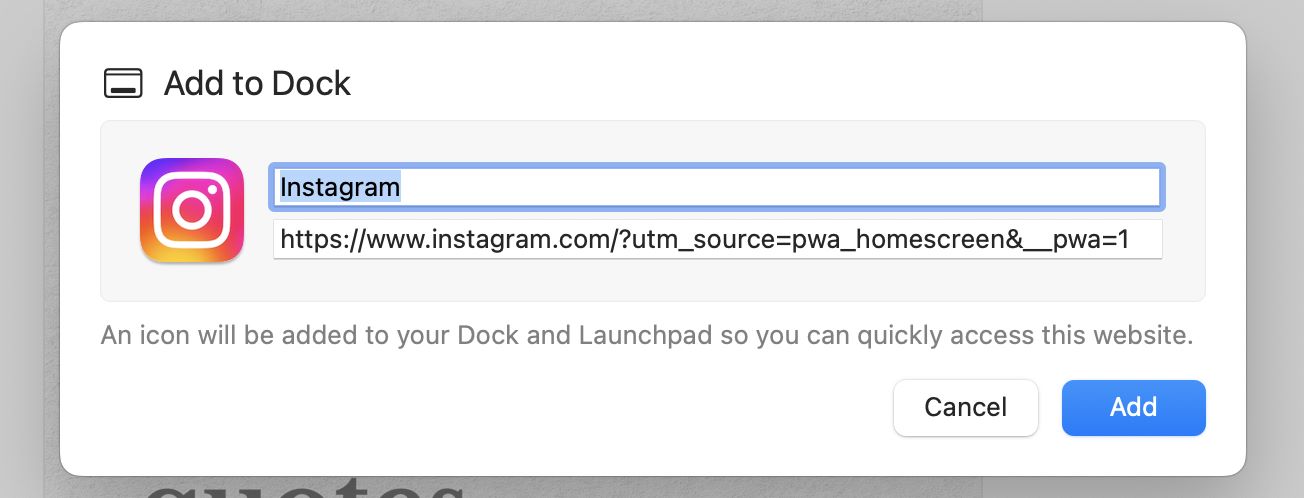
Eso es todo lo que tienes que hacer. Safari creará un icono similar al de una aplicación en tu dock para Instagram. Ahora puedes abrirla directamente desde el dock sin abrir el navegador.

Con este método, puedes instalar Instagram como una app, con acceso rápido y su propia ventana. Pero no te dará todas las funciones de la aplicación móvil. Puedes navegar por tu feed, hacer "Me gusta" y comentar publicaciones, ver Historias y enviar mensajes directos. Pero no puedes publicar fotos, historias y vídeos, editar publicaciones ni utilizar herramientas avanzadas como Reels e IGTV.
Consigue la aplicación de escritorio de Instagram para Mac a través de un emulador de Android
Esta es una solución extrema, pero puedes utilizar un emulador de Android como BlueStacks para ejecutar aplicaciones de Android en tu escritorio. Te dará acceso a la funcionalidad completa de la aplicación Instagram, como si estuvieras usando un dispositivo móvil.
He aquí cómo hacerlo:
- Descargar el emulador Bluestacks para macOS a través de su sitio web.
- Siga las instrucciones de instalación para completar la configuración.
- Una vez instalado, abre Bluestacks y espera a que cargue.
- Tendrás que iniciar sesión con tu cuenta de Google y podrás acceder a Google Play Store.
- Busca Instagram allí e instálalo.
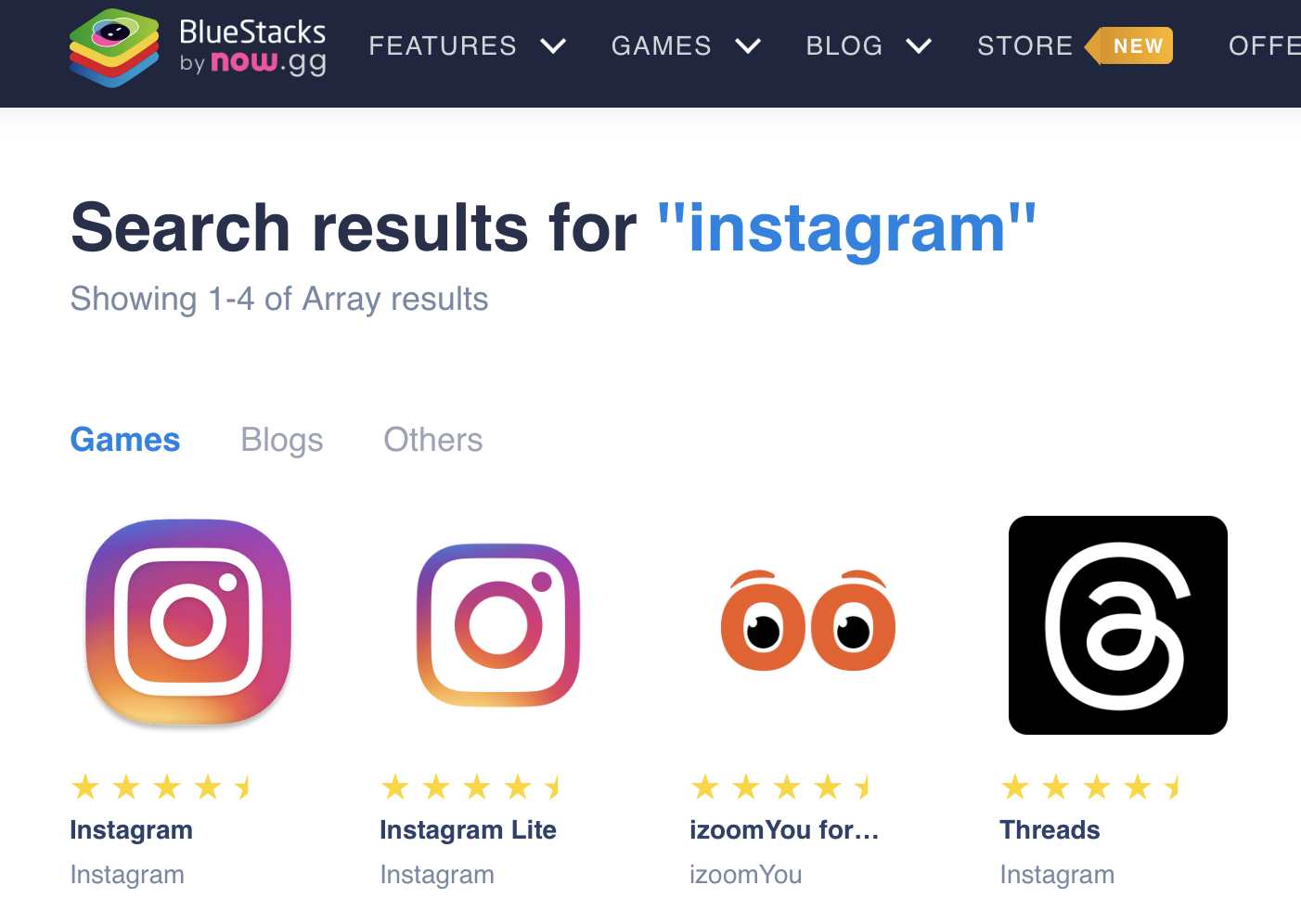
- Ahora puedes iniciar Instagram desde la pantalla de inicio de BlueStacks y utilizarlo como una aplicación móvil.
Este método implica una descarga pesada, por lo que no es una solución perfecta cuando tienes capacidades de hardware limitadas. Pero se te ofrecen la experiencia completa de Instagram, incluida la posibilidad de publicar fotos y utilizar todas las funciones. Si utilizas Instagram con fines profesionales (marketing o influencer) y te resulta más cómodo trabajar a través de tu MacBook, BlueStacks es una gran solución. También puedes descargar y utilizar otras aplicaciones Android a través de él.
Visión general
Para la mayoría de los usuarios que necesitan instalar Instagram como una aplicación en sus MacBooks, el método PWA funcionará. Te da un acceso fácil, pero es limitado en términos de características. Si necesitas una aplicación de Instagram con funcionalidad completa en tu MacBook, BlueStacks es una buena solución. Es intensivo en recursos y potencialmente ralentizará tu Mac, pero te dará Instagram en todo su esplendor.
Preguntas frecuentes
1. ¿Existe una aplicación oficial de Instagram para Mac?
No, no existe una aplicación oficial de Instagram diseñada específicamente para macOS. Instagram está diseñado principalmente para dispositivos móviles, centrándose en la experiencia del usuario móvil. Sin embargo, puedes utilizar soluciones para acceder a Instagram en tu Mac.
2. ¿Puedo publicar fotos en Instagram con el método PWA?
No, la versión Progressive Web App (PWA) de Instagram en Mac te permite navegar por tu feed, hacer me gusta y comentar publicaciones, y enviar mensajes directos, pero no admite la publicación de fotos, vídeos o Stories.
[elementor-template id="24702"]