
How to Unmute Someone’s Status on WhatsApp: The Complete 2025 Guide
Last Updated: 2025
In the fast-paced world of instant messaging, managing digital noise is crucial for maintaining focus and peace of mind. WhatsApp’s mute feature is a powerful tool for this, allowing users to temporarily silence the status updates of particularly active contacts or channels. However, the very feature designed to reduce clutter can sometimes become a source of frustration when you wish to re-engage with someone’s updates but can’t recall how to reverse the action. If you’ve found yourself wondering how to restore those missed slices of life from friends, family, or favorite content creators, you’re not alone. This comprehensive 2025 update is designed to be your definitive guide, offering clear, step-by-step instructions across all devices and empowering you with best practices for managing your WhatsApp experience intelligently and securely.
Understanding WhatsApp Status Muting: More Than Just Silence
Before diving into the “how-to,” it’s essential to understand what muting a status truly means. Unlike blocking or deleting a contact, muting is a non-intrusive, reversible action focused solely on your viewing experience.
What Exactly Happens When You Mute a Status?
Muting a contact’s status updates on WhatsApp is a personal preference setting that has no effect on your relationship with that contact. Key implications include:
- Invisible Updates: The muted contact’s status circles will not appear at the top of your Updates ficha.
- No Notifications: You will not receive any alerts when they post new status updates.
- Manual Viewing Still Possible: You can still manually view their status by going to their chat info page, but it requires a deliberate action.
- They Won’t Know: The muted user receives no notification and has no way of knowing their status has been muted. The action is completely private.
This feature is perfect for times when you need a break from frequent posters without severing the digital connection. Recognizing this functionality sets the stage for why and how you might want to undo it.
How to Unmute Someone’s Status on WhatsApp (Mobile)
The process is intuitive and similar across both iOS and Android platforms, reflecting WhatsApp’s commitment to a unified user experience. Follow this detailed, step-by-step guide to restore any muted status to your main feed.
Step-by-Step Guide for iPhone and Android
- Launch WhatsApp: Tap the WhatsApp icon on your smartphone’s home screen or app drawer to open the application.
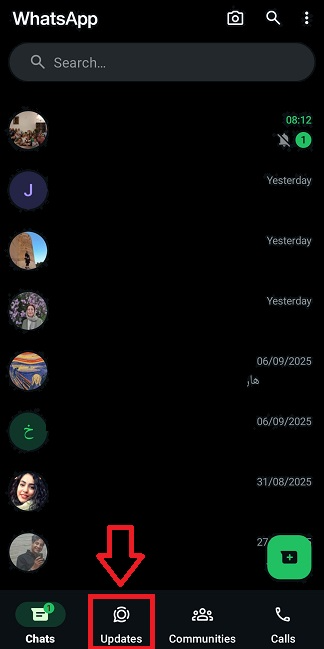
- Navigate to the Updates Tab: On Android, tap the Updates tab (typically indicated by a circular story icon). On iOS, swipe right from the Chats screen or tap the Status tab at the bottom.
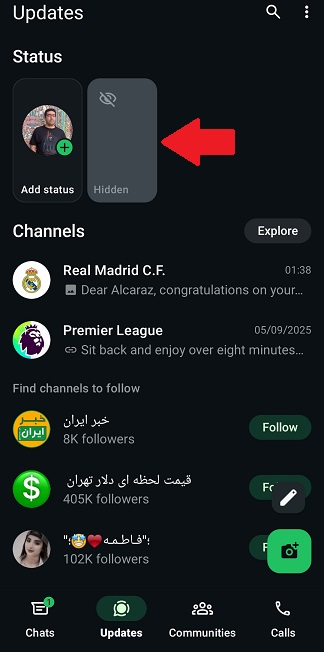
- Access the Muted List: At the top of the Updates screen, you will see a section labeled Hidden o Muted. Tap on this section. This is the repository for all contacts whose status updates you have chosen to silence.
- Identify and Select the Contact: Scroll through the list to find the person or channel you wish to unmute. Press and hold their name or profile picture. On some Android versions, you may simply need to tap on their name to reveal options.
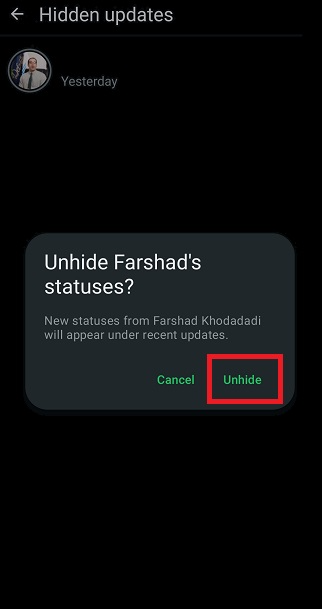
- Execute the Unmute Command: A context menu or an action sheet will appear. Look for and select the option labeled Unmute, Show, o Unhide. Tap it to confirm.
Verification: Once completed, exit the Hidden list. The contact’s status circle should now reappear in the main row of your Updates tab the next time they post. Congratulations! You have successfully reconnected with their updates.
How to Unmute Someone’s Status on WhatsApp Web & Desktop
For users who spend significant time on computers, WhatsApp Web and the standalone Desktop app offer full functionality, including status management. The interface differs slightly from mobile, but the core logic remains consistent.
Detailed Instructions for PC, Mac, and WhatsApp Web
- Open WhatsApp on Your Computer: Access web.whatsapp.com in your browser or launch the installed Desktop application.
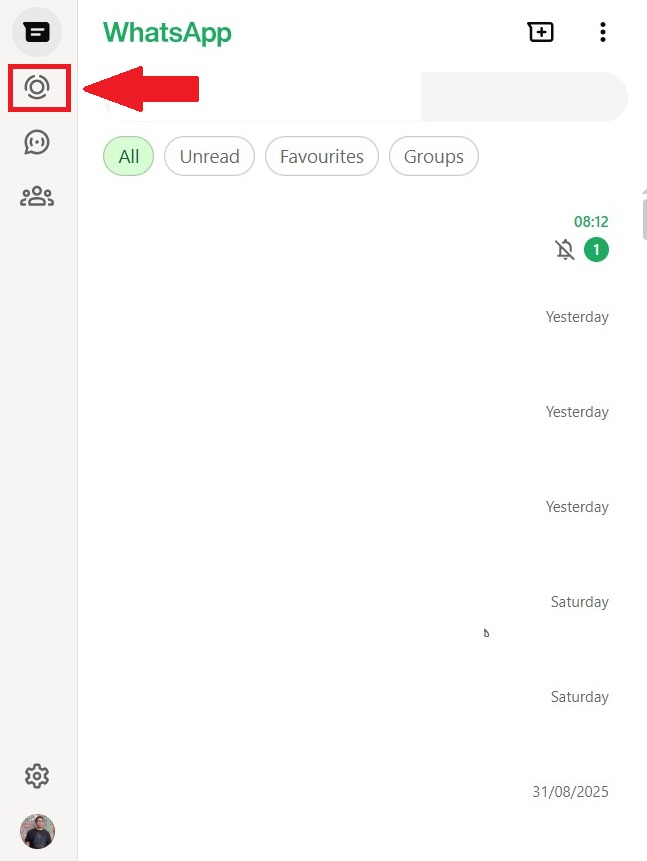
- Locate the Status Panel: On the left-hand sidebar, click on the icon that resembles a double-circle or a user with a ring around it. This is the Status o Updates sección.
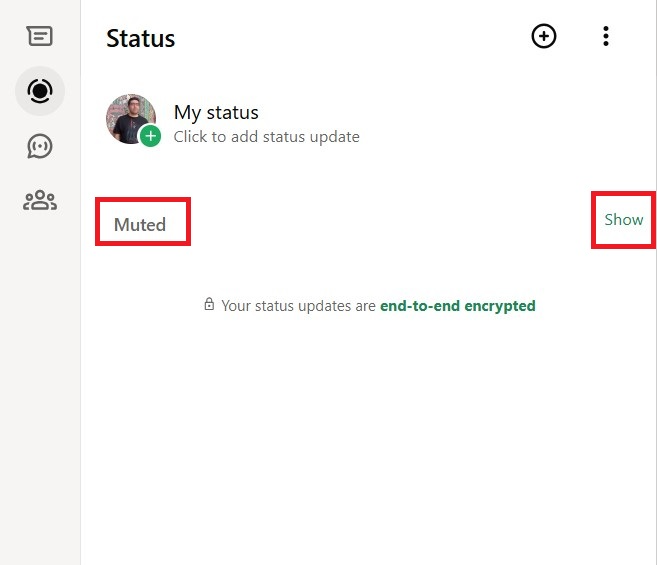
- Find the “Muted” Subsection: Within the Status panel, look for a distinct segment titled Muted. It is usually placed below the “Recent Updates.” Click the Show button next to it to expand the list.
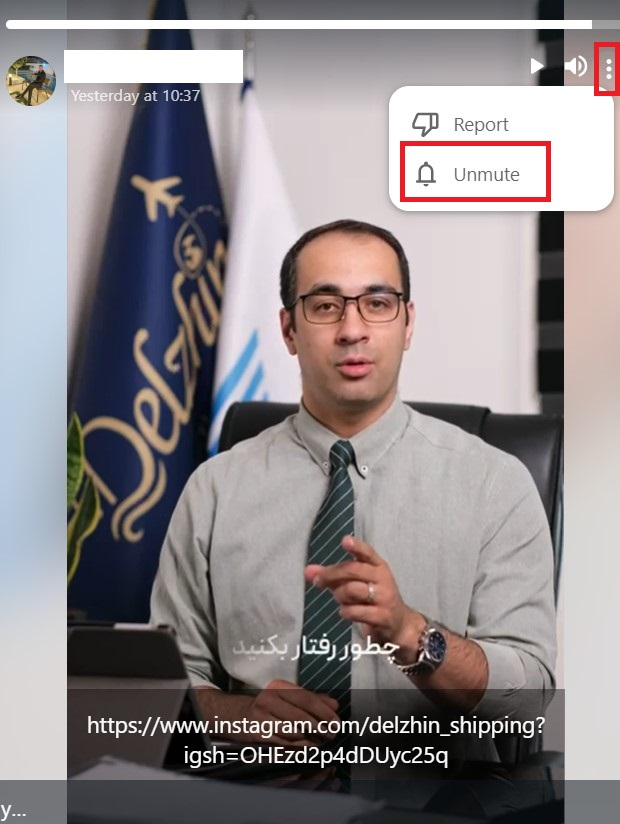
- Unmute the Desired Contact: Hover your cursor over the profile of the person you want to unmute. Click the three vertical dots (⋮) o menu icon that appears. From the dropdown menu that appears, select Unhide o Unmute.
The change syncs instantly across all devices linked to your WhatsApp account due to the app’s end-to-end encrypted synchronization. You can now seamlessly switch between devices without reconfiguring your status preferences.
Proactive Management: Tips to Master Your WhatsApp Status Privacy
Knowing how to unmute is just one part of a holistic approach to WhatsApp. Proactive management of your status privacy settings ensures you enjoy the platform safely and on your own terms. Here are essential strategies for the savvy user.
1. Configure Your Status Privacy Settings
Take definitive control over who sees your content from the outset.
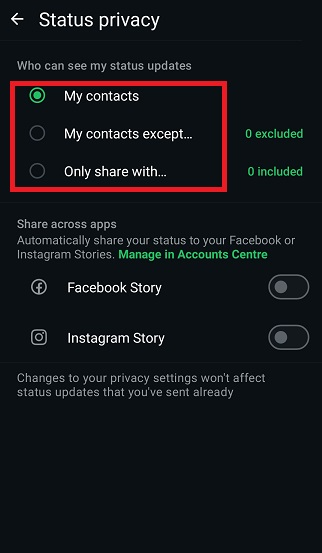
- Ir a Settings > Account > Privacy > Status.
- Choose from: “My contacts”, “My contacts except…”, o “Only share with…”.
- En “My contacts except…” option is particularly powerful for excluding specific individuals without muting them globally.
2. Conduct Regular Audits of Your Muted List
Periodically review your Hidden/Muted list. Circumstances change—a muted coworker from a past project might now be a close friend. A quick audit every few months ensures your feed accurately reflects your current interests and relationships.
3. Employ Selective “Mute vs. Block” Strategies
Understand the distinction:
- Mute: For reducing noise from non-problematic contacts (e.g., a friend who posts too many cooking videos).
- Block: For stopping all communication from unwanted or harassing contacts. This is a more severe and visible action.
4. Leverage Custom Privacy for Individual Statuses
For one-off sensitive posts, use the custom audience selector as you post. Before hitting send, tap the audience button (usually a lock or people icon) and choose specific contacts to include or exclude for that status alone. This provides granular control without changing your global settings.
5. Stay Vigilant Against Suspicious Activity
While third-party apps promising to show “invisible” status viewers are tempting, they often violate WhatsApp’s Terms of Service and can compromise your account security. The safest approach is to:
- Regularly review your linked devices in Settings > Linked Devices.
- Immediately report any unusual activity through the app’s Settings > Help > Contact Us.
- Enable two-step verification for an added layer of security in Settings > Account > Two-step verification.
Troubleshooting Common Unmuting Issues
Even with clear instructions, you might encounter hiccups. Here are solutions to frequent problems.
Issue 1: The “Unmute” Option is Grayed Out or Missing
Solution: This often indicates a temporary app glitch or sync error.
- Force-close the WhatsApp application and restart it.
- Check your internet connection. A stable connection is required for preference changes to sync.
- Update WhatsApp to the latest version via your device’s app store.
Issue 2: Unmuted Statuses Still Not Appearing
Solution: There is a distinction between muting a status and a contact not posting.
- Confirm the contact has actually posted a new status after your unmute action. The circle only appears when there is active, unviewed content.
- Double-check that you unmuted the correct contact from the Hidden lista.
- Log out and back into WhatsApp Web/Desktop if the issue is on that platform.
Issue 3: Accidental Muting of Multiple Contacts
Solution: WhatsApp does not currently support batch unmuting. You will need to unmute each contact individually by following the standard process for each one. Treat this as an opportunity for a curated review of your status audience.
The Evolution of Status Management: Looking Ahead to 2025 and Beyond
As WhatsApp continues to evolve, we can anticipate more nuanced control features. Potential future enhancements based on user feedback and industry trends might include:
- Scheduled Muting: Automatically mute a contact’s status during work hours or specific days.
- Category-Based Muting: Mute statuses based on type (e.g., all text-only statuses or all forwarded videos).
- Enhanced Analytics: Native, privacy-safe insights into your own status viewership patterns.
Conclusion: Reclaiming Your Digital Narrative
Mastering the mute and unmute functions on WhatsApp is more than a technical skill—it’s an exercise in curating your personal digital space. This 2025 guide has equipped you with the precise knowledge to effortlessly unhide any muted WhatsApp status, whether you’re on an iPhone, Android, or computer. More importantly, it has provided a framework for proactive privacy management, empowering you to engage with content meaningfully while safeguarding your online presence. Remember, your attention is a valuable resource. Use these tools wisely to ensure your WhatsApp feed remains a relevant, enjoyable, and secure window into the lives of those who matter most to you. Take a moment now to review your muted list; you might just rediscover a connection worth reviving.
Frequently Asked Questions (FAQs)
1. What is the difference between muting a chat and muting a status?
Muting a chat silences notifications for messages and calls from a specific contact or group. Muting a status only hides that contact’s status updates from your main Updates feed. They are independent settings.
2. If I unmute someone, will they get a notification?
No. Unmuting a status is a private action, just like muting it. The other user is not notified in any way.
3. Can I mute someone’s status but still see their messages?
Absolutely. Status muting and chat communication are
✨ Enhanced Content ✨
Es un comportamiento popular que queremos menos notificaciones en nuestros teléfonos, y para llegar a esto, a veces silenciamos algunas cuentas más activas. Pero el problema surge cuando no recordamos o no sabemos cómo anular el silencio del estado de WhatsApp.
Tanto si eres un aficionado al iPhone como un entusiasta de Android, te ofrecemos una serie de pasos sencillos y eficaces sobre cómo anular el silencio del estado de alguien en WhatsApp.
Así que, ¡emprendamos juntos este viaje y redescubramos la alegría de permanecer conectados a través de las actualizaciones de estado de WhatsApp!
Cómo anular el silencio de alguien en el estado de WhatsApp
Si silenciaste las actualizaciones de estado de alguien en el pasado y quieres volver a verlas, puedes seguir estos pasos:
- Abre WhatsApp: Abre la aplicación WhatsApp en tu smartphone.
- Ir a Actualizaciones: Ve a tu sección de estado en WhatsApp deslizando la pantalla hacia la izquierda o pulsando “Actualizaciones” en la parte inferior de la pantalla.
- Ver el perfil: Pulsa en la sección Oculto en la parte superior de la pantalla para ver las personas que has silenciado.
- Quítales el silencio: Para anular el silencio de tu familia, amigo o canal favorito, selecciona el botón “Anular silencio” cuando mantengas pulsado su nombre.
Enhorabuena. Ahora ya sabes cómo anular el silencio del estado de WhatsApp en tu teléfono móvil.
Cómo anular el silencio de alguien en el estado de WhatsApp en PC
Sigue los siguientes pasos para saber cómo anular el silencio del estado de alguien en WhatsApp en caso de que utilices WhatsApp en un Mac, PC o WhatsApp web:
- Abre tu WhatsApp y ve a la sección “Actualizaciones” pulsando sobre el doble signo de círculo.
- En la sección “Actualizaciones”, busque la parte denominada “Silenciado” y haga clic en “Mostrar”.”
- Ahora ve al estado y toca en los tres puntos y elige “Desocultar”.”
Consejos para controlar tu estado de WhatsApp
Ahora que ya sabes cómo anular el silencio de alguien en el estado de WhatsApp, hablemos de cuestiones de seguridad. Los siguientes consejos pueden ayudarte a vigilar tus visualizaciones de estado de WhatsApp y abordar cualquier actividad cuestionable antes de que comprometa tu cuenta:
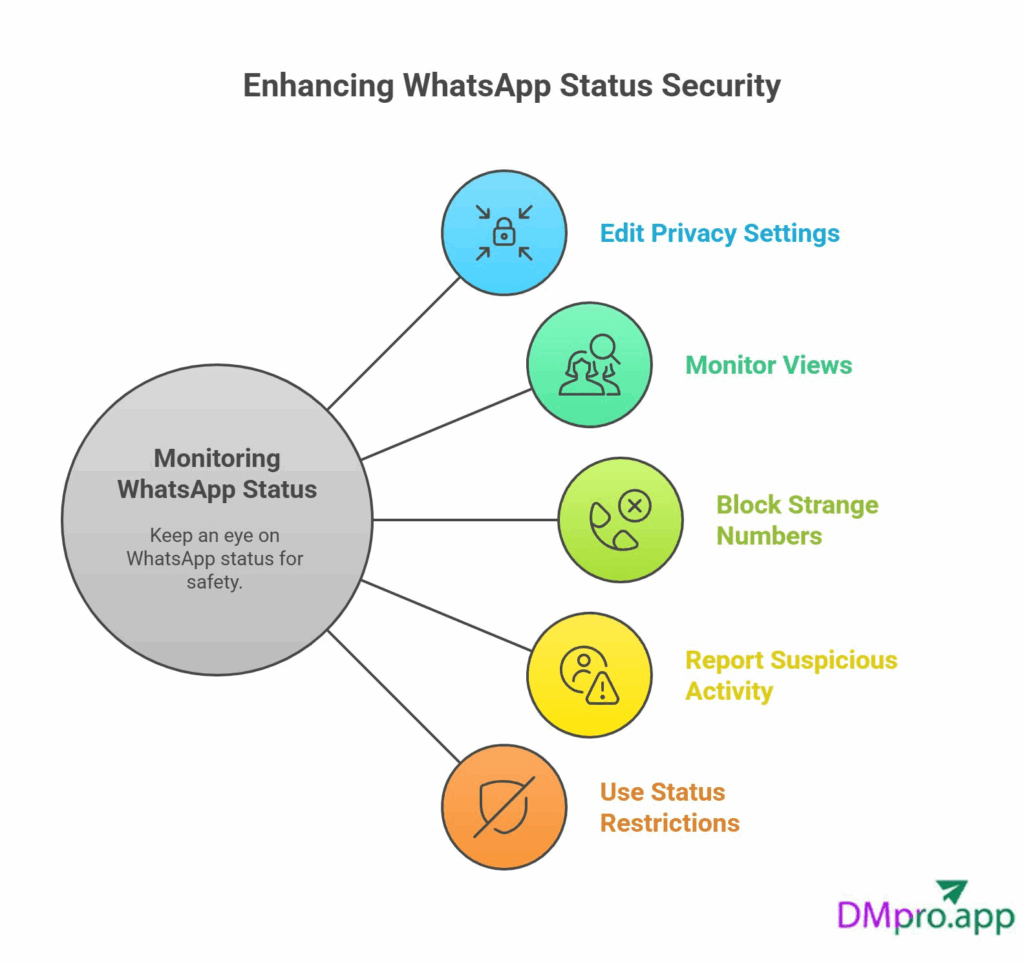
1. Edite su configuración de privacidad
Puede cambiar la configuración de privacidad de WhatsApp para controlar quién puede ver su estado de WhatsApp y quién no. Elimina los números desconocidos de los espectadores de tu estado configurando las vistas de estado como “Solo contactos” o “Excepto mis contactos”.
2. Controle sus puntos de vista
WhatsApp no muestra todos los espectadores de tu estado. Sin embargo, puedes hacer un seguimiento de tus espectadores de estado en WhatsApp con la ayuda de aplicaciones de terceros. Sólo ten en cuenta que estas aplicaciones pueden ser peligrosas para la seguridad de tu cuenta de otras maneras.
3. Bloquear números extraños
Elimine o bloquee siempre los números extraños de su lista de contactos, ya que cualquiera que tenga guardado en su teléfono puede ver su estado de WhatsApp.
4. Informar de actividades sospechosas
Es importante obtener ayuda del servicio de asistencia de WhatsApp si observa algún comportamiento sospechoso en su cuenta. Este tipo de actividades pueden ser señal de amenazas mayores.
5. Restricciones de uso para su estatus
Solo tienes que utilizar la función Privacidad de estado para cambiar quién puede ver esa publicación concreta si deseas compartir información privada o sensible en tu estado de WhatsApp.
Más información: Desvelando el misterio del prefijo 234 de WhatsApp
Reflexiones finales
Ahora que ya sabes cómo anular el silencio del estado de WhatsApp, puedes volver a conectarte fácilmente con las actualizaciones de tu elección mientras mantienes a raya las distracciones no deseadas. Tanto si utilizas un iPhone como un dispositivo Android, los pasos son los mismos para ti, lo que te permitirá personalizar la vista de tu estado sin esfuerzo.
Preguntas frecuentes
Las actualizaciones de estado silenciadas no aparecerán en tu feed, pero puedes anular su silencio en cualquier momento.
No, no puedes anular tu silencio en WhatsApp; otros tienen que anular tu silencio.
No, WhatsApp no ofrece una opción para silenciar todas las actualizaciones de estado a la vez. Debes silenciarlas individualmente.
No. WhatsApp no notifica a los contactos si silencias o anulas su estado. Esta acción es privada y solo afecta a lo que tú ves.
No. Silenciar un estado sólo afecta a las actualizaciones de estado. Silenciar un chat significa que no recibirás notificaciones de mensajes de esa persona o grupo. Son funciones distintas.