How to Delete Instagram Messages from Both Sides in 2025: A Complete Guide
Instagram has evolved far beyond its origins as a simple photo-sharing platform. Today, it’s a vital hub for personal communication, professional networking, and customer engagement. With billions of direct messages (DMs) exchanged daily, managing your digital footprint is more important than ever. Whether a message was sent in error, contains sensitive information, or is simply part of a conversation you wish to conclude, knowing how to delete Instagram messages from both sides is a critical skill for any user in 2025. This comprehensive guide will walk you through the native methods provided by Instagram, explore their limitations, and introduce advanced tools that offer greater control and efficiency over your messaging history.
Understanding the Need for Message Management
Before diving into the how-to, it’s essential to understand the why. Proactively managing your Instagram messages protects your privacy, maintains professional boundaries, and helps organize your inbox. In an era where digital conversations can have real-world consequences, the ability to retract information is not just a convenience—it’s a necessity. Instagram provides several built-in features for this purpose, but they come with specific constraints that users must navigate.
How to Delete Instagram Messages from Both Sides: 3 Core Methods
There are three primary approaches to deleting Instagram messages in a way that affects both the sender and recipient. Some are direct features of the Instagram app, while others utilize complementary tools to achieve the desired outcome. The method you choose will depend on whether you’re addressing a single message, an entire conversation, or seeking bulk management capabilities.
Method 1: Unsend the Message (The Built-In Retraction)
The most straightforward method is using Instagram’s “Unsend” feature. This function allows you to delete a specific message you’ve sent, removing it from both your view and the recipient’s chat thread. It’s designed for quick corrections but has a key limitation: it only works for your own messages. You cannot unsend a message sent to you.
Step-by-Step Guide to Unsending a Message
Follow these instructions to retract a message on both mobile and desktop platforms:
- On Mobile (iOS/Android):
- Navigate to your Direct Messages by tapping the paper airplane icon in the top-right corner.
- Open the specific conversation containing the message.
- Press and hold on the message you wish to delete.
- From the pop-up menu, select “Unsend.”
- Confirm the action. The message will disappear from both sides of the chat.
- On Desktop (Instagram Web):
- Go to Instagram.com and access your messages.
- Hover your cursor over the message you want to remove.
- Click the three dots (…) that appear.
- Seleccione “Unsend” from the dropdown menu and confirm.
Important Consideration: While the message is removed from the chat interface, be aware that the recipient may have already seen it or taken a screenshot. The unsend feature is best used promptly after sending an erroneous message.
Method 2: Utilize Vanish Mode for Ephemeral Conversations
For conversations where you want all messages to disappear automatically after they’re seen, Instagram’s Vanish Mode is the ideal solution. When activated for a specific chat, messages sent and received within that session vanish once the chat is closed, provided they have been viewed. This mode creates a truly ephemeral messaging experience, similar to other platforms’ disappearing message features.
Activating and Using Vanish Mode
- Open the Instagram Direct Message inbox.
- Select an existing chat with the person you wish to message.
- From within the open chat, swipe up from the bottom of the screen on mobile. You will see a prompt and the screen will change to indicate Vanish Mode is active.
- Send messages as normal. Once the recipient sees a message and you leave the chat, it will disappear.
- To turn off Vanish Mode, simply swipe up on the screen again.
Key Limitations and Notifications of Vanish Mode
- Not for Groups: Vanish Mode is only available for one-on-one conversations.
- Screenshot Alerts: Instagram sends a notification if the other person takes a screenshot of the vanishing chat. This is a crucial privacy safeguard.
- No Forwarding: Messages cannot be forwarded from a Vanish Mode session.
- Voluntary: Both participants can turn Vanish Mode on or off independently for the chat.
This method is perfect for casual, temporary conversations but is less suited for important information you may need to reference later.
Method 3: Leverage a Professional Instagram DM Tool
The native Instagram app lacks a critical feature for power users: the ability to bulk delete messages or entire conversations. Manually unsending hundreds of messages or clearing a cluttered inbox is impractical. This is where third-party Instagram DM management tools, designed with efficiency in mind, become invaluable.
These tools connect to your Instagram account via secure APIs (following Instagram’s platform policies) and provide a dashboard with enhanced functionality far beyond the standard app. A leading example is DMpro, a platform built specifically for sophisticated DM management and marketing.
What is an Instagram DM Management Tool?
Tools like DMpro are comprehensive platforms that transform your messaging workflow. They are not just for deletion; they offer a suite of features to automate, organize, and scale your Instagram communication, making them essential for influencers, businesses, and active personal users alike.
Beyond Deletion: Core Features of Advanced DM Tools
- Bulk Message Management: The primary advantage for our purpose. Select and delete multiple conversations or messages simultaneously, saving hours of manual work.
- Automated Direct Messaging: Programe sus mensajes de texto to be sent at optimal times, ensuring consistent communication without constant manual effort.
- Unified Dashboard: Link and manage multiple Instagram accounts from a single, centralized interface, streamlining your social media management.
- Advanced Targeting & Auto-Response: Send targeted welcome messages to new followers or set up automatic replies to common queries based on keywords.
- Email Integration: Access and manage your Instagram DMs directly from your email client, allowing for seamless workflow integration.
Getting Started with a DM Tool
The beauty of many of these tools, including DMpro, is their accessibility. You can often start with a robust free plan that includes core management features. To begin:
- Visit a reputable provider’s website (e.g., DMpro).
- Create a free account—typically, no credit card is required for basic tiers.
- Securely connect your Instagram account following the platform’s instructions.
- Navigate to the message management section to access bulk deletion and other organizational features.
Using such a tool is the most efficient way to achieve large-scale message deletion and maintain a clean, professional inbox.
How to Delete an Entire Instagram Conversation
Sometimes, you need to remove an entire chat thread, not just individual messages. While Instagram doesn’t have a “delete for everyone” function for entire chats, you can archive or hide the conversation from your own view, which effectively clears your inbox.
- In your Direct Message inbox, find the conversation you wish to remove.
- On mobile, swipe left on the conversation. On desktop, hover over it.
- Tap or click the “Archive” option (represented by a folder icon on some interfaces).
- The conversation will be moved out of your primary inbox. You can access archived chats via your Instagram settings if needed in the future.
Nota: This only removes the conversation from su view. The other participant will still have the full chat history on their end. To remove messages from their side, you would need to unsend your messages individually or have previously used Vanish Mode.
Best Practices for Instagram Message Hygiene in 2025
- Act Quickly: The sooner you unsend a message, the less likely the recipient is to have seen or captured it.
- Communicate Openly: If you’ve shared something sensitive, consider following up with the recipient to request they also delete it from their side after you unsend.
- Use Vanish Mode Proactively: For conversations you know are temporary, start them in Vanish Mode to set the expectation of ephemerality.
- Schedule Regular Clean-ups: Use a DM management tool monthly or quarterly to bulk archive or delete old conversations, keeping your inbox manageable.
- Understand the Limits: No method guarantees absolute deletion if a screenshot was taken. Always exercise discretion in your digital communications.
Conclusion: Taking Control of Your Digital Conversations
Mastering the art of deleting Instagram messages from both sides is a multifaceted process. For quick, single-message retractions, the native Desenviar feature is your go-to tool. For disposable conversations, Vanish Mode offers a seamless, self-cleaning chat environment. However, for true control, efficiency, and bulk management—especially for business accounts or prolific users—integrating a dedicated Instagram DM management tool is the professional solution for 2025 and beyond.
By combining these methods and adhering to best practices, you can confidently manage your Instagram messaging presence, ensuring it reflects your current intentions and protects your privacy. Your digital conversations are an extension of your personal and professional brand; take the steps today to curate them with purpose and precision.
✨ Enhanced Content ✨
Hoy en día, Instagram es algo más que una aplicación para compartir fotos y vídeos. Ahora también puedes usarla para chatear con amigos y clientes. Dependiendo de si se envió por error, incluye información privada o ya no es necesario, puede que necesites saber cómo eliminar mensajes de Instagram de ambas partes.
De utilizar Aplicaciones Instagram DM para borrar mensajes manualmente, existen diferentes métodos para borrar mensajes en Instagram desde ambos lados.
Siga leyendo para saber más sobre cómo eliminar mensajes de Instagram de ambos lados y borrar masivamente todos los chats de IG.
Cómo borrar mensajes de Instagram de ambos lados: 3 Métodos
En esta parte, vamos a cubrir 3 métodos que pueden ayudarle a alcanzar su meta, que es borrar mensajes de Instagram de ambos lados. Algunos de ellos están incorporados y otros no. Lea las siguientes partes cuidadosamente y siga los pasos como se mencionan. Diviértete borrando tus mensajes.
Método 1- Anular el envío del mensaje
El primer método para eliminar mensajes de Instagram es anular su envío. Sin embargo, utilizando este método, sólo puedes borrar tus mensajes. El mensaje del destinatario permanecerá en tu bandeja de entrada. También puedes pedirles que anulen el envío de su mensaje.
Para cancelar el envío de tus mensajes de Instagram, sigue estos pasos:
- Abre el icono “Mensaje” en la esquina superior derecha de tu pantalla,
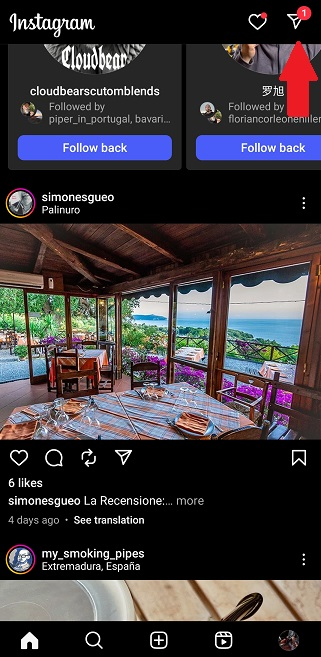
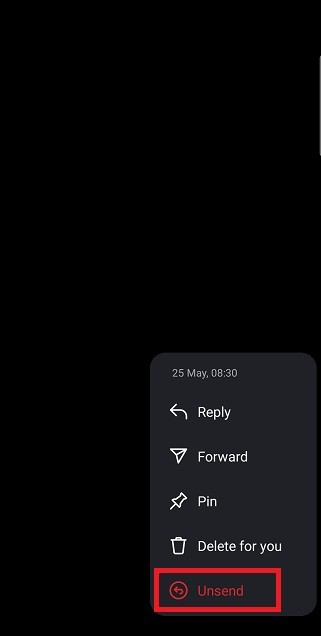
- Abre un chat y mantén pulsado el mensaje de Instagram que quieras eliminar. A continuación, toca Anular envío.
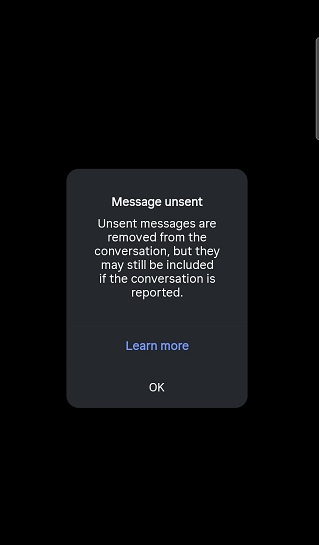
- Una ventana emergente confirmará que el mensaje se ha anulado.
Puedes anular el envío de un mensaje si utilizas Instagram en la web:
- Ve a los mensajes,
- Pasa el ratón por encima del mensaje,
- Haz clic en los tres puntos,
- Seleccione Anular envío y confirme.
Método 2- Utilizar el modo Vanish
Cuando tenga Modo desaparición de Instagram habilitado, los chats de ambas partes se borran después de que la otra persona haya visto el mensaje. Además, si abandonas el chat y vuelves, los mensajes también desaparecerán. Sin embargo:
- no puede reenviar mensajes en modo desaparición, y esta opción no está disponible en las conversaciones de grupo.
- Si alguien hace una captura de pantalla mientras el modo Vanish está activado, Instagram se lo notificará al otro usuario.
He aquí cómo poner un chat en modo desaparición:
- Abre el icono “Mensaje” en la esquina superior derecha de tu pantalla
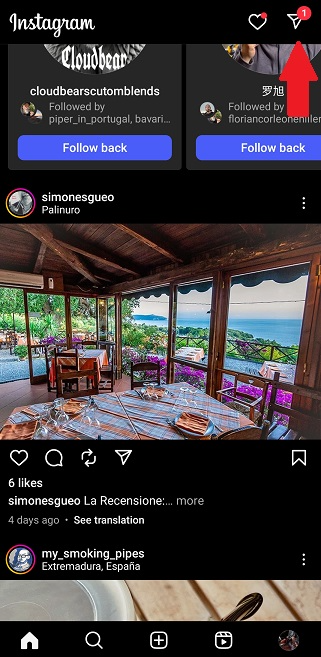
- Abre un chat y desliza el dedo hacia arriba para activar el modo oculto.
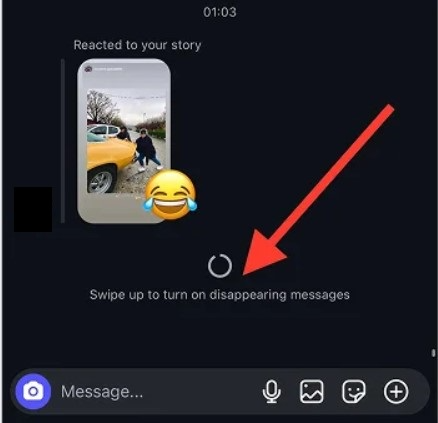
- Para desactivarlo, basta con volver a deslizar el dedo hacia arriba.
Método 3- Utiliza una herramienta de DM de Instagram
Una de las funciones esenciales que necesitamos para mejorar nuestra experiencia de mensajería en Instagram es el borrado masivo de nuestras conversaciones. Lamentablemente, esta función no está disponible actualmente en Instagram. No puedes seleccionar todas tus conversaciones o mensajes de IG y eliminarlos juntos.
Sin embargo, existe una alternativa: utilizar un mensajero de IG fiable como DMpro.
¿Qué es Instagram Messenger?
Los mensajeros de Instagram como DMpro ofrecen varios servicios para facilitar a los usuarios de IG la gestión de los DM y aumentar sus interacciones y alcance con el tiempo.
Por ejemplo, DMpro, uno de los pioneros de la DM Marketing, permite a los usuarios:
- Automatizar la mensajería directa: Programe sus mensajes de texto para que se envíe automáticamente
. - Acceder a los DM desde el correo electrónico: conecta tu cuenta IG a tu Email y gestiona los DMs desde ella.
- Masa DM: envía DMs masivos a tantas cuentas como desees.
- Respuesta automática: Utiliza mensajes predefinidos para responder a los DM.
- Vincular varias cuentasConecta más de una cuenta IG y gestiónalas desde un único panel de control.
- DM específicosEnvía mensajes de texto a cuentas designadas, nuevos seguidores, seguidores existentes e incluso seguidores de hashtags específicos.
La buena noticia es que puedes beneficiarte de todas estas funciones por GRATIS. Todo lo que tienes que hacer es dirigirte a DMpro y crear una cuenta gratuita. Tranquilo, no se requiere tarjeta de crédito y no tienes que pagar ni un dólar para utilizar su herramienta.
Cómo borrar una conversación de Instagram
Borrar conversaciones de Instagram es tan sencillo como borrar DMs.
Para eliminar una de las conversaciones de tu cuenta:
- Toca el icono de mensaje en la parte superior derecha de tu smartphone (o navegador si estás en la web de Instagram)
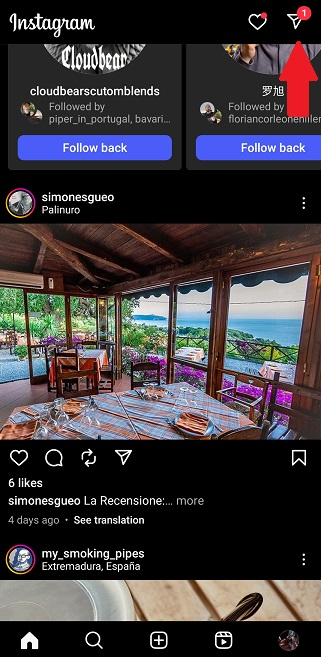
- Mantén pulsado el dedo sobre la conversación que quieras eliminar y pulse ‘Suprimir’
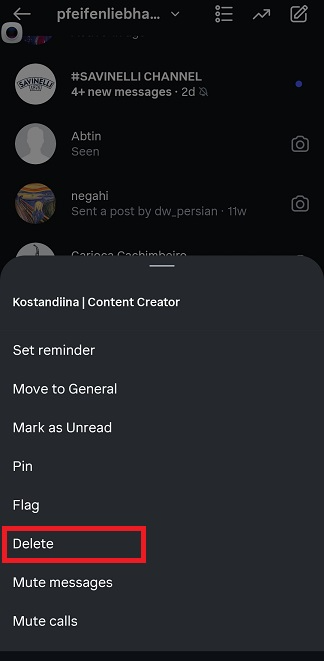
- Confirma tu elección.
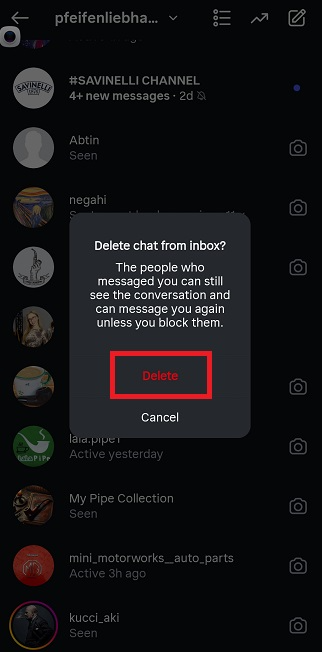
Y así de fácil es eliminar una conversación en Instagram.
Nota: Sea consciente de que esto difiere de la anulación del envío de mensajes directos de IG. Cuando anulas el envío de un mensaje directo, en realidad lo estás borrando para ti y para otra persona que esté al otro lado de la conversación. Pero cuando borras todo el chat, lo estás borrando solo de tu cuenta.
Palabras finales
Como has visto por ti mismo, aprender cómo borrar mensajes de Instagram de ambos lados es un proceso sencillo. Todo lo que necesitas hacer es seguir los pasos mencionados en este artículo, y asegúrese de que su mensaje no permanecerá durante demasiado tiempo.
También puede utilizar un Herramienta de mensajería de Instagram para tener más control sobre la gestión de tus conversaciones en Instagram. Principalmente, una herramienta como DMpro, que es una plataforma todo en uno para Automatización DM.
Preguntas frecuentes
Sí. Instagram te permite anular el envío de un mensaje, lo que lo elimina tanto de tu chat como del chat del destinatario.
Sólo tienes que seguir los siguientes pasos:
a. Abra el chat.
b. Mantenga pulsado el mensaje que desea eliminar.
c. Seleccione Desenviar.
No. Sólo puedes eliminar mensajes individuales. Eliminar una conversación completa de tu bandeja de entrada sólo la elimina para ti, no para la otra persona.
No. Puedes anular el envío de un mensaje en cualquier momento, tanto si se envió hace un minuto como si hace meses.
Puedes estar seguro de que cuando se anule el envío de un mensaje directo, no se informará al receptor. La notificación también desaparecerá si anulas inmediatamente los mensajes directos una vez enviados. Sin embargo, existe la posibilidad de que el destinatario ya haya leído el mensaje, así que tenlo en cuenta.
[elementor-template id="24702"]