Mastering Instagram in 2024: Your Essential Guide to Effective Posting
With over 1.4 billion active monthly users, Instagram has evolved far beyond a simple photo-sharing app. It is now a dynamic ecosystem where individuals build communities, creators launch careers, and businesses drive significant revenue. For brands, influencers, and anyone looking to establish a digital presence, understanding the mechanics and strategy of posting on Instagram is not just useful—it’s imperative. This guide provides a comprehensive, step-by-step walkthrough for posting on Instagram in 2024, covering everything from the basic mechanics on different devices to the nuanced strategies that will make your content stand out in a crowded feed.
Why Instagram is a Non-Negotiable Platform in 2024
Before diving into the “how,” it’s crucial to understand the “why.” Instagram’s user base is projected to grow to approximately 360 million additional users between 2024 and 2028. This growth signifies not just more users, but more engaged consumers, more niche communities, and more opportunities for visibility. For businesses, a strategic Instagram presence can drive brand awareness, foster customer loyalty, and directly impact sales through shoppable posts and targeted advertising. For creators, it’s a portfolio, a networking hub, and a potential income source. Mastering the platform starts with the fundamental skill of posting content correctly and effectively.
How to Post on Instagram From a PC
While Instagram is a mobile-first platform, Meta has significantly enhanced its web experience. Posting from a PC is ideal for uploading high-resolution photos, crafting detailed captions with a full keyboard, and managing your content strategy from a larger screen. Important Note: As of 2024, the web interface primarily supports standard feed posts (images, carousels) and Reels. Features like posting Stories, live streaming, and certain ad creations are still optimized for the mobile app.
Step 1: Access and Log Into Instagram.com
Open your preferred web browser and navigate to Instagram.com. Log in securely with your username and password. For frequent use, you can allow your browser to remember your login for quicker access in the future.
Step 2: Locate the Creation Interface
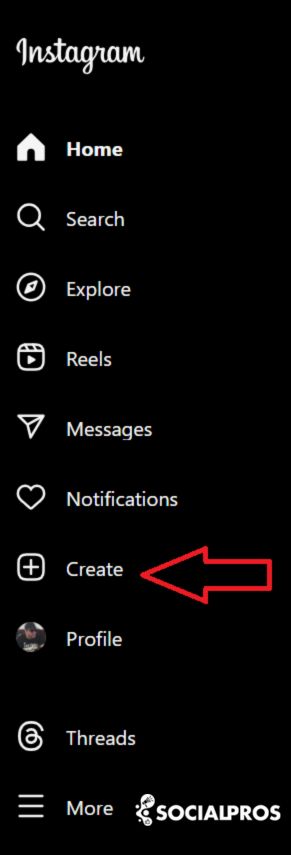
Once logged in, look at the left-hand sidebar menu. You will find a plus (+) icon labeled “Create.” Clicking this icon is your gateway to publishing new content to your feed.
Step 3: Select and Upload Your Media
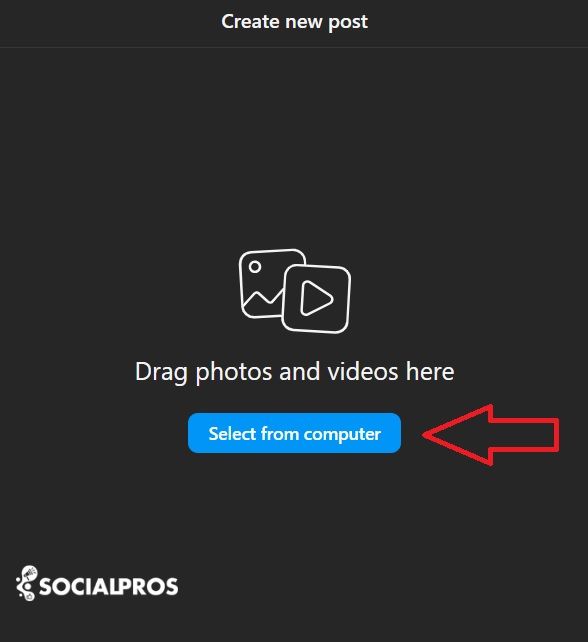
Click the “Select from computer” button. This opens your system’s file explorer, allowing you to choose the image or video you wish to upload. Instagram supports common file formats like JPG, PNG, and MP4.
Pro Tip: Mastering Carousel Posts
To post multiple photos or videos in a single carousel post:
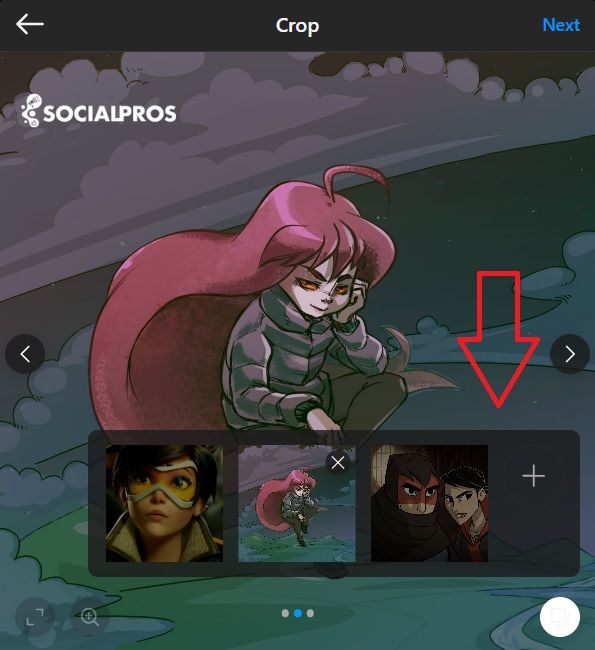
- After your first media file is selected, look for the “Select multiple” icon (typically multiple overlapping squares) in the bottom right of the preview.
- Click it, and you can then select up to 15 additional files from your computer.
- You can reorder the files by dragging and dropping them into your preferred sequence before proceeding.
Step 4: Crop and Adjust Media Format
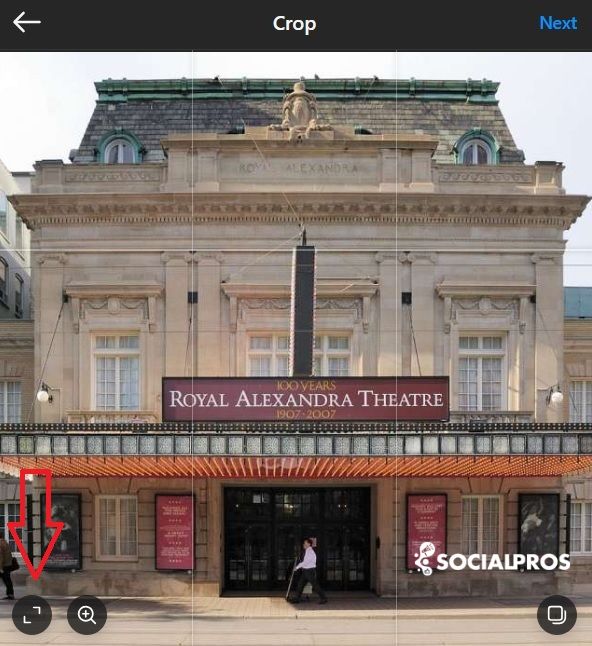
Instagram will default to a square (1:1) crop for your image. You can adjust this crop manually with your mouse. For more format options, click the format toggle icon (two opposing arrows) to switch between square, portrait (4:5), or landscape (16:9) formats, depending on your creative vision.
Step 5: Apply Filters and Basic Edits
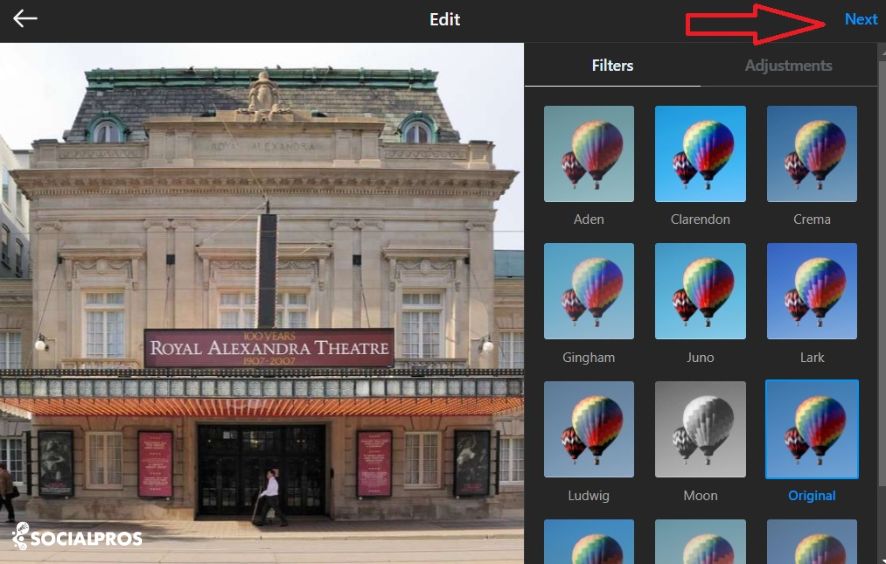
Click “Next.” You will be taken to the filter and edit screen. Here you can:
- Choose from Instagram’s suite of preset filters to establish a consistent aesthetic.
- Use manual adjustment tools for Brightness, Contrast, Saturation, Structure, and more.
Step 6: Craft Your Post Details
Click “Next” again to reach the final composition screen. This is where you add the context that transforms a simple image into engaging content.
- Write a Caption: This is your primary text. Use it to tell a story, ask a question, or provide value. Incorporate relevant hashtags (3-5 is a good starting point) to increase discoverability.
- Tag People: Click on the image itself and type a username to tag other accounts, which can increase engagement and visibility.
- Add Location: Geotagging your post makes it discoverable to people searching that location.
- Accessibility: Always add alt text to describe your image for visually impaired users. This is both an inclusivity best practice and can contribute to SEO.
- Advanced Settings: Here you can turn off commenting, hide like counts, or schedule the post if using Meta’s Creator Studio.
Step 7: Publish Your Content
Once you are satisfied with the media, caption, and settings, click the “Share” button in the bottom right corner. Your post will now be live on your profile and in your followers’ feeds.
How to Post a Video or Reel on Instagram From a PC
The process for posting a standard video or Reel from your PC is nearly identical to posting a photo, with a few critical considerations for optimization.
Follow Steps 1-4 from the Guide Above
Navigate to the creation menu and select your video file. Ensure your video meets Instagram’s specifications for smooth upload:
- Recommended Aspect Ratios: 9:16 (full vertical) for Reels, or 4:5, 1:1, or 16:9 for feed videos.
- Length: Feed videos can be up to 60 minutes, but for optimal engagement, keep them under 90 seconds. Reels have a maximum length of 90 seconds.
- File Size & Format: Use MP4 format and keep file sizes manageable for quicker uploads.
Leverage Video-Specific Features
On the edit screen (Step 5), you may have access to additional video tools like trimming the clip or selecting a cover image. The cover image is the thumbnail that represents your video in the feed—choose an engaging frame or upload a custom image.
Craft a Hook-Driven Caption for Videos
Video content, especially Reels, competes for short attention spans. Your caption should complement the video by:
- Stating the value or entertainment the viewer will get in the first line.
- Including a clear call-to-action (CTA) like “Save this for later,” “Comment your thoughts below,” or “Tap the link in our bio.”
- Using relevant hashtags, including a few broad ones (#travel) and niche-specific ones (#sustainabletraveltips).
Best Practices for Instagram Success in 2024
Knowing the technical steps is only half the battle. Implementing these strategic practices will elevate your content from simply “posted” to “performing.”
1. Prioritize Content Quality and Consistency
Your visual aesthetic is your brand’s handshake. Use consistent editing styles, color palettes, and composition. Maintain a regular posting schedule using Instagram’s insights to determine when your audience is most active. Quality consistency builds trust and recognition.
2. Write Compelling, Value-Added Captions
A great caption sparks conversation. Move beyond simple descriptions. Ask open-ended questions, share a personal anecdote related to the image, or provide a quick tip or insight. Captions are a primary tool for building community and driving the engagement metrics that boost your visibility in the algorithm.
3. Engage Authentically With Your Community
Posting is the beginning, not the end. Dedicate time to:
- Responding to comments on your posts.
- Replying to direct messages.
- Engaging with content from accounts you follow and from those who comment on your posts.
4. Utilize All Interactive Features
Instagram offers numerous features to boost interaction. Regularly use:
- Polls, Questions, and Quizzes in Stories for low-commitment engagement.
- Collaborative Posts and Reels to tap into new audiences.
- Instagram Shopping Tags if you are a business selling products.
Conclusion: Your Path to Instagram Proficiency
Mastering how to post on Instagram in 2024 involves a blend of technical know-how and strategic thinking. By following the detailed steps for both PC and considering mobile best practices, you ensure your content is presented flawlessly. More importantly, by focusing on high-quality visuals, value-driven captions, and genuine community engagement, you transform your profile from a static gallery into a dynamic destination. The platform’s growth shows no signs of slowing—now is the time to refine your approach, experiment with confidence, and build a meaningful presence that achieves your personal or professional goals. Start implementing this guide today, analyze your performance with Instagram Insights, and continuously adapt. Your audience is waiting.
✨ Enhanced Content ✨
Instagram has more than 1.4 billion active monthly users, making it one of the largest social media networks. In addition to regular people, corporations and businesses also find it popular and useful for their business. This is why knowing how to post on Instagram is important and necessary.
We don’t blame you for thinking about incorporating Instagram into your social media marketing plan if your company hasn’t done it yet. Many activities can help your account grow and help you boost your social media engagement. They consist of posts on Instagram, how to submit the many kinds of content that Instagram allows, and more.
So, stick with us till the end to get the answer to all of these questions.
How to Post on Instagram From PC
According to Statista, the number of Instagram users will grow to around 360 million users between 2024 and 2028. This alone shows the importance of learning to work with this platform and use it to your advantage. The first step is learning how to post on Instagram.
If you don’t have access to your phone for this matter, you can easily post on Instagram from your PC. However, You need to keep in mind that, you can’t share Instagram stories, ads, IGTV posts, or Reels from a computer. To begin your Instagram journey, follow the detailed guide provided below.
1. Got to Instagram
Make sure to enter the website ‘Instagram.com’ and log into your account with your username and password.
2. Navigate to Create Button
Search for a plus sign on the left side of your browser which is the create button.
3. Select Your Media
Click on the ‘Select from computer’ button to go to the next step and choose your media.
Keep in mind that if you are wondering how to post multiple photos on Instagram, this is the step you can take. All you need to do is click on the multiple rectangle icon on the bottom right corner of the screen, choose your other photos to include, and order them as you want.
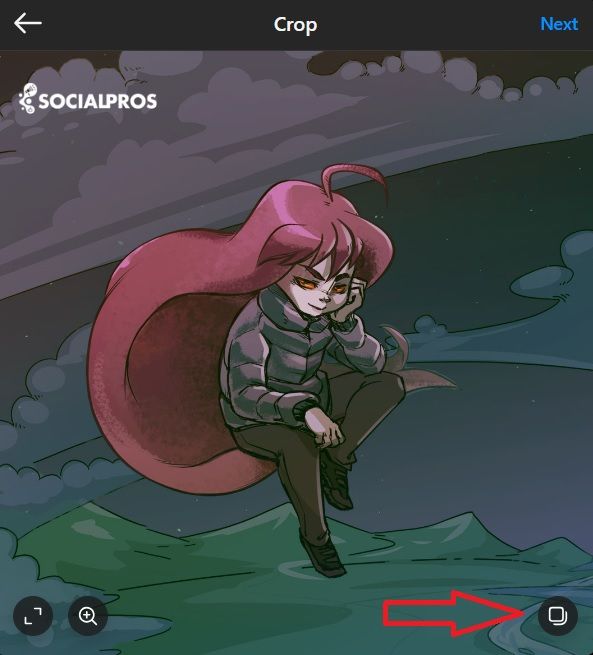
One more important point. With the recent Instagram update, the answer to the question of how to post more than 10 photos on Instagram is just here. You can add up to 15 photos in the way we mentioned in this part. Easy as it gets.
4. Crop Your Image
Using your mouse, you can crop your image to make it fit the square format. Click on the two arrows in the lower left corner to select a different format if you have a preference.
5. Apply Filters
Click “Next” in the upper right corner after cropping. This is where you may tweak and apply filters to your photo. Once the changes are to your satisfaction, click “Next” once more.
6. Add Caption and Other Desired Details
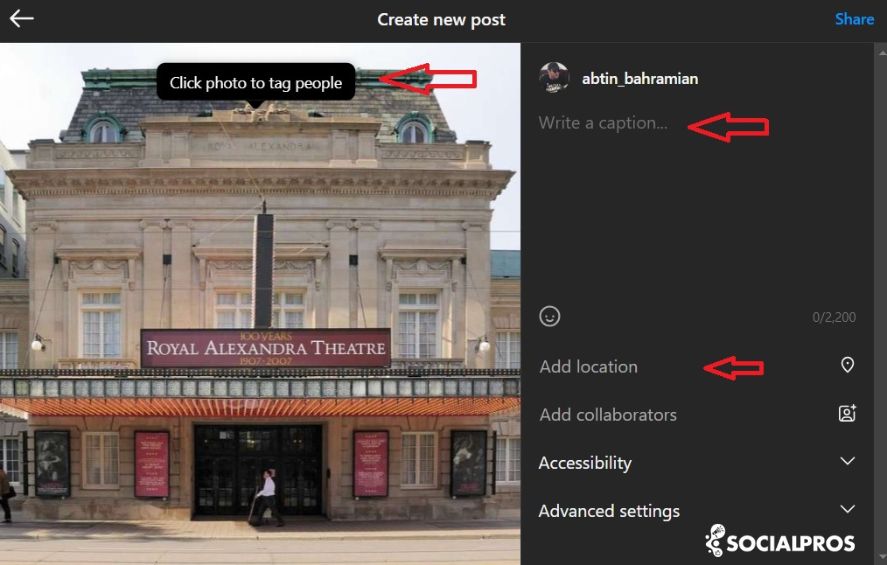
This is the part where you can add a great Instagram caption to your posts. You can do many cool things in this part. In the following window, you can:
- Include a caption,
- By selecting your photo and looking up a person’s username, you can tag them in it,
- Include a location,
- Modify the accessibility parameters,
- Examine the advanced options.
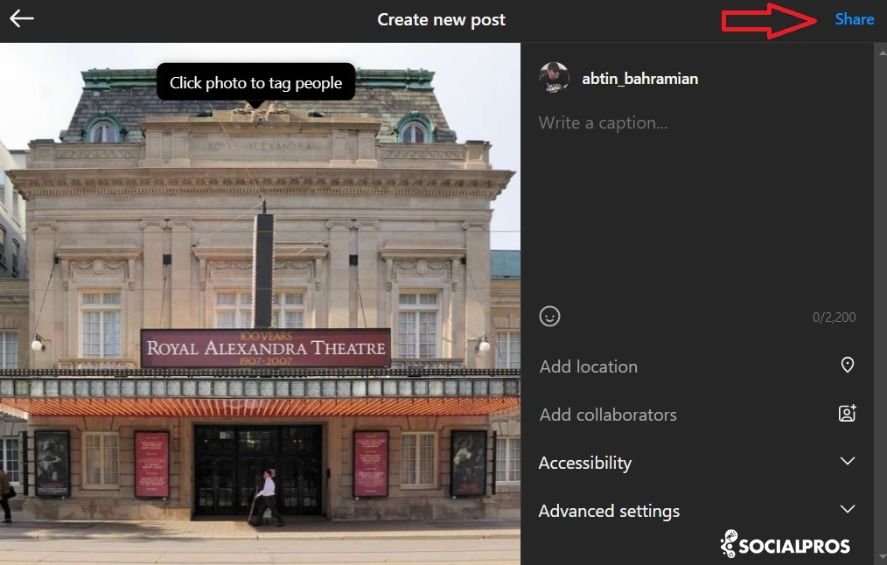
7. Share Your Photo
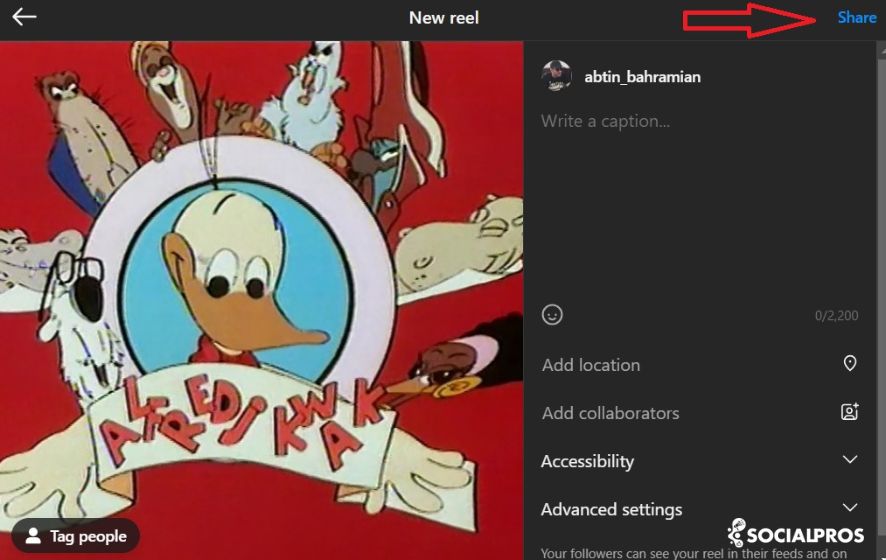
If you are satisfied with your photo, you can publish it with the ‘Share’ button on the right corner of the screen.
Now that you have learned how to post on Instagram from a PC, it is time to make some engaging content and bring in all the attention you deserve.
How to Post a Video on Instagram From a PC
To post a video, or as it is called now Reel, on your Instagram account, you have to follow the previous steps until step 4.
That is where there are some differences in the process of posting Instagram reels:
1. Go to Instagram
Make sure to enter the website ‘Instagram.com’ and log into your account with your username and password.
2. Navigate to Create Button
Search for a plus sign on the left side of your browser which is the create button.
3. Select Your Media
Click on the ‘Select from computer’ button to go to the next step and choose your media.
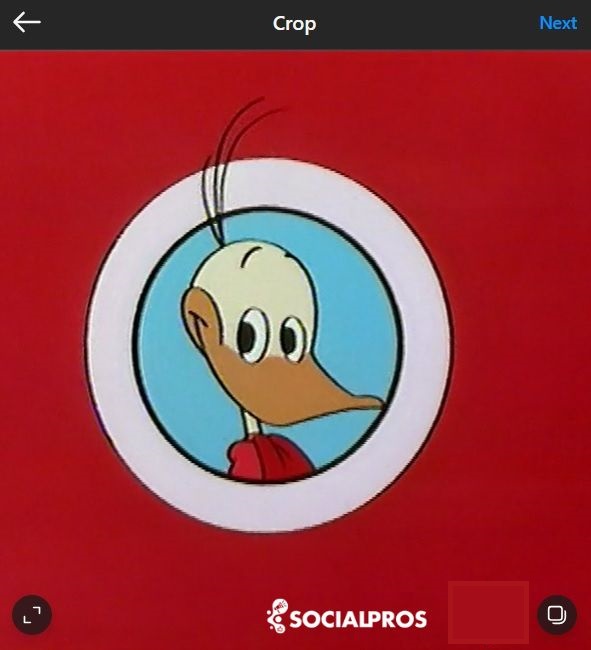
4. Crop Your Video
This is where you can choose to crop your video or add other ones.
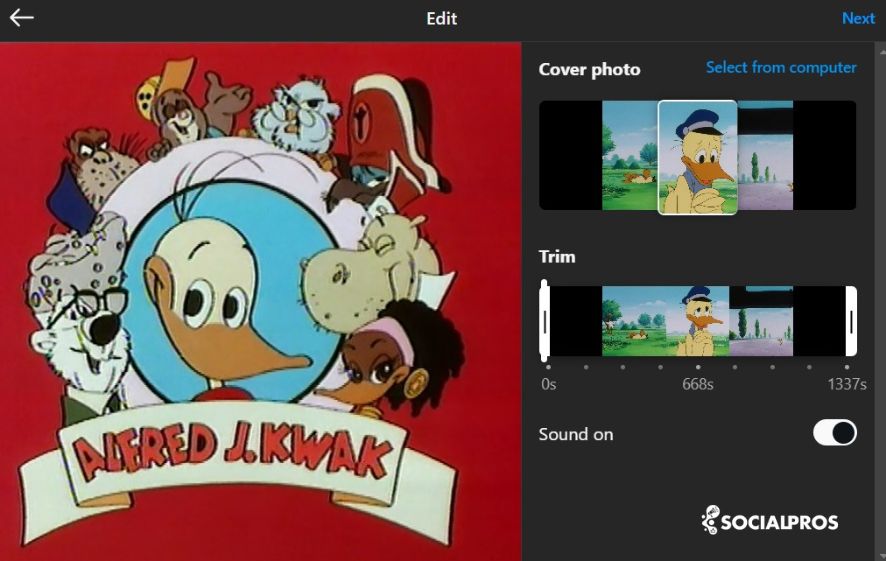
5. Trim Your Video and Add Cover Photo
To attract more viewers, think about including a captivating cover photo—using high-quality ai generated images can be a great option before publishing your content.
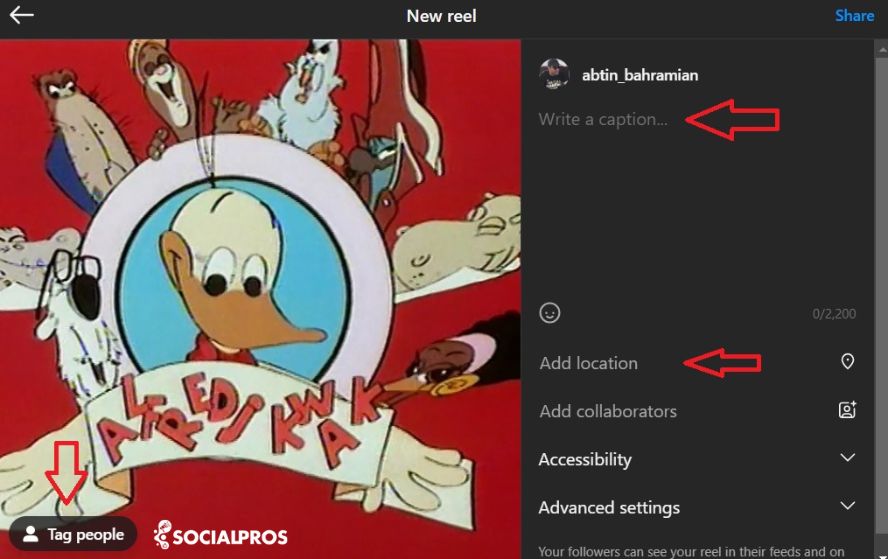
6. Add Caption and Other Desired Details
In the following window, you can:
- Include a caption,
- By selecting your video and looking up a person’s username, you can tag them in it,
- Include a location,
- Modify the accessibility parameters,
- Examine the advanced options.
7. Click on the Share button
Click “Share” once you’ve made all the required adjustments and modifications. By doing this, you’ll enable public access to your Instagram profile’s video post. Remember to check that your video upload satisfies your standards by looking at how it looks on your profile.
How to Post on Instagram From Your Phone
Generating an original, engaging, and interesting post to go viral on Instagram is something that needs some thinking and planning. But first, you need to know how to post on Instagram. So here’s a step-by-step tutorial on using your smartphone to publish on Instagram:
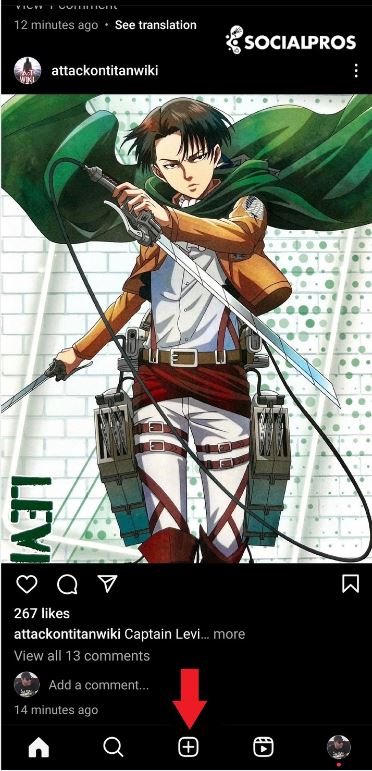
1. Tap on The + Button
To begin, launch the Instagram app and select the plus symbol located at the bottom of the screen.
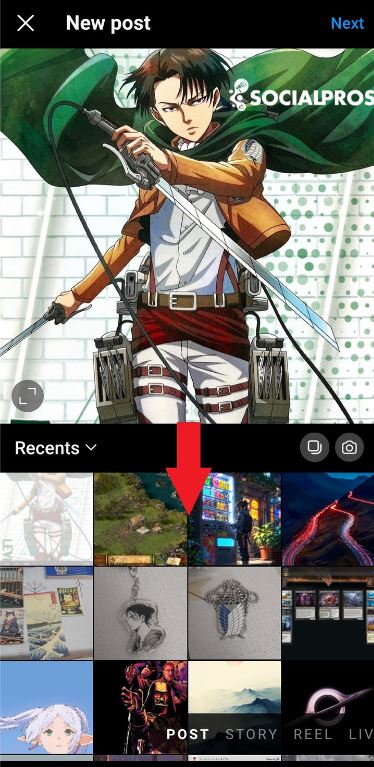
2. Choose a Photo or Video
Instagram will display pictures that have already been stored on your phone. Select one of those that you want to publish. If you don’t already have an image you wish to use, you may also click on the camera icon to capture a picture or a video within the Instagram app.
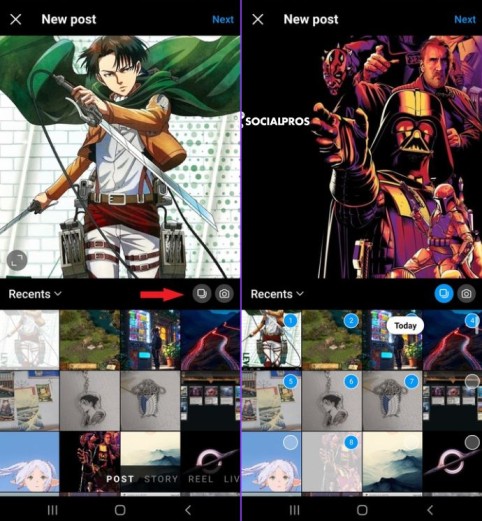
3. Multiple Images
Keep in mind that if you want to post multiple images at once, you can do it with its carousel feature. All you need to do is tap on the icon in the following image and choose all your photos.
4. Pick a Filter
Once you are satisfied with your image, you can go to the next stage and choose a filter. Instagram has a huge selection of filters; browse them by scrolling to the right, then click on one to see how it will appear in your picture.
The default setting of the Instagram filters is at 50 percent which you can change easily. On the other hand, after applying the filter, double-click the filter tile to bring up a scale selector where you can reduce the strength of the effect.
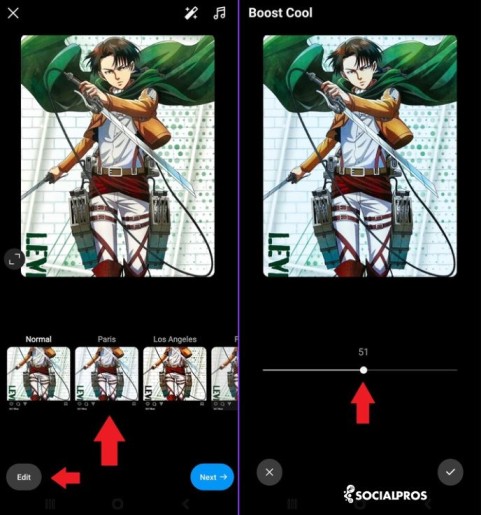
5. Edit Your Photo
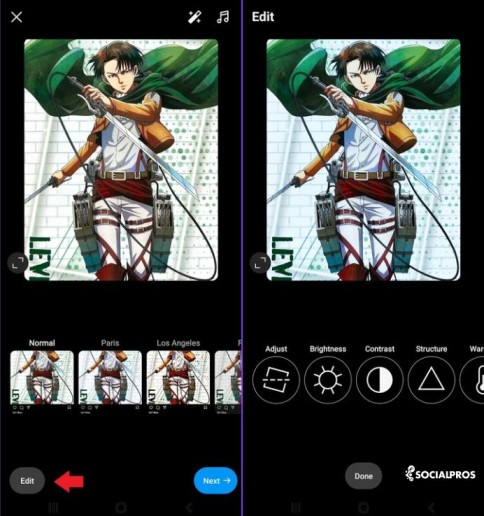
You can also choose the ‘Edit button and adjust some of the picture’s characteristics such as brightness, contrast, saturation, structure, and so on. These can make a huge impact on your post quality.
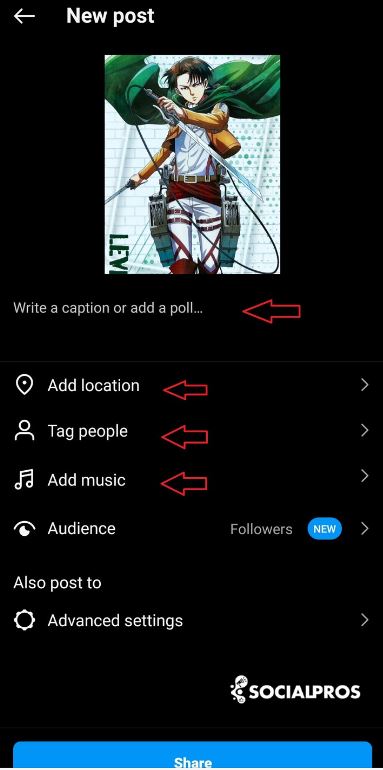
6. Add Caption and Other Desired Details
If you are wondering how to put music on Instagram post, here is your answer. This part is where you can do lots of things. You can write your caption, tag people, put music on your post, and close comments if you like.
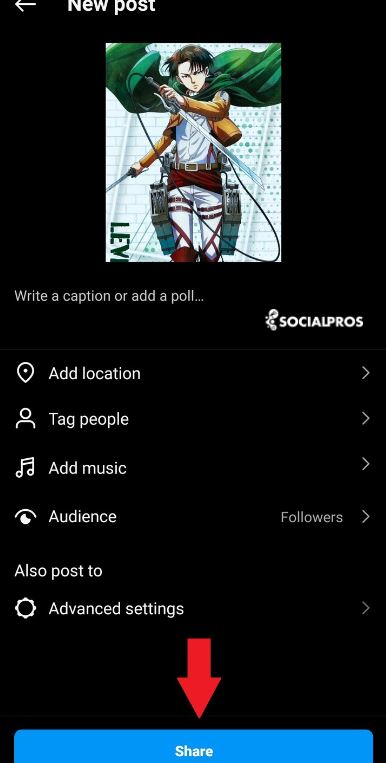
7. Tap on the Share Button
When you are satisfied with the results, you can tap on the ‘Share button to post your photo or video on Instagram.
FAQs
Let us go through some of the most common questions about our topic at hand and answer them in the easiest way possible:
1. How to Repost a Post on Instagram?
If you like a story or post that your friend or some other person has posted on Instagram, you can easily repost it. To repost, select “Add to Your Story” from that specific story or post. This will open the editor, allowing you to add any text, mentions, or icons that you’d want. Click the arrow in the bottom right when you’re satisfied with the post.
2. Why Can’t I Upload Music to Instagram Post?
The first thing is that you need to be sure that your Instagram has the latest update. You might need to wait until the feature is fully rolled out to all users if that doesn’t help. Make sure to check the official Instagram article for the most recent information.
Conclusion
Instagram is a well-known and popular social media platform that has impacted our daily lives since it started to work. Many opportunities on this platform can help you earn money, make connections, or just meet new people. In this article, we tried to help you to start working with this app and learn its potential.
[elementor-template id="24702"]