Taking Control of Your Instagram Inbox in 2025
In today’s digital landscape, your Instagram inbox can be a source of connection or a channel for unwanted disruption. Imagine sharing an exciting life update—a new career milestone, a personal achievement, or a travel adventure—only to find your Direct Messages flooded with spam, unsolicited promotions, or even harassing content from strangers. This scenario is increasingly common, transforming a space meant for positive interaction into one that requires active management. Proactively learning how to block messages on Instagram is not merely a technical skill; it is an essential component of digital well-being and professional boundary-setting. As we approach 2025, with platform features continually evolving, mastering these controls ensures your social media experience aligns with your personal comfort and safety.
For content creators, influencers, and businesses, the challenge is nuanced. While limiting unwanted contact is crucial, maintaining open lines for customer service, collaboration, and community engagement is equally important. This balance can be achieved through a combination of Instagram’s native tools and strategic use of third-party Instagram DM management apps designed for high-volume accounts. The following guide provides a comprehensive, authoritative breakdown of the methods, implications, and strategic applications of Instagram’s message control features.
Understanding the Imperative: Why Blocking Messages is Essential
Before delving into the technical steps, it’s vital to recognize the legitimate reasons for controlling your message inflow. Implementing these features is a proactive measure, not a reactive one.
- Enhancing Privacy and Security: Your inbox is a private channel. Restricting access protects you from phishing attempts, scams, and individuals who may misuse your personal information.
- Avoiding Unwanted Contact and Distraction: Constant notifications from irrelevant sources fragment your attention and degrade the user experience. Controlling messages helps maintain focus.
- Preventing Harassment and Cyberbullying: Instagram, like all social platforms, can be a vector for abusive behavior. Blocking and restricting are primary tools to stop such campaigns.
- Managing Professional and Personal Relationships: Sometimes, you need to discreetly limit interactions with acquaintances, former colleagues, or others without the definitive signal of a full block.
- Reducing Spam and Automated Messages: Bot accounts and mass marketers increasingly target DM channels. Tightening settings significantly cuts down this noise.
How To Block Messages On Instagram: A Strategic Framework
Instagram offers a tiered system of controls, ranging from complete severance to subtle notification management. Choosing the correct method depends on your specific goal. Below is the complete strategic framework.
1. The Definitive Solution: Blocking a User
Blocking is the most comprehensive and definitive action. It terminates all forms of interaction between you and the selected user across the platform.
- Navigate to the profile of the user you wish to block.
- Tap the three-dot menu icon (⋯) in the top right corner of their profile.
- Select “Block” from the menu.
- Confirm your choice in the subsequent prompt.
Consequences and Considerations of Blocking
- Total Interaction Cut-off: The blocked user cannot message you, comment on your posts, view your stories, or see your profile in searches.
- Notification Silence: You will cease receiving any notifications related to their account.
- Symmetrical Follow Status: Any existing follow relationship is dissolved, and neither party can follow the other.
- Public Profile Limitation: If your profile is public, a blocked user could theoretically view your content via a secondary account. For ultimate privacy, consider combining blocking with a private account setting.
2. The Discreet Alternative: Restricting a User
Restriction is Instagram’s innovative “soft block” feature. It is designed for situations where you want to limit a user’s impact on your experience without the overt action of blocking, which can escalate personal tensions.
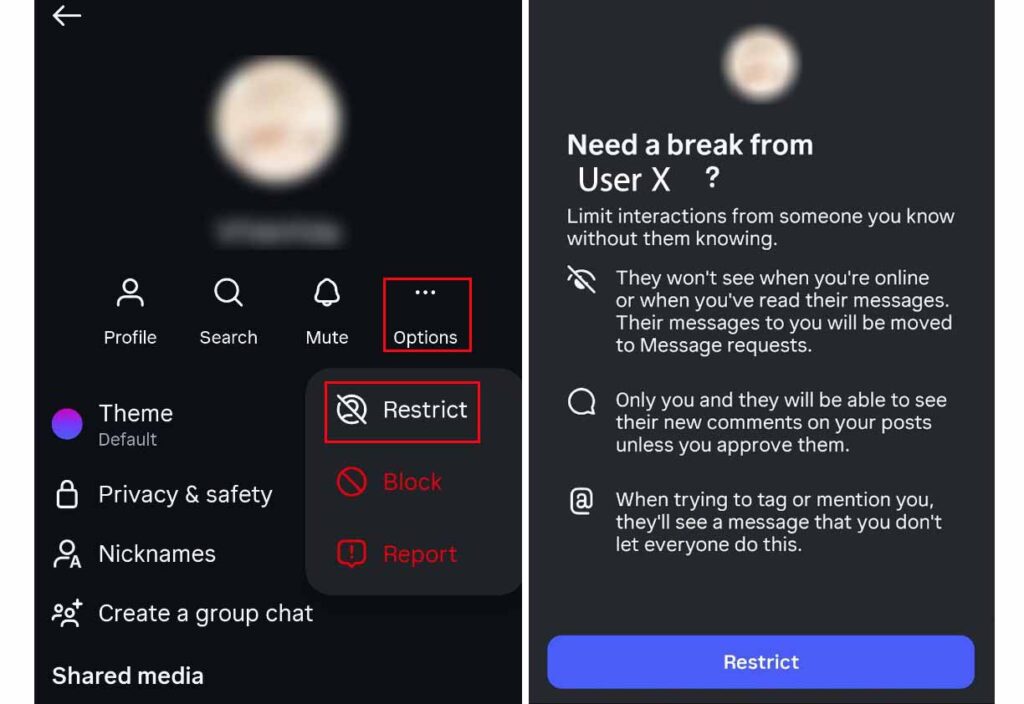
- Visit the profile of the user you intend to restrict.
- Tap the three-dot menu icon (⋯).
- Select “Restrict.”
- Alternatively, within a direct chat with the user, tap their name at the top, select “Options,” and choose “Restrict.”
How Restriction Works: The Hidden Shield
- Messages to Requests: Their future messages are automatically diverted to your Message Requests folder, bypassing your primary inbox.
- Silenced Notifications: You receive no alerts for their messages or new comments.
- Comment Moderation: Their comments on your posts become visible only to them and you. You can choose to “Approve” the comment to make it public, keeping them unaware of their restricted status.
- Stealth Mode: The restricted user has no indication they are restricted. They can still view your posts and stories if your account is public.
3. The Notification Filter: Muting Messages
Muting is purely a notification management tool. It does not prevent the user from sending messages; it simply stops those messages from prompting alerts on your device. This is ideal for overly active friends, group chats, or contacts you wish to stay connected to but without constant interruptions.
- Open the direct message chat with the relevant user.
- Tap their name or profile icon at the top of the chat screen.
- Select “Mute.”
- Choose a duration: 24 hours, 7 days, or Until you turn it off. You can also mute call notifications separately here.
The Effects of Muting
- Peaceful Inbox: Messages continue to arrive silently in your main chat thread. You can read them at your convenience.
- Complete Transparency: The muted user is not notified of this action. The social relationship remains unchanged from their perspective.
4. The Proactive Barrier: Adjusting Global Message Settings
This is the most powerful preventative method. Instead of reacting to individual users, you set overarching rules for who can contact you. This is particularly crucial for public figures, businesses, and anyone with a large follower count.
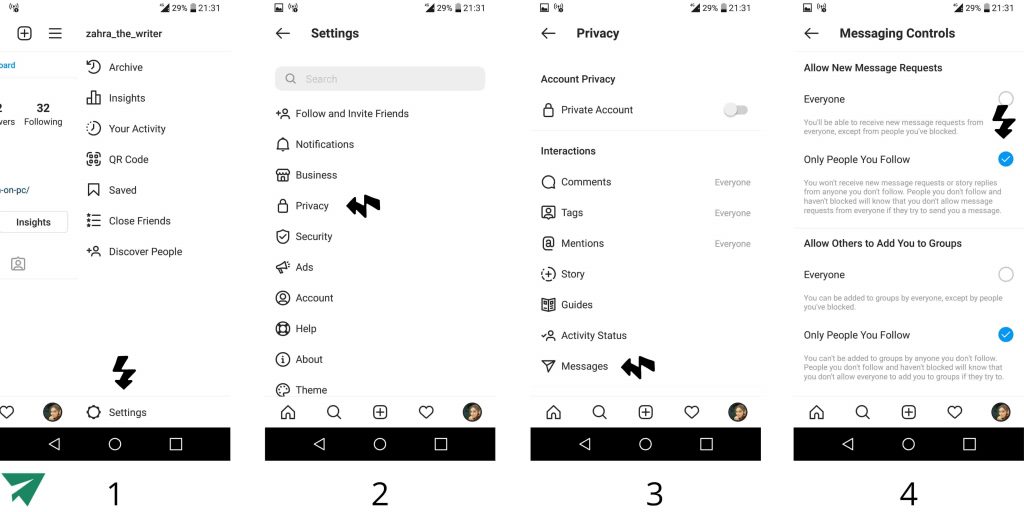
- Go to your profile and tap the menu (≡) in the top right.
- Go to “Settings” > “Privacy” > “Messages.”
- Under “Who can send you messages,” you will find three tiers of control:
- “Everyone”: Allows anyone to send you a message request. This is the default and most open setting.
- “People you follow”: Only users you follow can message you directly into your primary inbox. Non-followers can still send requests.
- “Off”: Disables message requests entirely from users you don’t follow. This is the most restrictive setting.
For a detailed walkthrough, you can learn more about how to turn off Instagram DMs completely.
Strategic Implications of Global Settings
- Reduced Volume: Setting to “People you follow” or “Off” drastically reduces the influx of unsolicited messages.
- The Requests Folder as a Filter: Messages from non-followers (if allowed) are placed in a separate requests folder. This creates a buffer zone where you can screen messages without them invading your primary inbox.
- Business Consideration: While limiting messages, businesses fear missing potential sales opportunities. This is where strategy comes in. You can keep messages “On” but use the Requests folder as a triage system. Alternatively, leverage dedicated tools like Instagram DM sales platforms to manage high-volume customer interactions efficiently without compromising your personal inbox security.
Advanced Management for Professionals and High-Volume Accounts
For influencers, creators, and businesses, simply blocking or restricting is not a scalable solution. Your inbox is a critical channel for collaboration, customer service, and community building.
- Implement a Triage System: Use the “Message Requests” folder as your first filter. Regularly review it for legitimate inquiries while ignoring spam.
- Combine Native Settings with Third-Party Tools: Professional DM management applications can help you organize conversations, assign labels, set automated replies for common queries, and manage multiple accounts from a single dashboard. This allows you to keep your global settings more open for business purposes while maintaining operational efficiency.
- Communicate Your Policy: Consider adding a note in your bio or a pinned story guiding how and when you respond to messages (e.g., “For business inquiries, please use email.”). This directs traffic and reduces non-urgent DMs.
Conclusion: Crafting Your Ideal Digital Environment
Your Instagram inbox should serve your needs, not detract from them. In 2025, taking control is not optional—it’s a necessary aspect of digital literacy. By understanding the graduated tools Instagram provides—from the subtle Restrict to the absolute Block, from the temporary Mute to the preventative Global Settings—you can craft a message environment that balances openness with protection, connection with peace.
Begin by auditing your current message inflow. Identify sources of spam, distraction, or discomfort. Then, apply the method that matches your goal for each. For overarching peace, adjust your global privacy settings today. Remember, control over your digital spaces contributes directly to your online safety, mental focus, and professional efficacy. Take the steps now to ensure your 2025 Instagram experience is productive, positive, and securely under your command.
✨ Enhanced Content ✨
Imagine you’ve just posted an exciting update about a recent trip, and instead of receiving encouraging comments from friends, your inbox is flooded with inappropriate messages from strangers or people you don’t know. Sounds familiar, right? That’s when you need to learn how to block messages on Instagram.
However, if you are a content creator or a business that receives many messages during the day, you can use Instagram DM apps to manage your Instagram messages.
For now, let’s see what block messages on Instagram.
What Are the Reasons to Block Instagram Messages?
Before getting to the methods about how to block messages on Instagram, let’s check out the scenarios that might make you want to block Instagram messages:
- Enhancing Privacy
- Avoiding Unwanted Contact
- Preventing Harassment
- Managing Relationships
- Reducing Spam
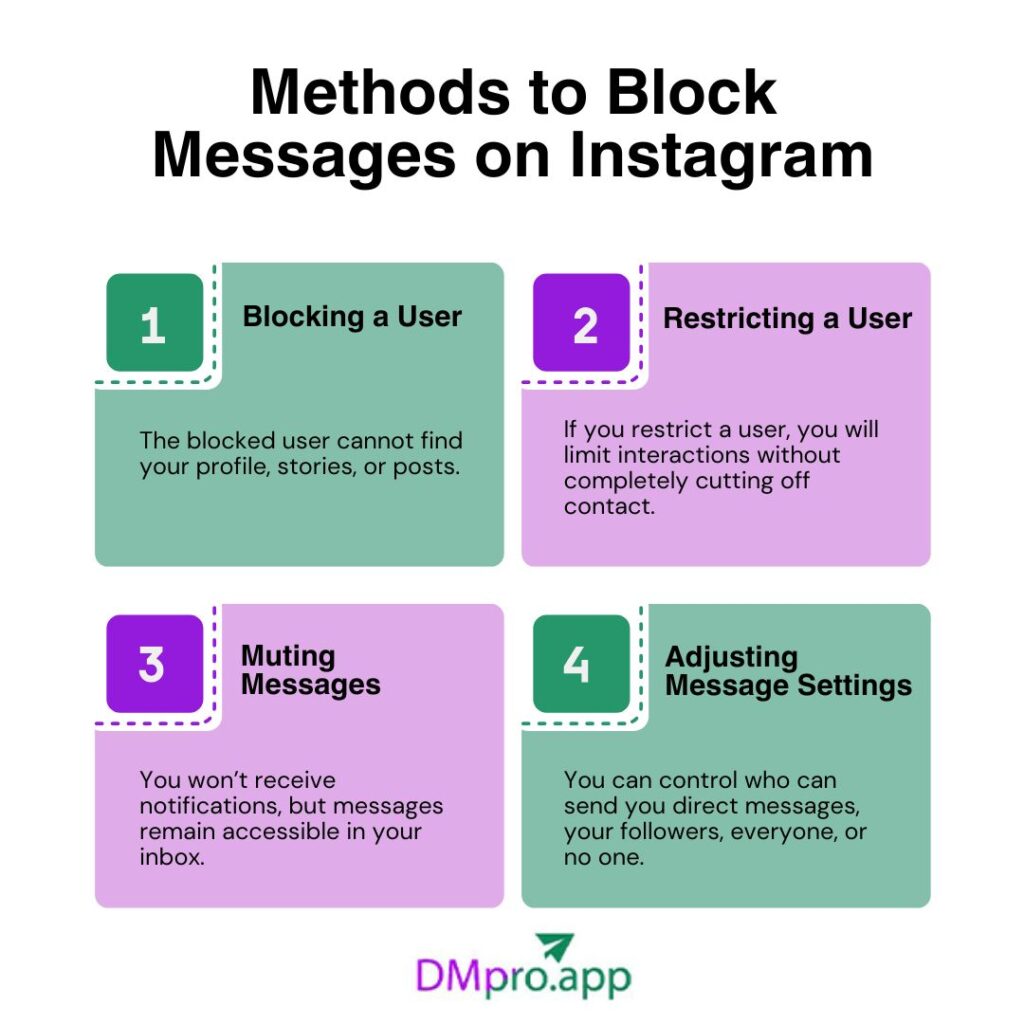
How To Block Messages On Instagram: 4 Methods
Several methods allow you to control who can message you and how those messages appear. Below are the primary approaches:
1. Blocking a User
If you’re getting annoying messages from someone, the best way to stop them is to block that user. Blocking prevents any further interactions, including messages, comments, likes, and the ability to view your profile or stories.
Steps:
- Navigate to the user’s profile.
- Tap the three dots (⋯) in the top right corner.
- Select “Block” and confirm.
What Will Happen If You Block a User on Instagram:
- The blocked user cannot find your profile, stories, or posts.
- You stop receiving notifications from them.
- They cannot follow you, and you cannot follow them.
- If your profile is public, they could still view it using another account.
2. Restricting a User
Another method to block Instagram messages from a specific user is by restricting, which is a less severe option than blocking. If you restrict a user, you will limit interactions without completely cutting off contact.
Steps:
- Go to the user’s profile.
- Tap the three dots (⋯) in the top right corner.
- Select “Restrict.”
- You can also tap the user’s name in the chat, select “Options,” and choose “Restrict”.
What Will Happen If You Restrict a User on Instagram:
- Their messages go to your message requests folder, not your main inbox.
- You won’t receive notifications for their messages or comments.
- Their comments on your posts are hidden unless you approve them.
- They won’t know they’ve been restricted and can still see your posts and stories.
3. Muting Messages
Muting allows you to stop notifications from specific users without preventing them from messaging you.
Steps:
- Open the chat with the user.
- Tap their name at the top.
- Select “Mute” and choose a duration (e.g., 24 hours, 7 days, or until you unmute).
- You can also mute calls.
What Will Happen If You Mute a User on Instagram:
- You won’t receive notifications, but messages remain accessible in your inbox.
- The user isn’t notified that they’ve been muted.
4. Adjusting Message Settings
The good news is that Instagram allows you to control who can send you messages. You only need to know how to block messages on Instagram by adjusting message setting.
Steps:
- Go to your profile and tap the three lines (≡) in the top right corner.
- Select “Settings” > “Privacy” > “Messages.”
- Under “Who can send you messages,” choose:
- “Everyone” (anyone can send message requests).
- “People you follow” (only those you follow can send messages).
- “Off” (disables message requests from non-followers).
Learn more about how to turn off Instagram DMs.
What Will Happen If You Adjust Your Message Settings:
- Setting to “People you follow” or “Off” significantly reduces unwanted messages.
- Messages from non-followers (if allowed) go to the requests folder, which you can review or ignore.
Note: if you are a business and concerned that adjusting your messages will reduce the chance of selling on Instagram DM, you can use Instagram DM bots to automatically answer the questions that your clients may ask via direct messages.
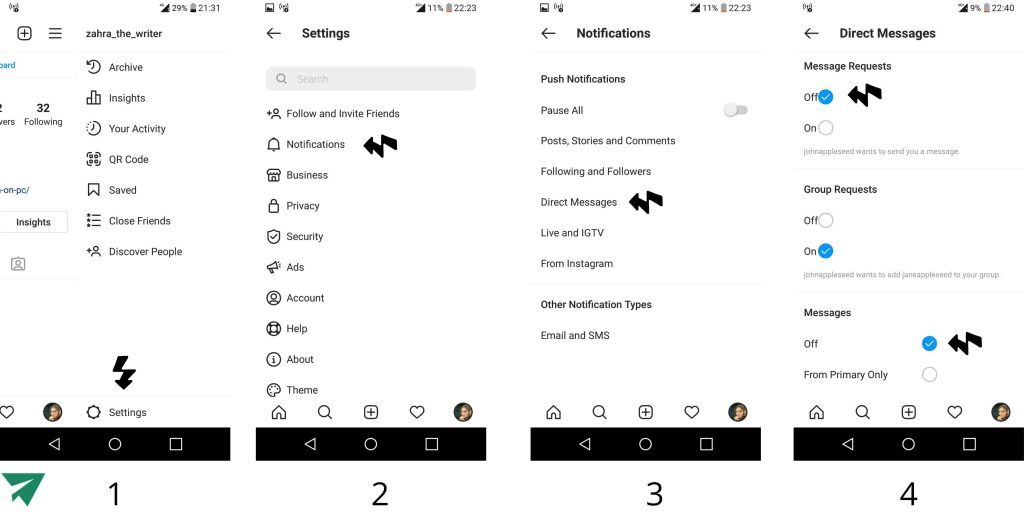
How To Turn Off DM Notification On Instagram?
Sometimes the messages are not the only problem to you, it’s the notifications that are annoying. In this case, you can forget about all the methods about blocking Instagram messages and only turn off DM notifications following these steps:
- Go to your profile and tap on Setting
- Tap on Notification
- Tap on Direct Messages
- Turn off Message Request and Message notifications
Bottom Line
Blocking messages on Instagram is a straightforward process that can help you regain control over your interactions and protect your peace of mind. So, learning how to block messages on Instagram can help you prevent unwanted or annoying messages that might be upsetting to you.
FAQs
If you receive messages that are annoying, you can either block specific users or adjust your privacy settings.
Yes, you can disable Instagram DMs by adjusting your privacy settings. While you can’t completely turn off direct messages, you can limit who can send you DMs. Go to your profile, tap on the three lines in the top right corner, select “Settings,” then “Privacy,” and finally “Messages.”
Here, you can choose to allow messages only from people you follow or even restrict messages from others, which significantly reduces the chances of receiving unsolicited DMs.
Yes, you can block chats on Instagram by blocking specific users. To do this, go to the chat with the person you want to block, tap their name at the top, and select “Block” from the options. Once blocked, that user will no longer be able to message you or see your profile.
Restricting sends messages to your requests folder and hides comments unless approved, while blocking cuts off all interactions, including profile visibility.
No, if you block someone on Instagram, you will not be able to see their messages or any interaction you’ve had with them. Blocking removes all previous messages, and the blocked user will no longer be able to contact you, see your profile, or view any of your posts or stories.
If you wish to see past messages, you’ll need to unblock the user, but this will re-enable their ability to message you.
If you are asking whether or not you can block all DMs of all kinds from any user on Instagram, my answer is no! Instagram is a friendly platform, and you can not turn all DMs off. You can only limit the DMs you receive.